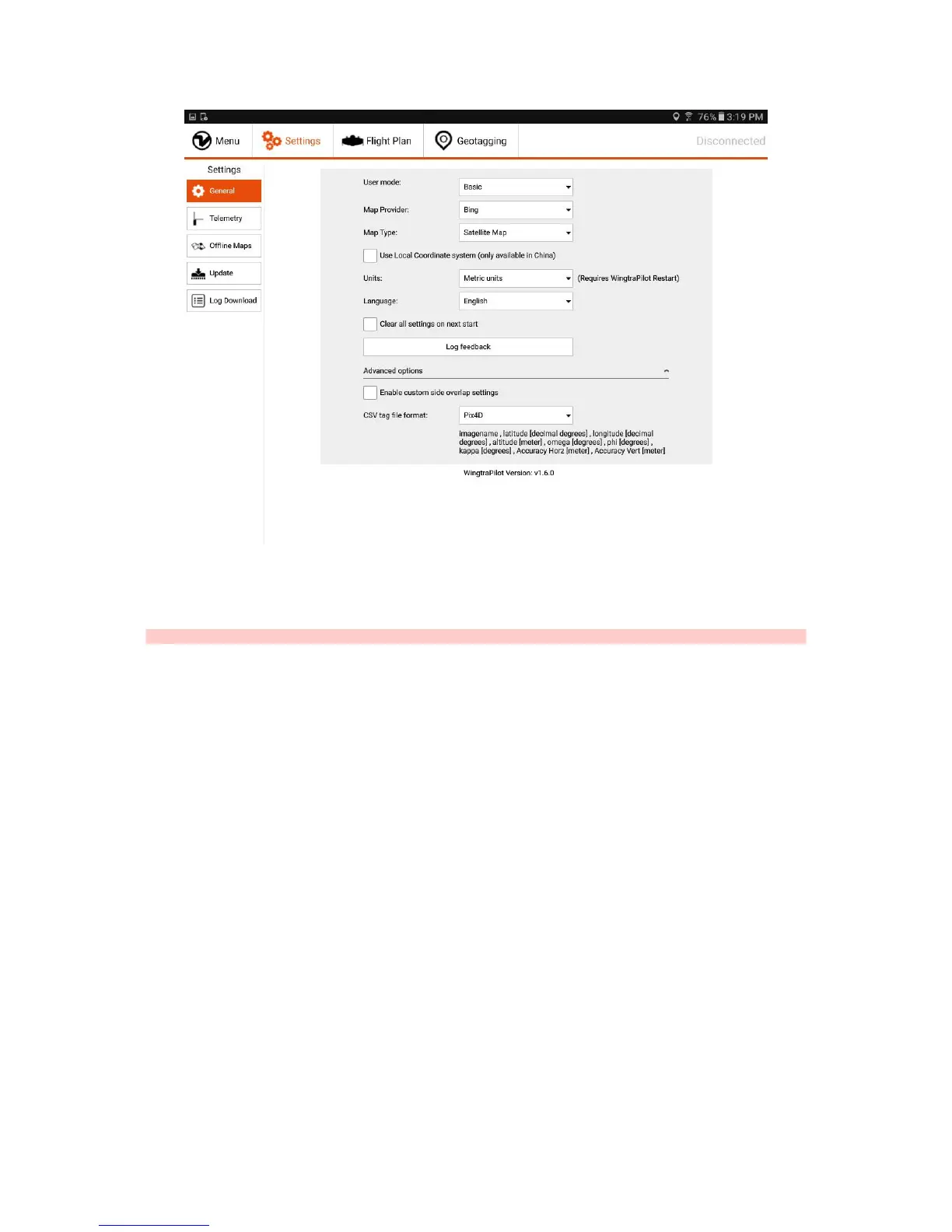
Furthermore, the user mode can be changed in the General Settings tab. Please always use the Basic mode and only switch to Wingtra mode if you are told to by the
Wingtra Support. In the Basic mode, you get all functionality that is needed to plan and conduct a data collection flight. There is no need to go to Wingtra mode as long as
everything works fine with WingtraOne. In Wingtra mode, you have full access to the flight parameters, sensor calibrations, and advanced settings. This mode will be
removed with one of the upcoming updates and is only in place to make first support as efficient as possible. You can easily make WingtraOne un-flyable if you do not
know what you are doing!
Caution: Never switch to Wingtra mode unless you are told by the Wingtra Support.
On the bottom of the General Settings you find more specific settings by tapping on "Advanced options". If you check "Enable custom side overlap settings" you will be
able to plan flights with negative overlaps. This is useful for applications, where an image sample of a large area is required but no stitching. Additionally, the format of the
optionally generated geotagging file (csv) can be chosen. How the csv file will be structured, depending on your choice, can be seen below the drop-down list. To generate
the geotagging file during the normal geotagging procedure, "Create CSV tag file" needs to be checked in the tab Geotagging before geotagging is started.



 To Next Page