Advanced Flight Planning
1. Flying large Flight Plans
2. Flying in difficult terrain
3. Flying in high winds
4. Flight direction
Flying Large Flight Plans
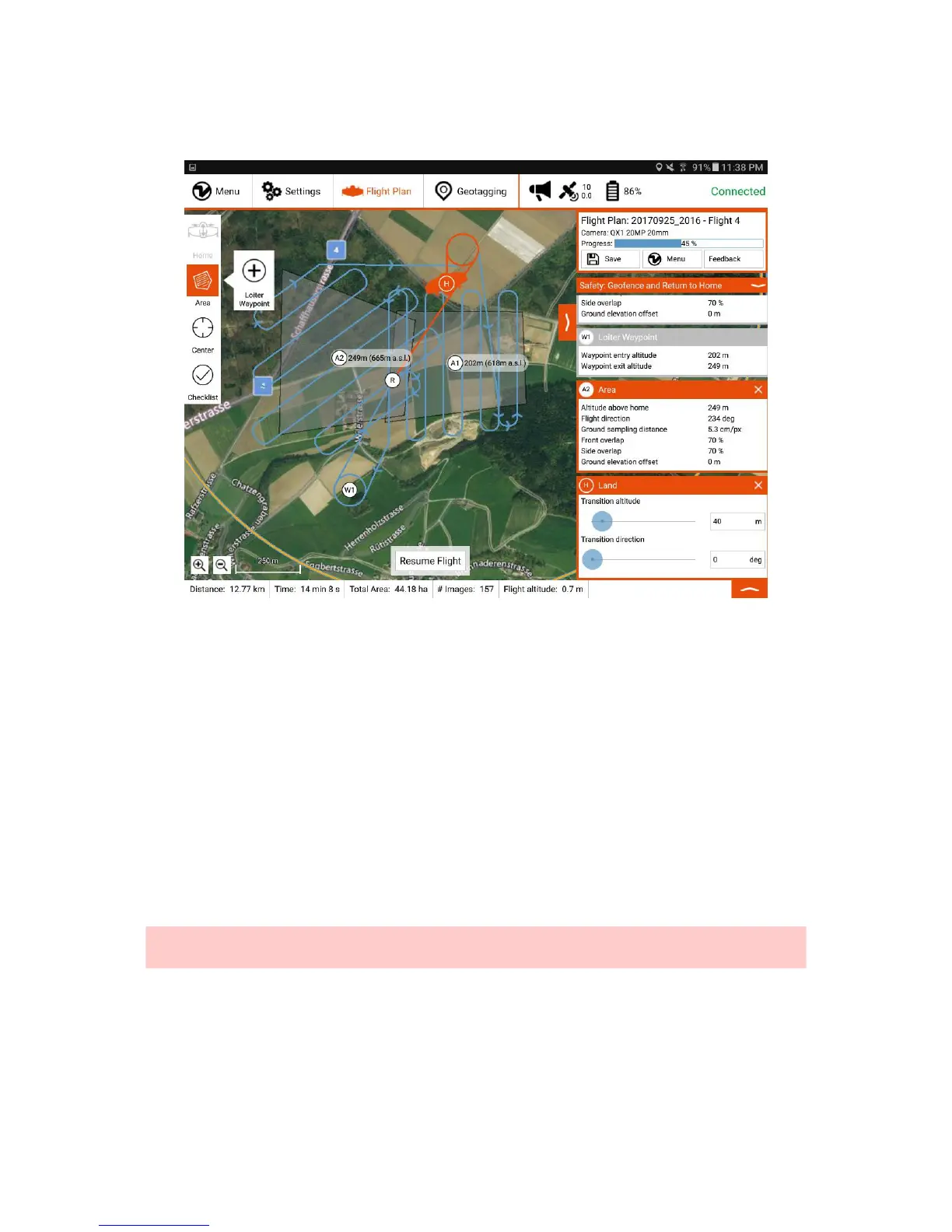
Covering very large areas requires the splitting in multiple flights. WingtraPilot offers the feature to resume a Flight Plan after landing to swap the batteries. When Return-
to-Home is triggered either manually or by low battery, the plane returns to land. After landing, the normal workflow of downloading geotags, as well as geotagging can be
followed. At this point the part of the Flight Plan that was not flown yet can still be adapted. So can be the geofence and other safety settings.
To resume the Flight Plan simply go through the preflight checklist again and launch the flight. The resume point is shown on the map as displayed above (R).
Flying in Difficult Terrain
In case of difficult terrain and other constraints like no-fly-zones there are some options to facilitate path planning. Note that the areas do indicate their relative altitude and
when connected to a vehicle also their absolute altitude above sea level (a.s.l.). The lower part of the application features an altitude graph that indicates the flight altitude
over the planned flight. Upon connection to the vehicle at the takeoff location, it also complements the relative altitude scale with absolute altitude. Consider displaying the
terrain map (Settings) if terrain is a concern.
In order to circumnavigate certain regions make use of the loiter waypoints. Those are customarily automatically inserted between two areas. More of them can be
inserted by pressing and holding the area button and then tapping the loiter waypoint button displayed in the figure above. Note that the entry and exit altitudes are usually
linked to the areas, but when the adjacent element is not an area, it can be adjusted to suit the path planning needs. Be aware that loiter waypoints are always skipped
when resuming a Flight Plan, i.e. the Flight Plan never resumes at a loiter waypoint.
Caution: RTH and resumed paths are agnostic to terrain and it is the operators responsibility to make sure operation is safe. Please note also that when not flying the
full Flight Plan, e.g. in a resume paradigm, the altitude graph does not indicate the true flight, but the full Flight Plan. Also, WingtraOne will exit the takeoff loiter circle at
the altitude of the resume point, which can be seen on the map prior to the flight.
Flying in High Winds
WingtraOne can be operated safely in the specified wind bounds without caring about wind direction during flight planning. Nonetheless flight behavior and data quality is
influenced by wind and can be optimized if you follow some recommendations:
1. Set the flight direction such that the sweeps are flown perpendicularly to the wind.
2. In case you fly far away (> 1-2 km) and WingtraOne has to fly against the wind on the way back to home, RTH on 25% battery remaining is on the limit. Be prepared
to trigger RTH manually earlier (e.g. on 30% or 40% battery remaining).
3. Reserve more space for takeoff and landing.
4. If flight behavior during descent looks scary, take over in Assisted Mode and land manually (WingtraOne is least stable while descending, by taking over, you stop the
descent and WingtraOne stabilizes).



 To Next Page