Put Matboard onto CMC
*Make sure there are two layers of
disposable slipsheets of adequate size
underneath the matboard to be cut.*
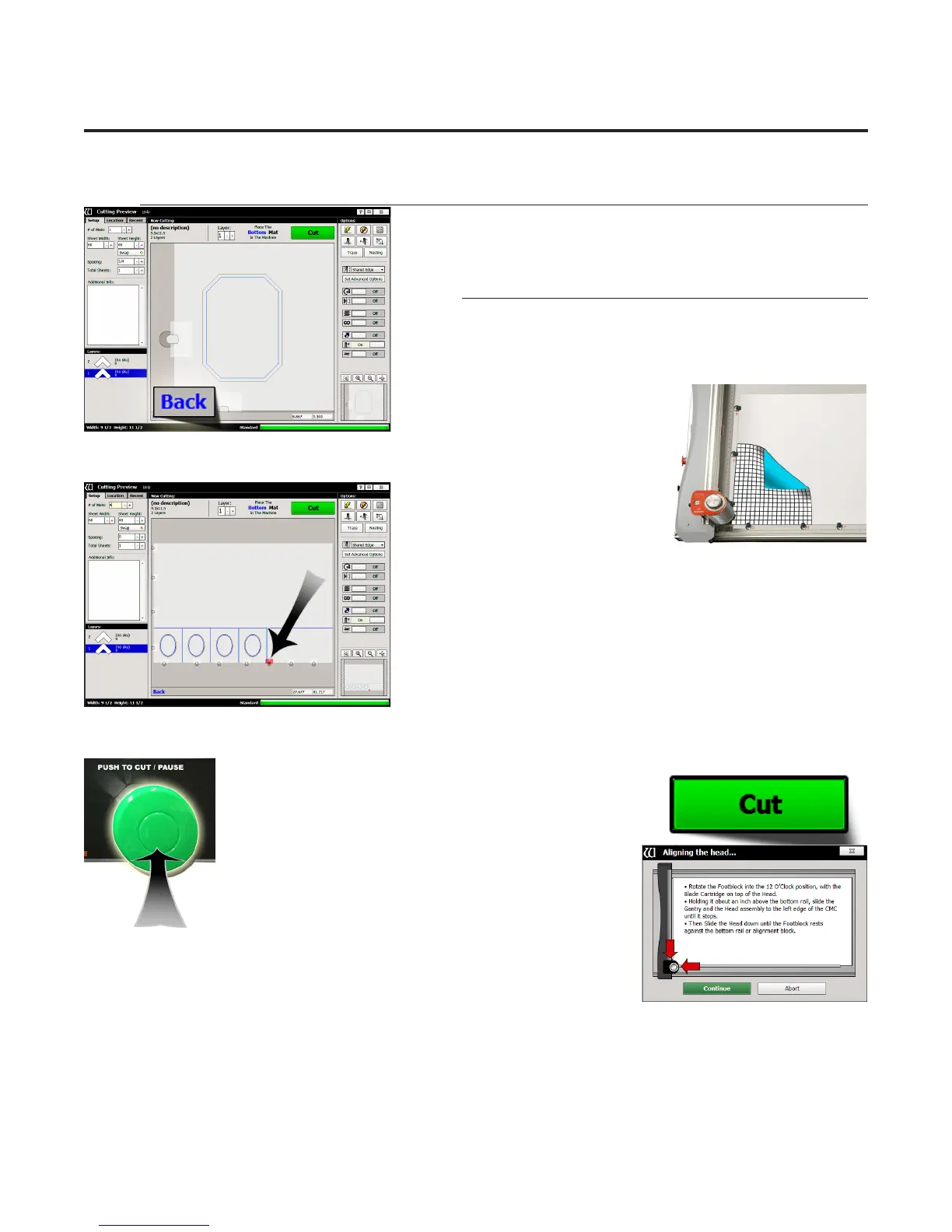
1. The cut preview displays whether the current layer is to be cut
from the front or from the back of the matboard. This determines
how to place the matboard into the CMC.
2. When cutting from the back, place
the matboard face down onto the CMC (facing away from the operator). Make
sure the matboard nestles tightly under the horizontal and vertical clamp of the
CMC. Since we’re not cutting the
outside, place a pre-cut matboard of
adequate size.
3. If there are any red indicators showing that any of the clamps are in
the way of cutting, the clamp will need to be rotated. See “Adjusting
Clamps for Zero Waste” on page 24.
Push Cut
1. Push the green Cut button on the control panel on the left side of the board to cut the design.
Optionally, you can click the Cut button on the Cut Preview
Screen.
2. If the motors are disengaged, the software will prompt to Align
the Head. When the motors are disengaged, the gantry can
be moved easily back and forth and the head moves easily
up and down on the gantry. See “Align the Head” page
21 for instructions on how to Align the Head.
3. If the head is aligned but a dierent cartridge or blade
depth is needed, user will be prompted to change the blade
cartridge and/or the blade depth. See “Insert Blade Cartridge and Adjust
Blade Depth” page 22 for more information.
20
Wizard™ International, Inc., 4600 116th St. SW, Mukilteo, WA 98275 888/855-3335 Fax: 425/551-4350 wizardint.com
20-34304-1A GettingStartedManual9000zFrameShop
04/05/19
Wizard™ CMC Model 9000z Hardware and Software Getting Started Guide


 To Next Page