page 24 of 84
UNIT
(BlueMETER
BASIC only)
Setting the measuring unit.
The desired measuring unit can be selected by repeatedly pressing the key <ON/MODE> until
the selection pointer is below the function UNIT. Confirm with the <ENTER> key.
The following measuring units can be chosen at the BlueMETER BASIC:
XXX.XXX
XX.XXXX
XXXX.XX
XXX.XXX
XX.XXXX
XX.XXXX
XXXX.XX
XXX.XXX
XXXX.XX
XXX.XXX
XX.XXXX
XXXX.XX
XXXX.XX
XXX.XXX
XXXX°XX'
XXXX'XX"
XXXXXX"
XXXXX.X"
XX°XX’XX’’
GON
GON
mm/m
mm/m
"/10"
"/12"
mRad
mRad
mm/REL
mm/REL
"/REL
A %
o
%o
DEG
DEG
DEG
DEG
DEG
DEG
New degree, 3 decimals
New degree, 4 decimals
mm per m / 2 decimals
mm per m / 3 decimals
Inch per 10 Inch / 4 decimals
Inch per 12 Inch / 4 decimals
Milliradian / 2 decimals
Milliradian / 3 decimals
mm per relative base / 2 decimals
mm per relative base / 3 decimals
Inch per relative base / 4 decimals
Artillerie-permille
Permille
Degree / 3 decimals
Degree / Minutes
Minutes / Seconds
Seconds
Seconds / 1 decimal
Degree / Minutes / Seconds
C
HANGE RELATIVE BASE / SAVE SET-UP
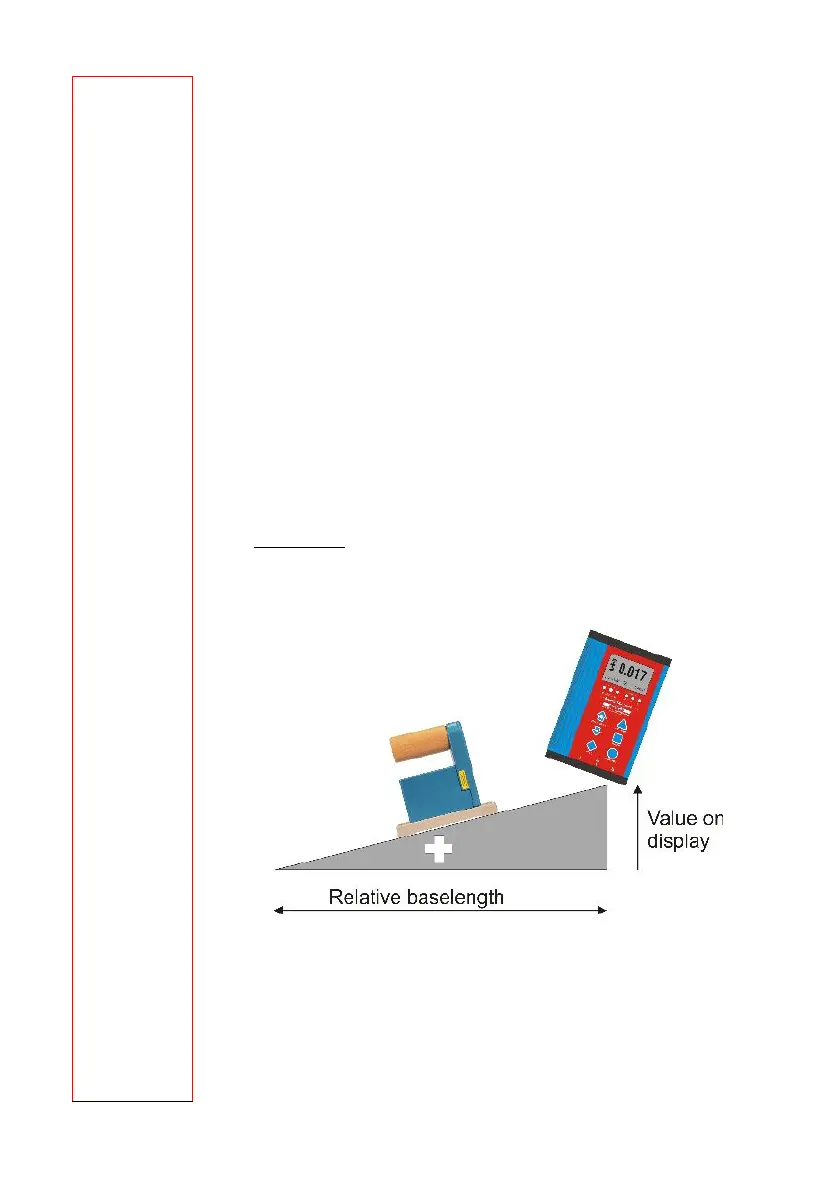
A mode, displaying inclination by the height in mm [mm/REL] / inch ["/REL] at the end of a
straight line with the length previously set, is included in the BlueMETER BASIC. Factory
default settings for base length are: 1000 mm or 10.000 inch.
After selecting the unit [mm/REL] or ["/REL] the last defined relative base length is displayed. If
no relative base length has been selected previously a standard base length of either1000 mm
or 10.000 inches is shown. This relative base length can be changed as follows:
• The displayed values may be changed by using the key <ZERO/SELECT
±>, the
change begins with the last (lowest) digit
• Using the key <ON/MODE> the next digit to be changed is selected
• At the end the changes will be saved by using the key <ENTER>
The displayed value is from now on the measured height related to the
relative base length



 To Next Page