19 | Full HD Digital Video Recorder
3.2.3 Icons
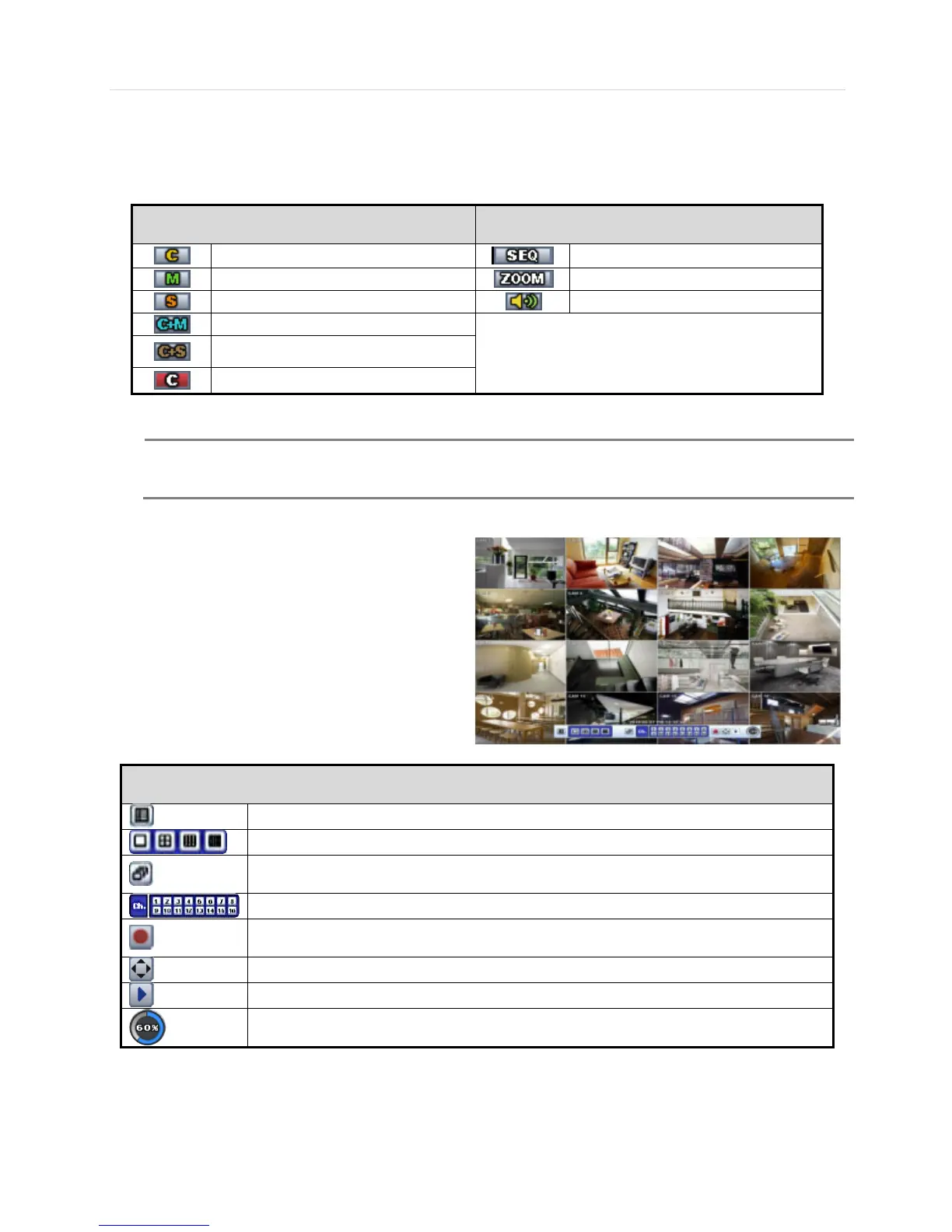
The live mode display’s icons or messages will be indicated on the screen to indicate the system mode or status.
Below are the icon categories that are indicated on the monitor:
at Left-upper corner on each channel screen
at Left-bottom corner on full screen.
Motion Detection Recording
Sensor Activating Recording
Continuous+ Motion Recording
Continuous + Sensor Activating
Recording
If you cannot find any colored-mark in the top right corner of the live screen mode, then it means that the
system does not record any image. In this case, you need to check recording schedule or camera of the
The sliding menu for display will be appeared when mouse cursor move into bottom and right click of mouse enale to access
pop-up-menu.
To show the menu bar, move the mouse’s cursor to the
bottom of the screen. The menu bar will be displayed.
To hide the menu bar, move the mouse’s cursor away
from the menu bar.
Menu Bar
Menu button. When pressed, System Setup, Search, Backup, Logout will appear.
Screen split options- Select from single channel, 4 channel, 9 channel, or 16 channel display.
Sequence- if pressed, the system will start displaying all the channels in sequence mode. To
stop, press the button again, or right click on the screen and select ‘SEQUENCE’
CH. Buttons- view a specifc channel in full screen mode.
Instant (emergency) recording- The system will record video based on the panic record
settings (Default: 15FPS @ 1080P).
PTZ mode- Control any supported PTZ cameras by moving the mouse pointer.
HDD usage indicator- Indicates the percentage of your HDD being used. If it shows 60%, then
60% of HDD space has been used.


 To Next Page