DocuMate 250 Scanner Installation Guide 11
Scanning with the Scanner Button
Scanning with the
Scanner Button
When you press the scanner button, your document is scanned
using predefined scan settings and then the image is sent to a
software application on your computer. To change scan settings,
see “Configuring the Scanner Button” on page 12.
Load and Scan Documents
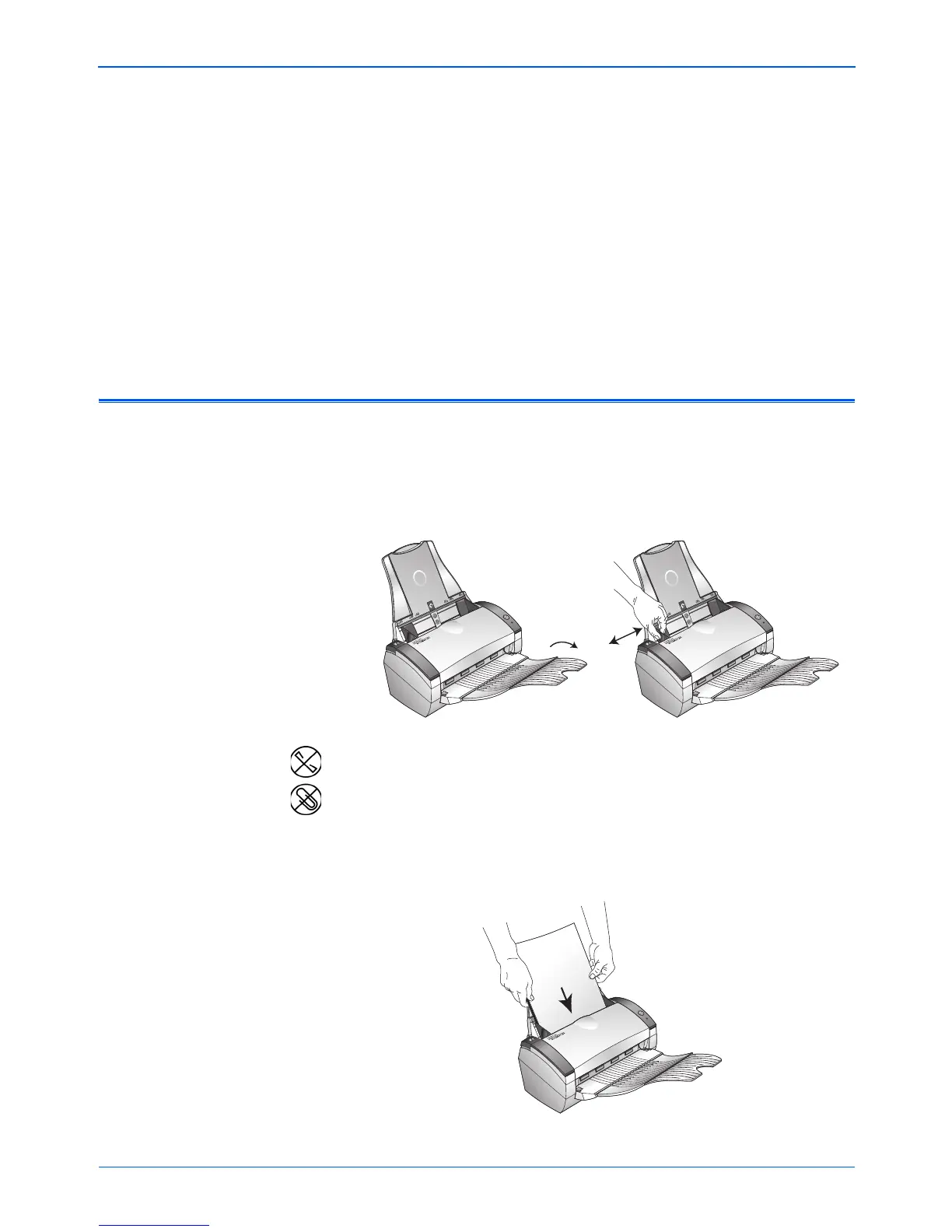
1. If you are scanning legal-sized documents, unfold the output
tray extension.
2. Adjust the paper guide for the size of paper.
3. Load the documents face down, with their tops into the
automatic document feeder.
NOTE: Remove any staples or paper clips from the documents
before loading them into the automatic document feeder. Staples
and paper clips can jam the feed mechanism.



 To Next Page
 Loading...