Maintenance
46 DocuMate 250 Scanner Installation Guide
Clearing Paper Jams
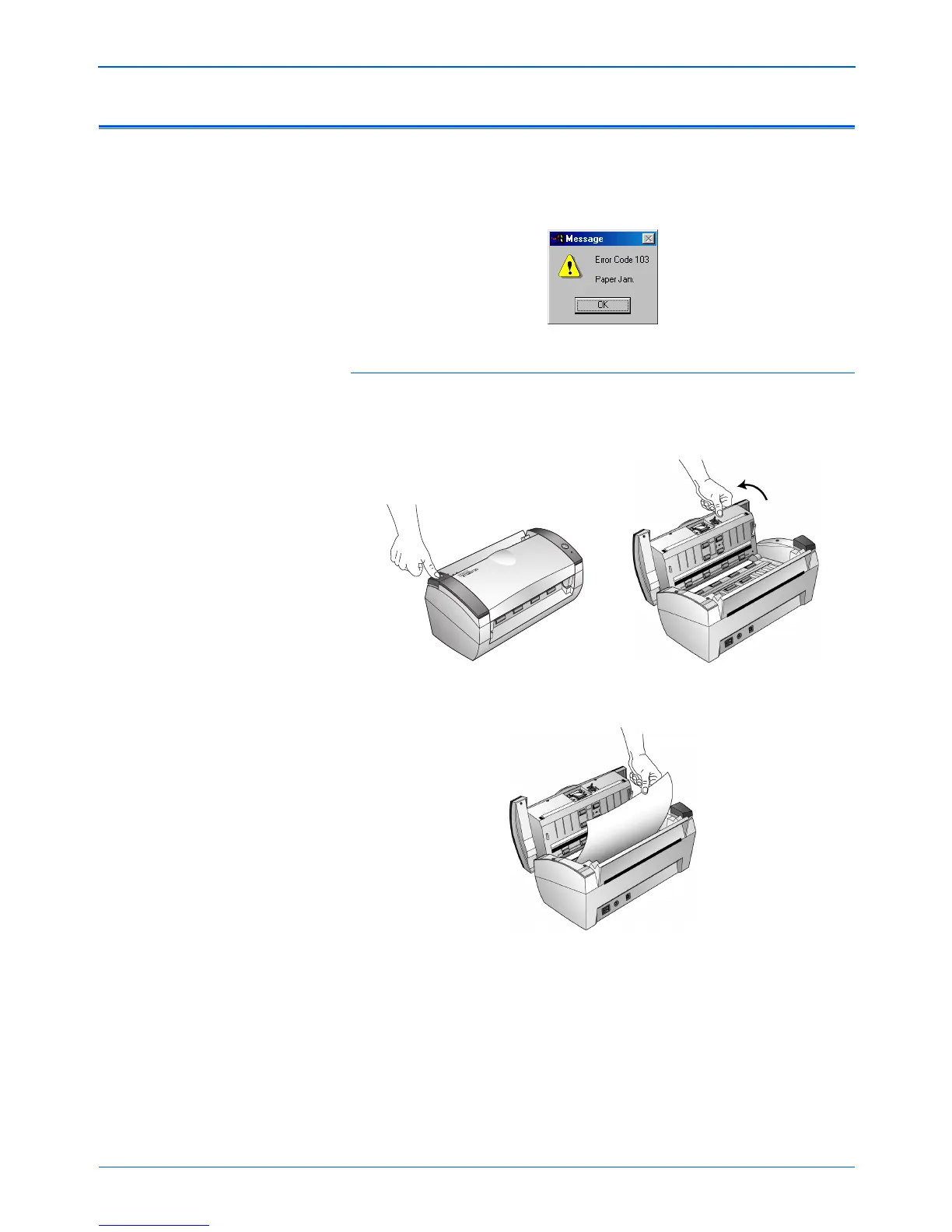
If your scanner stops scanning due to a paper jam in the Automatic
Document Feeder, a warning dialog box opens after a few
moments.
To clear a paper jam:
1. Press the ADF cover release on the top-left of the scanner
body to open the automatic document feeder cover.
2. Remove the jammed paper and close the cover.
To reduce the number of paper jams, smooth and straighten the
paper before scanning and adjust the guides to the paper size.



 To Next Page
 Loading...