DocuMate 250 Scanner Installation Guide 39
Scanning from PaperPort
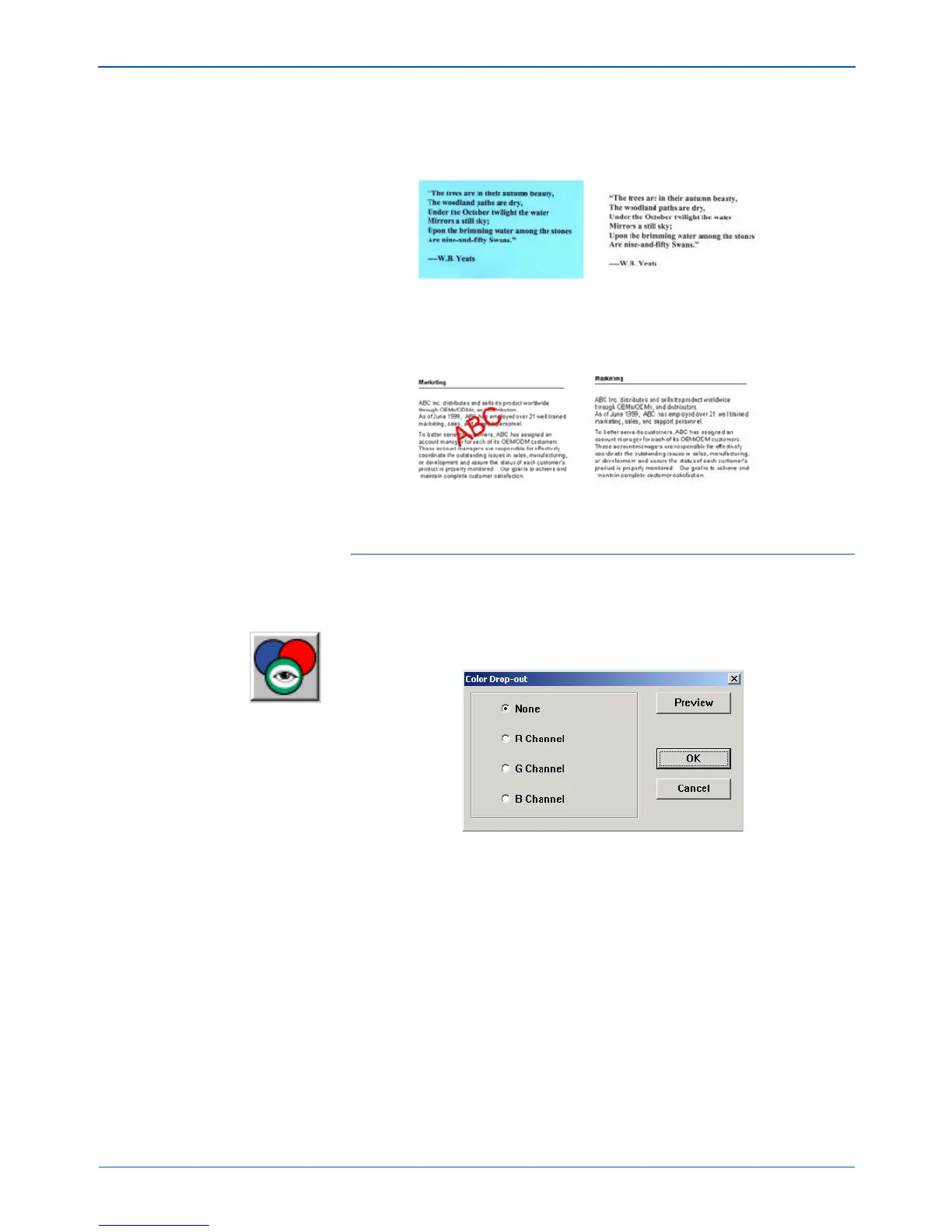
Here are some examples of color drop-out:
To drop the color out of a black and white, or grayscale
image:
1. From the Image Type list, choose Black and White, Halftone,
8-Bit Gray, or 16-Bit Grayscale.
2. Click the Color Drop-out icon.
3. On the Color Drop-out dialog box, choose a color to drop out.
4. Click OK.
Now when you scan the black and white or gray item, the
selected color is removed.
The original with black
text on a blue background
The scanned item with the
B Channel (Blue) dropped out
The original with a red
watermark over black text
The scanned item with the
R Channel (Red) dropped out



 To Next Page
 Loading...