EasyManua.ls Logo

Xerox Phaser 6500 - User Manual

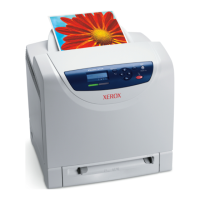
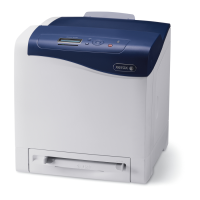
Xerox Phaser 6500
162 pages
Print Icon
To Next Page IconTo Next Page
Loading...
Xerox Phaser 6500
Color Laser Printer
Xerox
®
Phaser
®
6500
User Guide
Guide d'utilisation
Italiano Guida per l’utente
Deutsch Benutzerhandbuch
Español Guía del usuario
Português Guia do usuário
Nederlands Gebruikershandleiding
Svenska Användarhandbok
Dansk Betjeningsvejledning
Čeština Uživatelská příručka
Polski
Przewodnik użytkownika
Magyar
Felhasználói útmutató
Русский Руководство пользователя
Türkçe Kullanım Kılavuzu
Ελληνικά Εγχειρίδιο χρήστη

Table of Contents

Other manuals for Xerox Phaser 6500

Questions and Answers

  • T
    Thomas JonesAug 31, 2025
    What does 'Low Density Xxx Cartridge' mean on Xerox Phaser 6500 and how to fix it?
    • M
      Michael WattsSep 1, 2025
      If your Xerox Printer displays 'Low Density Xxx Cartridge', it means toner is not distributed evenly in the specified cartridge. Remove and shake the cartridge, then reinstall it.
  • J
    John BonillaSep 12, 2025
    How to fix blurry colors or white area around objects on Xerox Phaser 6500 Printer?
    • J
      Julia FrancoSep 12, 2025
      If the colors are blurry or there is a white area around objects on your Xerox Printer, perform an automatic color registration adjustment because the color-to-color alignment is not correct.
  • J
    joshua33Aug 30, 2025
    How do I resolve 'Jam at Tray 2' error on my Xerox Phaser 6500?
    • S
      Steven CobbAug 30, 2025
      If your Xerox Printer displays 'Jam at Tray 2', it indicates that paper is jammed inside the paper tray. Open Tray 2 and remove the jammed paper.
  • A
    Anna ChavezSep 13, 2025
    What to do if condensation has occurred inside the Xerox Printer?
    • B
      brittney39Sep 13, 2025
      If condensation has occurred inside your Xerox Printer, turn on the printer and leave it on for at least one hour to get rid of the condensation.
  • J
    Jason HowardSep 12, 2025
    Why are horizontal bands appearing on my Xerox Printer prints?
    • M
      Mrs. Jennifer HolderSep 12, 2025
      If horizontal bands appear on your Xerox Printer, replace the imaging unit because it has been exposed to too much light, possibly from leaving the front door open too long.
  • M
    Megan HallSep 17, 2025
    How to fix 'Load Tray Xxx' error on Xerox Phaser 6500 Printer?
    • A
      Amy GibbsSep 17, 2025
      If your Xerox Printer displays 'Load Tray Xxx', it means the printer has detected a paper size mismatch or no suitable paper is loaded in any of the trays. Open the specified tray, remove the paper, insert paper of the correct size, and then close the tray.
  • R
    Ryan SmithSep 23, 2025
    How to fix 'PDL Error' on Xerox Printer?
    • E
      Eric BensonSep 23, 2025
      If your Xerox Printer displays 'PDL Error', an error relating to PCL emulation has occurred. Press the OK button to clear the message, cancel the current print job, and conduct the next print job, if any.
  • M
    Matthew ConnerAug 27, 2025
    How to troubleshoot Xerox Phaser 6500 when it has no power?
    • A
      acookAug 27, 2025
      If your Xerox Printer has no power, first, ensure the power button is in the On position. If that's not the issue, check the power cord to see if it's disconnected or not securely connected; turn off the printer, reconnect the cord, and then turn it back on. Also, make sure the printer is connected to a power outlet with the correct voltage and not to an uninterruptible power supply or a power strip shared with high-power devices. Connect the printer to a suitable power outlet or a dedicated power strip.
  • F
    Frank WalkerAug 26, 2025
    Why is my Xerox Printer printing vertical black or color streaks?
    • D
      dwilliamsAug 26, 2025
      If your Xerox Printer is producing vertical black or color streaks, the transfer belt unit may be old or damaged and require replacement. Ensure that the toner cartridges are Xerox toner cartridges and meet specifications; replace them if necessary. There may also be a problem with the toner cartridge for that color, so check the toner cartridge for damage and replace if necessary.
  • A
    ajohnsonAug 25, 2025
    Why is my Xerox Phaser 6500 printing blank pages?
    • A
      Alexandria Turner DVMAug 26, 2025
      If your Xerox Printer is producing blank pages, remove the paper stack from the tray, fan it, then reinsert it to prevent multiple sheets from feeding at once. Verify that the toner cartridges are Xerox toner cartridges and meet specifications, replacing if necessary. Also, the transfer belt unit might be old or damaged and need replacement.

Summary

Safety

Electrical Safety

Guidelines for safe electrical operation, including power cord usage and warnings about hazards.

Operational Safety

Guidelines for safe operation, including handling, ozone release, and printer placement.

Maintenance Safety

Precautions to take during printer maintenance procedures to ensure safety.

Features

Installation and Setup

Installation and Setup Overview

Step-by-step guide to the initial installation and setup of the printer.

Connecting the Printer

Instructions for connecting the printer via USB or network cable.

Configuring Network Settings

Steps for setting up TCP/IP, IP addresses, and network configurations.

Installing the Print Drivers

Procedures for installing print drivers for Windows, Macintosh, and Linux.

Printing

Loading Paper

Detailed instructions for loading paper into various printer trays and the manual feed slot.

Printing Using Secure Print

How to set up and print confidential documents securely.

Control Panel Menus

Admin Menu

Access to printer configuration settings via submenus like Network and System Setup.

Maintenance

Ordering Supplies

Information on ordering consumables like toner and routine maintenance items.

Troubleshooting

Troubleshooting Overview

Introduction to troubleshooting resources and common issues.

Control Panel Messages

List and explanation of status and error messages displayed on the control panel.

Problems with the Printer

Common printer issues like no power or failure to print, with solutions.

Paper Jams

Guidelines for preventing and clearing paper jams from various printer locations.

Xerox Phaser 6500 Specifications

General IconGeneral
Monthly Duty CycleUp to 40, 000 pages
Duplex PrintingManual
Print TechnologyLaser
Maximum Print Resolution600 x 600 x 4 dpi
First Page Out TimeAs fast as 12 seconds
ConnectivityUSB 2.0, Ethernet
Paper Capacity250 sheets + 1 sheet bypass tray
Supported Operating SystemsWindows, Mac OS, Linux
Print SpeedUp to 24 ppm (color) / Up to 24 ppm (black)

Related product manuals