EasyManua.ls Logo

Xerox Phaser 6600 - User Manual

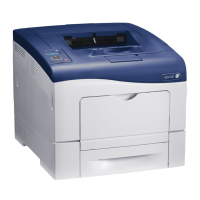
Xerox Phaser 6600
190 pages
Print Icon
To Next Page IconTo Next Page
Loading...
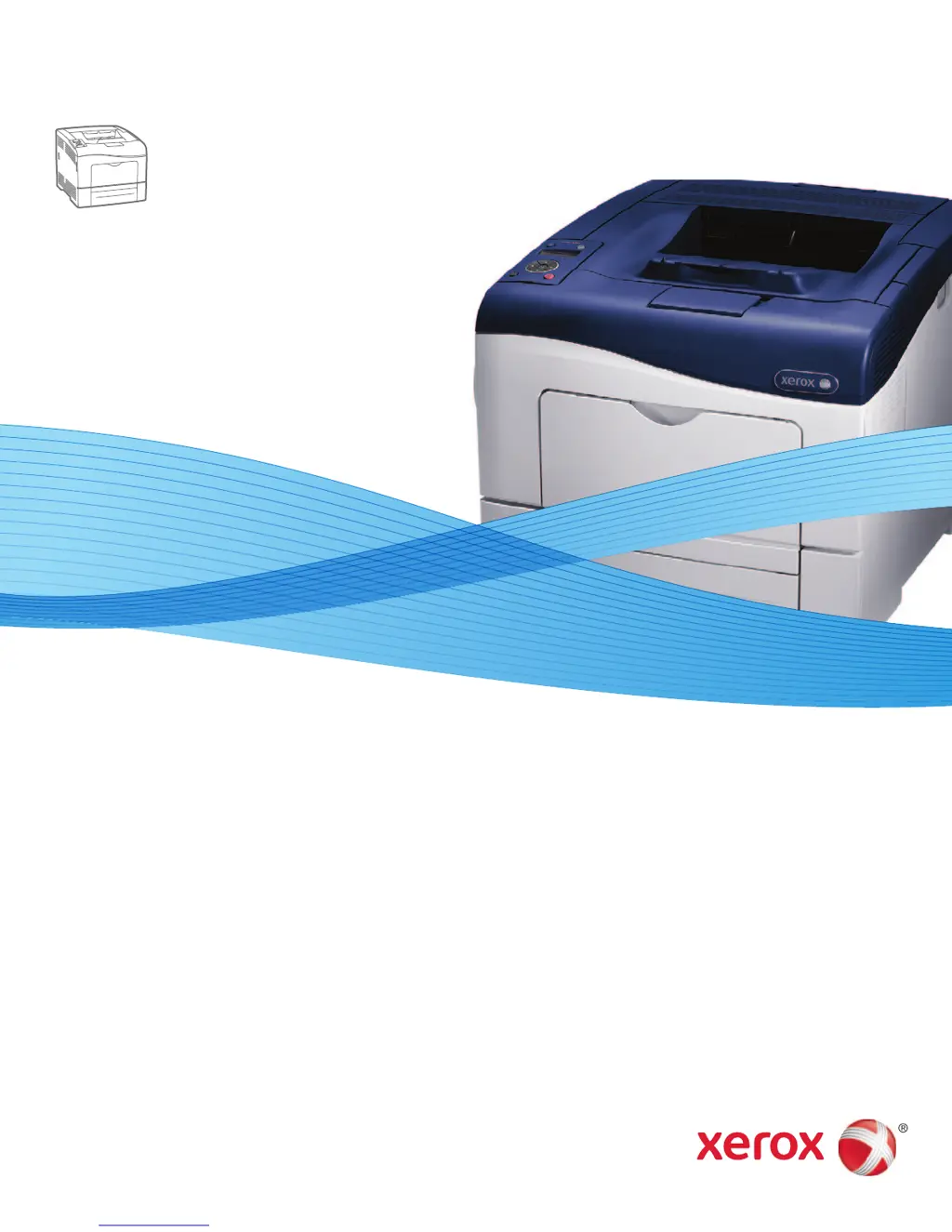
Xerox Phaser 6600
Color Printer
Imprimante couleur
Xerox
®
Phaser
®
6600
User Guide
Guide d'utilisation
Italiano Guida per l’utente
Deutsch Benutzerhandbuch
Español Guía del usuario
Português Guia do usuário
Nederlands Gebruikershandleiding
Svenska Användarhandbok
Dansk Betjeningsvejledning
Suomi Käyttöopas
Norsk Brukerhåndbok
Русский Руководство пользователя
Čeština Uživatelská příručka
Polski Przewodnik użytkownika
Magyar
Felhasználói útmutató
Türkçe
Kullanıcı Kılavuzu
Ελληνικά Εγχειρίδιο χρήστη

Table of Contents

Other manuals for Xerox Phaser 6600

Questions and Answers

  • M
    Matthew WilliamsAug 14, 2025
    What to do if my Xerox Phaser 6600 does not print?
    • J
      jessicawongAug 14, 2025
      The Xerox Printer may not print because it is in Energy Saver mode. To solve this, push the control panel button. Another reason may be that the printer has an error. In this case, follow the instructions on the control panel to clear the error. The printer could also be out of paper, so load paper into the tray. Alternatively, a toner cartridge might be empty, so replace it. If the Error Indicator is blinking, turn the printer off and on again. If both control panel indicators are off, turn off the printer, ensure the power cord is correctly plugged in, and turn the printer back on.
  • A
    Anna MartinAug 18, 2025
    Why does my Xerox Printer keep turning off?
    • T
      townsendlaurenAug 18, 2025
      If your Xerox Printer resets or turns off frequently, ensure the power cord is correctly plugged into the printer and the outlet. If that doesn't work, turn the printer off and on again. If the error persists, print the Error History from the Information Pages of the Printer Setting Utility. Also, the printer should not be connected to an uninterruptible power supply; connect it to a suitable outlet instead. Avoid using a power strip shared with other high-power devices; plug the printer directly into the outlet or a dedicated power strip.
  • S
    Steven ScottAug 21, 2025
    How to fix a Xerox Phaser 6600 that won't turn on?
    • V
      victoriawilliamsAug 21, 2025
      If your Xerox Printer does not turn on, first ensure that the power switch is turned on. Next, check that the power cord is securely plugged into the outlet. If the outlet may be faulty, plug another electrical appliance into it or try a different outlet. Finally, verify that the outlet's voltage and frequency match the printer's specifications, as listed in the Electrical Specifications.
  • M
    melissaramirezAug 25, 2025
    Why is my Xerox Phaser 6600 Printer printing from the wrong tray?
    • M
      Megan SmithAug 26, 2025
      If a document prints from the wrong tray on your Xerox Printer, the application and print driver might have conflicting tray selections. To resolve this, check the tray selected in the print driver and the page setup or printer settings of the application. Ensure the paper source matches the tray selected in the print driver or set the paper source to Automatically Select. To have the print driver select the tray, set the tray used as the paper source to Auto Selection Enabled.
  • S
    Shawn TaylorAug 28, 2025
    Why is my Xerox Printer printing so slow?
    • P
      Paul RobertsAug 28, 2025
      If your Xerox Printer is printing too slowly, it might be set to a slower printing mode for specialty paper. Check the paper type settings in both the driver and the printer control panel. Also, if the printer is in Energy Saver mode, printing will take longer to start. If a print spooler or computer sharing the printer is buffering print jobs, this can slow print speeds. To test the printer's speed, print some information pages. Complex jobs will naturally take longer, so wait for them to complete. If the print-quality mode in the driver is set to Enhanced, change it to Standard. For complex, 2-sided print jobs, increasing memory size to 768 MB RAM by installing the Productivity Kit (Memory) may help.
  • X
    xsanfordAug 31, 2025
    What to do if automatic 2-sided printing is not working on my Xerox Phaser 6600 Printer?
    • J
      Jenna ThompsonAug 31, 2025
      If you are experiencing automatic 2-sided printing problems with your Xerox Printer, ensure that you are using a supported paper size and weight. Envelopes and labels are not suitable for 2-sided printing. Also, verify that 2-Sided Print is selected on the Paper/Output tab in the print driver Properties.
  • H
    Haley SpencerSep 4, 2025
    Why is there condensation inside my Xerox Printer?
    • Y
      Yolanda MacdonaldSep 4, 2025
      If condensation has formed inside your Xerox Printer, it may have been sitting in a cold room. Allow the printer to operate for several hours at room temperature. The relative humidity of the room may also be too high. Reduce the humidity or move the printer to a location within the operating specifications.
  • T
    travis78Sep 7, 2025
    Why is my Xerox Phaser 6600 making strange noises?
    • J
      Joseph AndersonSep 7, 2025
      If your Xerox Printer is making unusual noises, there may be an obstruction or debris inside. Turn off the printer and remove any obstructions or debris that you can access.
  • R
    Rick LynchSep 10, 2025
    What to do if the paper tray on my Xerox Phaser 6600 won't close?
    • S
      Samantha ChavezSep 12, 2025
      If the paper tray on your Xerox Printer will not close, the paper tray lift plate may not be locked down. Push down on the paper stack at the back of the tray until it locks down. Also, check for any debris or objects blocking the tray, and ensure the tray isn't catching on the table or shelf.

Summary

Safety

Electrical Safety

Covers electrical hazards, power cord safety, and emergency procedures.

Laser Safety

Details compliance with laser product standards and safe usage.

Operational Safety

Provides guidelines for safe printer operation and placement.

Maintenance Safety

Outlines precautions for performing maintenance procedures safely.

Printer Symbols

Explains the meaning of various safety symbols used on the printer.

Environmental, Health, and Safety Contact Information

Lists contact details for safety and environmental inquiries.

Features

Parts of the Printer

Identifies and describes the external and internal components of the printer.

Energy Saver Mode

Explains how to manage the printer's power consumption settings.

Information Pages

Describes how to print informative pages for printer status and configuration.

Administrative Features

Covers features for managing printer settings and access.

More Information

Lists resources for obtaining additional printer documentation and support.

Installation and Setup

Installation and Setup Overview

Outlines the initial steps for setting up the printer and software.

Selecting a Location for the Printer

Provides guidelines for choosing an optimal and safe environment for the printer.

Connecting the Printer

Explains methods for connecting the printer to a computer or network.

Configuring Network Settings

Details how to set up and manage the printer's network connectivity.

Configuring General Setup Using CentreWare Internet Services

Covers printer configuration via the web interface.

Configuring AirPrint

Describes how to enable and set up AirPrint for Apple devices.

Configuring General Setup Using the Control Panel

Explains general printer setup via the device's control panel.

Configuring Security Settings Using CentreWare Internet Services

Details security configurations via the web interface.

Configuring Secure Settings Using the Control Panel

Covers security configurations using the printer's control panel.

Configuring Smart eSolutions

Explains setup for Xerox's remote management and supply services.

Installing the Software

Guides through installing necessary printer drivers and utilities.

Paper and Media

Supported Paper

Lists compatible paper types, weights, and sizes for optimal printing.

Loading Paper

Provides instructions for loading paper into various printer trays.

Printing on Special Paper

Details procedures for printing on envelopes, labels, and cardstock.

Printing

Printing Overview

Introduces the basic steps for sending print jobs to the printer.

Selecting Printing Options

Explains how to choose and configure print settings.

Printing Features

Covers advanced printing capabilities like duplexing, watermarks, and scaling.

Using Custom Paper Sizes

Guides on defining and printing with custom paper dimensions.

Maintenance

Cleaning the Printer

Details procedures for cleaning the printer's exterior and interior components.

Adjustments and Maintenance Procedures

Covers printer adjustments like color registration and firmware updates.

Ordering Supplies

Information on consumables, routine maintenance items, and ordering.

Managing the Printer

Explains how to check page counts and manage printer settings.

Moving the Printer

Provides safety instructions for relocating the printer.

Troubleshooting

General Troubleshooting

Addresses common printer issues like not turning on or not printing.

Paper Jams

Guides on locating, clearing, and troubleshooting paper jams.

Getting Help

Lists resources for obtaining assistance with printer problems.

Specifications

Printer Configurations and Options

Lists available printer models and their features.

Physical Specifications

Details the printer's dimensions, weight, and space requirements.

Environmental Specifications

Covers operating temperature, humidity, and elevation guidelines.

Electrical Specifications

Provides information on power supply, consumption, and ENERGY STAR compliance.

Performance Specifications

Outlines printer warm-up time and print speed capabilities.

Controller Specifications

Lists details about the printer's processor, memory, and interfaces.

Regulatory Information

Basic Regulations

Covers FCC, Canadian, and EU compliance standards.

Material Safety Data Sheets

Directs users to safety data sheets for printer materials.

Recycling and Disposal

All Countries

General information on disposal regulations for printer materials.

North America

Xerox take-back and recycling program information for North America.

European Union

Disposal guidelines for EU domestic and business environments.

Other Countries

Guidance for disposal in countries outside the EU.

Xerox Phaser 6600 Specifications

General IconGeneral
ColorYes
Duplex printingNo
Print technologyLaser
Maximum resolution600 x 600 DPI
Time to first page (black, normal)9 s
Time to first page (color, normal)10 s
Print speed (black, normal quality, A4/US Letter)36 ppm
Maximum duty cycle80000 pages per month
Number of print cartridges-
Internal memory256 MB
Processor frequency533 MHz
Maximum internal memory768 MB
Sound pressure level (printing)53 dB
Total input capacity700 sheets
Total output capacity250 sheets
Paper tray media typesCard stock, Envelopes, Glossy paper, Labels
ISO A-series sizes (A0...A9)A4
Standard interfacesUSB 2.0
USB 2.0 ports quantity1
AC input frequency50 - 60 Hz
Power consumption (standby)65 W
Power consumption (printing)535 W
Sustainability certificatesENERGY STAR
Weight and Dimensions IconWeight and Dimensions
Weight25500 g
Dimensions (WxDxH)429.26 x 487.68 x 383.54 mm

Related product manuals