EasyManua.ls Logo

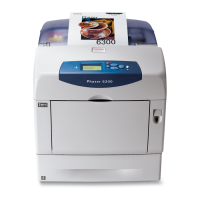
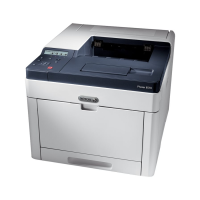
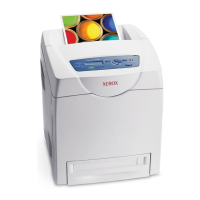
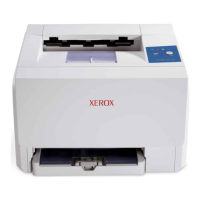
Xerox Phaser 6360 - Service Manual

Xerox Phaser 6360
564 pages
Print Icon
To Next Page IconTo Next Page
Loading...
Service Manual
Phaser
®
6300/6350/6360
701P45775
Color Laser Printer

Table of Contents

Other manuals for Xerox Phaser 6360

Questions and Answers

  • C
    coreywallJul 26, 2025
    How to fix misfeed at trays 2-5 on Xerox Phaser 6360?
    • M
      Michael WilliamsJul 26, 2025
      To fix a misfeed at trays 2–5 on your Xerox printer: * Pull the tray specified on the control panel completely out of the printer. * Remove any crumpled paper from the tray. * Ensure that the paper is loaded correctly in the tray below the fill line. * Adjust the paper guides to fit the paper. * Remove any jammed paper from inside the printer tray slot and verify that all scraps of paper are removed. * Insert the tray into the tray slot, pushing it completely into the printer. * Open Front Door A by pushing up the latch, remove any jammed paper, and then close Front Door A.
  • B
    Brent JohnsonAug 3, 2025
    How to clear jam at the fuser on Xerox printer?
    • J
      joshuajonesAug 3, 2025
      To clear a jam at the fuser on your Xerox printer: 1. Press the button on the right side of the printer to open Front Door B. 2. Pull up the two levers at both ends of the fuser. 3. Remove the jammed paper. 4. Completely push down the two levers at both ends of the fuser. 5. Close Front Door B.
  • P
    pkimAug 9, 2025
    How to clear misfeed at tray 1 (MPT) on Xerox Phaser 6360 Printer?
    • M
      Mark WrightAug 9, 2025
      To resolve a misfeed at Tray 1 (MPT) on your Xerox printer: * Remove the jammed paper from Tray 1 (MPT). * Open Front Door A by pushing up the latch on the front of the printer. * Remove any jammed paper and close Front Door A. * Fan the paper to release sheets that are stuck together, then load the paper in Tray 1 (MPT). * Do not load the paper above the fill line. * Adjust the paper guides to fit the paper. * Verify that the paper is clean and not stuck together.
  • S
    Shelby WeberAug 18, 2025
    How to resolve jam at the duplex unit of Xerox Phaser 6360?
    • M
      matthew90Aug 18, 2025
      To resolve a jam at the duplex unit of your Xerox printer: 1. Press the button on the right side of the printer to open Front Door B. 2. Remove the jammed paper. 3. Close Front Door B.

Xerox Phaser 6360 Specifications

General IconGeneral
Depth (max)698 mm
Depth (min)580 mm
Height (max)854 mm
Height (min)513 mm
Maximum width572 mm
Package length933.449 mm
Storage temperature (T-T)32 - 95 °F
Power consumption (active)750 W
Non-operating relative humidity (non-condensing)15 - 85 %
AC input voltage220 V
AC input frequency50 - 60 Hz
Power consumption (standby)105 W
Power consumption (PowerSave)22 W
Multi-Purpose trayYes
Total input capacity1800 sheets
Total output capacity250 sheets
Maximum input capacity2350 sheets
Multi-Purpose tray input capacity150 sheets
Print technologyLaser
Maximum resolution2400 x 600 DPI
Print speed (black, normal quality, A4/US Letter)40 ppm
Maximum internal memory1024 MB
Sound power level (standby)34.4 dB
Operating temperature (T-T)50 - 90 °F
Maximum duty cycle100000 pages per month
Number of print cartridges-
Page description languagesPCL 5c, PostScript 3
Package width609.599 mm
Package height1498.599 mm
Package weight83462.4 g
Custom media width89 - 216 mm
Maximum print size216 x 356 mm
Custom media length140 - 914 mm
Paper tray media typesEnvelopes, Labels, Plain paper
Paper tray media weight64 - 216 g/m²
Non-ISO print media sizesExecutive (184 x 267mm), Folio (media size), Letter (media size), Oficio (media size), Legal (media size)
ISO A-series sizes (A0...A9)A4, A5, A6
JIS B-series sizes (B0...B9)B5
Maximum ISO A-series paper sizeA4
Wi-FiNo
Security algorithms802.1x RADIUS
Standard interfacesEthernet, USB 2.0
Optional connectivityWireless LAN
CertificationCE, EMC 89/336/EEC, FCC, Low Voltage 73/23/EEC, RoHS, 2002/95/EC
Product colorBlue, White
Sustainability certificatesENERGY STAR

Related product manuals