EasyManua.ls Logo

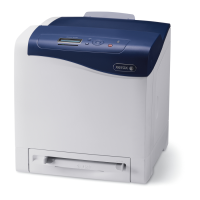
Xerox Phaser 6510 - User Manual

Xerox Phaser 6510
229 pages
Print Icon
To Next Page IconTo Next Page
Loading...
VERSION 3.0
J
UNE 2018
702P05851
Xerox
®
Phaser
®
6510 Printer
User Guide

Table of Contents

Other manuals for Xerox Phaser 6510

Questions and Answers

  • J
    Jacqueline HowellAug 14, 2025
    How to fix a Xerox Printer that does not power on?
    • B
      brownjosephAug 14, 2025
      If your Xerox Printer isn't powering on, there are several things to check: * Ensure the power switch is turned on. Look for the Power/Wake button on the printer's control panel. * Make sure the power cord is securely plugged into both the printer and the outlet. * Test the outlet by plugging in another device. If it doesn't work, try a different outlet. * Verify that the outlet's voltage and frequency match the printer's specifications. Check the Electrical Specifications section for details.
  • P
    Phillip HarrisAug 20, 2025
    Why does my Xerox Phaser 6510 reset or power off frequently?
    • N
      ndickersonAug 20, 2025
      If your Xerox Printer frequently resets or powers off, consider the following: * Ensure the power cord is correctly plugged into both the printer and the outlet. Turn the printer off, check the connections, and then turn it back on. * A system error might have occurred. Turn the printer off and on again, and print the Error History Report. If the issue continues, contact your Xerox representative. * If the printer is connected to an uninterruptible power supply, try connecting it to a suitable outlet instead. * If the printer shares a power strip with high-power devices, plug it directly into the outlet or a dedicated power strip.
  • O
    Olivia ParkerAug 25, 2025
    Why is my Xerox Phaser 6510 Printer printing from the wrong tray?
    • T
      Tamara KellyAug 25, 2025
      If your Xerox Printer is printing documents from the wrong tray, it could be due to conflicting tray selections in the application and print driver. 1. Check the tray selected in the print driver. 2. Go to the page setup or printer settings of the application you are printing from. 3. Set the paper source to match the tray selected in the print driver, or set the paper source to Automatically Select. Note: To have the print driver select the tray, set the tray used as the paper source to Auto Selection Enabled.
  • A
    amanda98Aug 31, 2025
    Why is automatic 2-sided printing not working on my Xerox Printer?
    • J
      jreedAug 31, 2025
      If you're experiencing issues with automatic 2-sided printing on your Xerox Printer, consider the following: * Ensure you are using a supported paper size and weight for 2-sided printing. Note that envelopes and labels are not suitable for 2-sided printing. * Verify that your printer model supports automatic 2-sided printing. * Check the print driver settings. In the Paper/Output tab, select Properties > 2-Sided Print.
  • W
    William MontoyaSep 3, 2025
    Why is my Xerox Printer making unusual noises?
    • K
      Kelly ParsonsSep 3, 2025
      If your Xerox Printer is making unusual noises, there might be an obstruction or debris inside. Turn off the printer and remove any obstructions. If you cannot remove the obstruction, contact your Xerox representative.
  • C
    Christine JonesSep 6, 2025
    What to do if the paper tray will not close on my Xerox Phaser 6510 Printer?
    • A
      Andre RhodesSep 6, 2025
      If the paper tray on your Xerox Printer will not close, here are a few things to check: * If the tray is extended for legal-size paper, it will protrude when inserted into the printer. * Make sure there is no debris or object blocking the tray. * Ensure the tray is not catching on the table or shelf. * If the paper lift at the back of the tray is not locked down, replace the tray.
  • D
    dwilliamsSep 9, 2025
    Why has condensation formed inside my Xerox Phaser 6510 Printer?
    • C
      cookjaredSep 10, 2025
      If condensation has formed inside your Xerox Printer: * Allow the printer to operate for several hours at room temperature if it has been in a cold room. * Reduce the humidity in the room or move the printer to a location where the temperature and relative humidity are within the operating specifications if the relative humidity is too high.
  • R
    Robert FosterNov 16, 2025
    What to do if my Xerox Printer does not print?
    • L
      lindsey84Nov 16, 2025
      If your Xerox Printer is not printing, here are a few things to check: * If the printer is in Power Saver mode, press the Power/Wake button on the control panel. * If there is an error, follow the instructions on the control panel to clear it. If the error continues, contact your Xerox representative. * Make sure the printer has paper in the tray. * Replace any empty toner cartridges. * If the Status LED is blinking amber, follow the control panel instructions to clear the error. If problems persist, contact your Xerox representative. * If no control panel indicators are lit, power off the printer, ensure the power cord is correctly plugged into the printer and the outlet, then power it back on. If the problem continues, contact your Xerox representative. * If the Printer Re...
  • C
    Cindy FloresNov 26, 2025
    Why is printing taking too long on my Xerox Printer?
    • T
      tgentryNov 26, 2025
      If printing takes too long on your Xerox Printer, here are some potential causes and solutions: * The printer might be set to a slower printing mode, such as when printing on Heavyweight paper. Ensure the paper type is correctly set in both the driver and at the printer control panel. * If the printer is in Power Saver mode, it will take some time to start printing after waking up. * The network installation could be causing delays if a print spooler or computer sharing the printer is buffering print jobs. Print a Demo Page to test the printer's speed. If the page prints at the rated speed, the issue might be with the network or printer installation. Contact your system administrator for further assistance. * The job might be complex, in which case you should wait for it to finish...

Summary

Safety

Electrical Safety

Covers general guidelines, power cord usage, and hazards to avoid for electrical safety.

Operational Safety

Outlines guidelines for safe printer operation, including handling procedures and ozone release.

Features

Control Panel

Describes the functions and buttons of the printer's control panel for user interaction.

Administrative Features

Covers access to the Embedded Web Server, IP address management, and printer configuration.

Installation and Setup

Configuring Network Settings

Covers TCP/IP addressing, assigning IP addresses, and network configuration options.

Installing the Software

Provides instructions for installing printer drivers and utilities on various operating systems.

Paper and Media

Supported Paper

Details recommended media, paper types, weights, sizes, and guidelines to avoid damage.

Loading Paper

Provides step-by-step instructions for loading paper into the bypass tray and other trays.

Printing

Selecting Printing Options

Explains how to specify printing preferences for individual jobs and set default options.

Maintenance

Adjustments and Maintenance Procedures

Details procedures for color registration, paper registration, voltage offset, fuser, and altitude adjustment.

Troubleshooting

General Troubleshooting

Helps resolve common printer issues like not powering on, frequent resets, or not printing.

Paper Jams

Covers locating, minimizing, clearing, and troubleshooting various types of paper jams.

System Administrator Functions

Connecting the Printer

Details methods for connecting the printer to wireless networks using the Embedded Web Server or control panel.

Configuring General Settings Using the Embedded Web Server

Guides on configuring date/time, timeouts, power saver, tray settings, and cloning printer settings.

Configuring Default Settings and Printing Policies from the Embedded Web Server

Explains how to configure common settings, paper supply, custom paper names, and job policies.

Configuring Secure Settings

Covers logging in as administrator, advanced security settings, LDAP, network authentication, and password rules.

Configuring User Roles and Access Permissions

Details managing user accounts, device access, printing permissions, and linking PC user names.

Managing Certificates

Covers understanding digital certificates, creating, importing, verifying, deleting, and exporting certificates.

Xerox Phaser 6510 Specifications

General IconGeneral
Print TechnologyLaser
Monthly Duty CycleUp to 50, 000 pages
Standard Paper Capacity250 sheets
Maximum Paper Capacity850 sheets
Processor Speed733 MHz
First Page Out (Black)As fast as 12 seconds
First Page Out (Color)As fast as 13 seconds
Memory (Standard)1 GB
Paper Input (Optional)550-sheet tray
Paper Output150 sheets
Duplex PrintingAutomatic
Printer TypeColor Laser Printer
Paper Capacity250 sheets standard, 850 sheets maximum
Processor Speed (Higher)733 MHz
Supported Operating SystemsWindows, macOS, Linux
Print Resolution1200 x 1200 dpi
ConnectivityUSB 2.0, Ethernet, Wi-Fi
Supported Media SizesLetter, Legal, Executive, A4, A5, B5
Connectivity Options10/100/1000Base-T Ethernet, USB 2.0, Wi-Fi
Paper Input (Standard)250 sheets
PDLPCL 6, PostScript 3, PDF, XPS
First Page Out Time12 seconds black / 13 seconds color
Maximum Paper Size8.5 x 14 in. / 216 x 356 mm
Memory1 GB
Memory Capacity1 GB

Videos

How to Replace Toner Cartridges, Drum Units and Waste Toner Box on Xerox Phaser 6510

How to Replace the Pickup Rollers and Separation Rollers on Xerox Phaser 6510

How to Refill Xerox Phaser 6510 Toner

Related product manuals