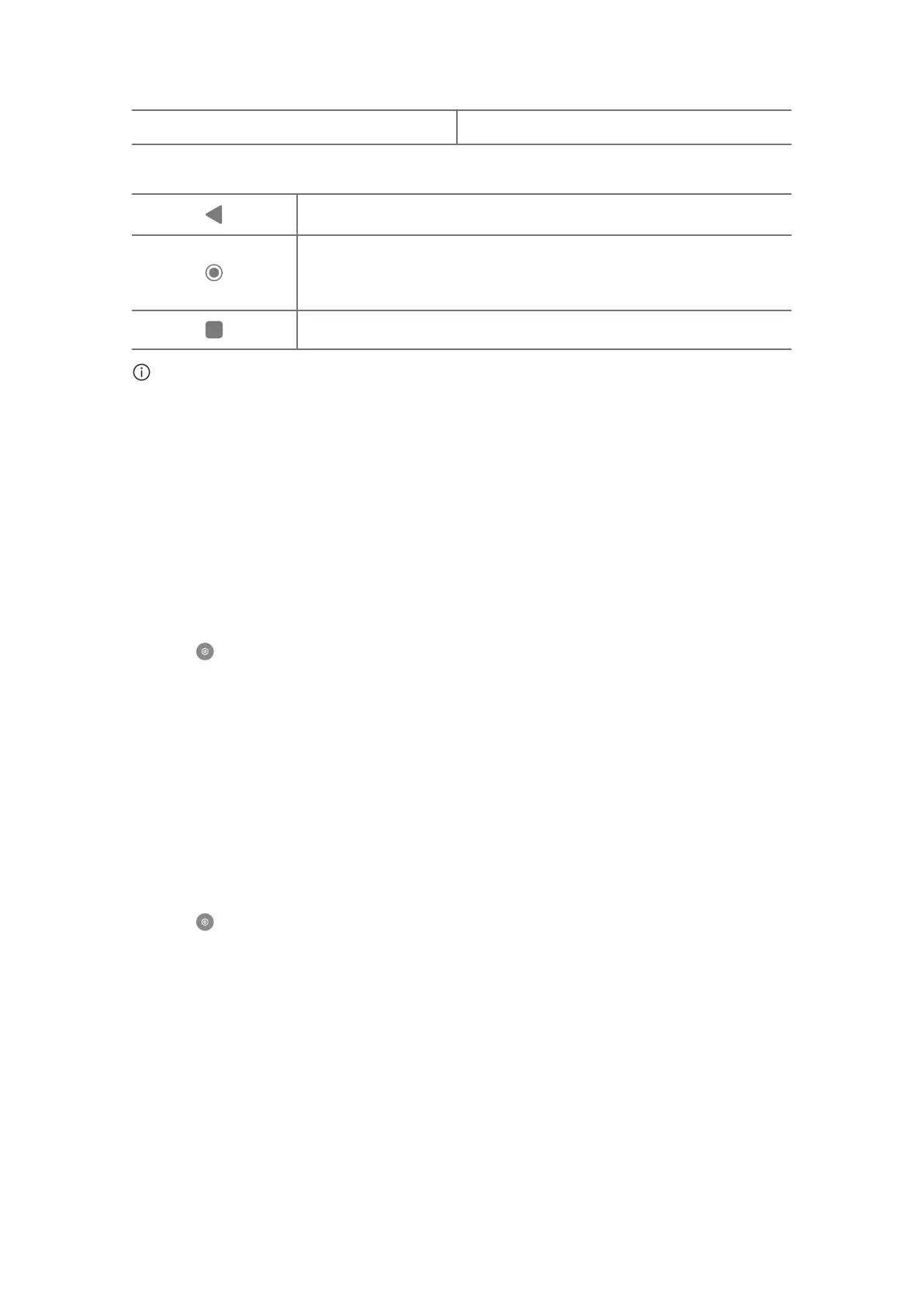
1. Status bar 2. System navigation buttons
System navigation buttons
• Tap to return to the last step.
• Tap to return to the Home screen.
• Press and hold to use Google Assistant.
• Tap to view recently-opened Apps in Recents.
Note
See Set system navigation buttons for more information.
Change transition eects
Change a transition eect when you switch between Home screen pages.
1. Enter the screen editing mode.
• Pinch on the Home screen.
• Touch and hold an empty space on the Home screen.
2. Tap to set Home screen layout.
3. Tap Transition eects to choose a transition eect.
4. Tap Done and exit the screen editing mode to save the change.
Set default Home screen
1. Enter the screen editing mode.
• Pinch on the Home screen.
• Touch and hold an empty space on the Home screen.
2. Tap to set Home screen layout.
3. Tap Set default screen to choose a default Home screen.
4. Exit the screen editing mode to save the settings.
Don't show text
Do not show text below the App icons.
1. Enter the screen editing mode.
• Pinch on the Home screen.
10














 To Next Page