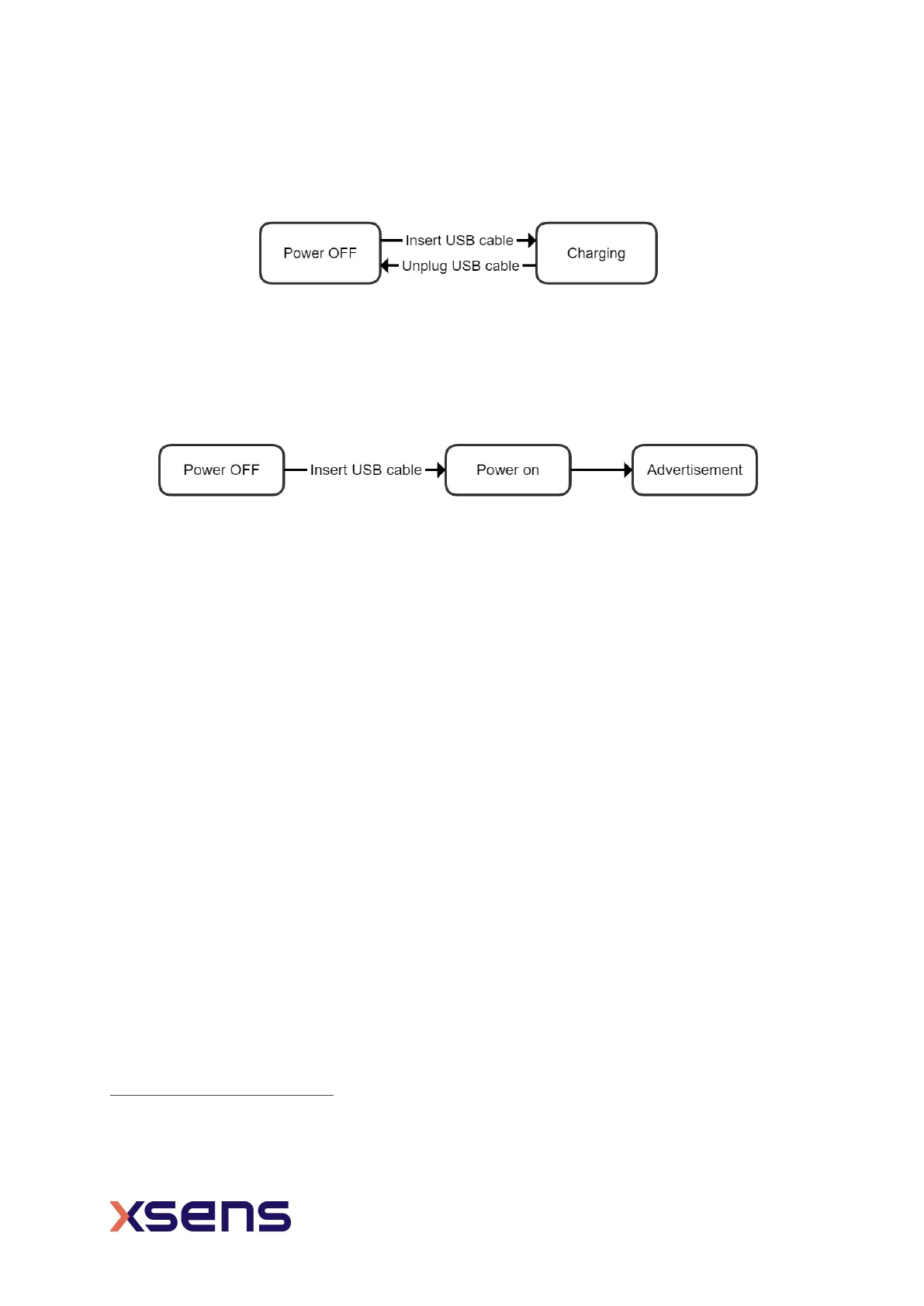
Figure 9: USB power on disabled
You can change this setting via Xsens DOT app (v2021.0) or the SDK (v2021.0). By
enabling USB power on, the sensor will power on immediately after the USB plugin. With
this feature, you can power on multiple sensors with the USB plugin at once.
Figure 10: USB power on enabled
3.3.2 Power OFF
Sensor will power off under 3 conditions:
1. Power button is pressed over 3 seconds
2. Receive power off command
3. Battery level is lower than 2%.
3.3.3 Advertisement
In advertisement mode, sensors will perform operation idle detection, waiting for BLE
connection from host devices. With the default power saving settings, if there is no BLE
connection detected over 10 minutes
4
during advertisement, the sensor will enter power
saving mode.
3.3.4 Connection
Once the Bluetooth connection is established, information such as MAC address, device tag
name, battery level and charging status... etc. can be retrieved from the sensor. In Xsens
DOT App, a reconnection will start automatically once the connection is lost.
If no measurement is started over 30 minutes
5
during connection, sensor will enter power
saving mode.
There is no sensor connection limit set in any software provided by Xsens. Refer to section
2.6.1 for best practices on connecting multiple sensors.
4
Default time threshold which can be changed in Xsens DOT App, SDK or by BLE services.
5
Default time threshold which can be changed in Xsens DOT App, SDK or by BLE services.


 To Next Page