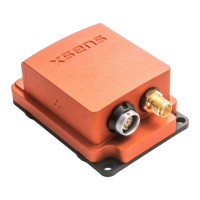
2.2.1 Power on/off
The sensor can be powered on by pressing the power button for 2 seconds, and it can be
turned off by pressing the power button for over 3 seconds. During that, the LED will give
a clear indication by its LED patterns.
2.2.2 LED status
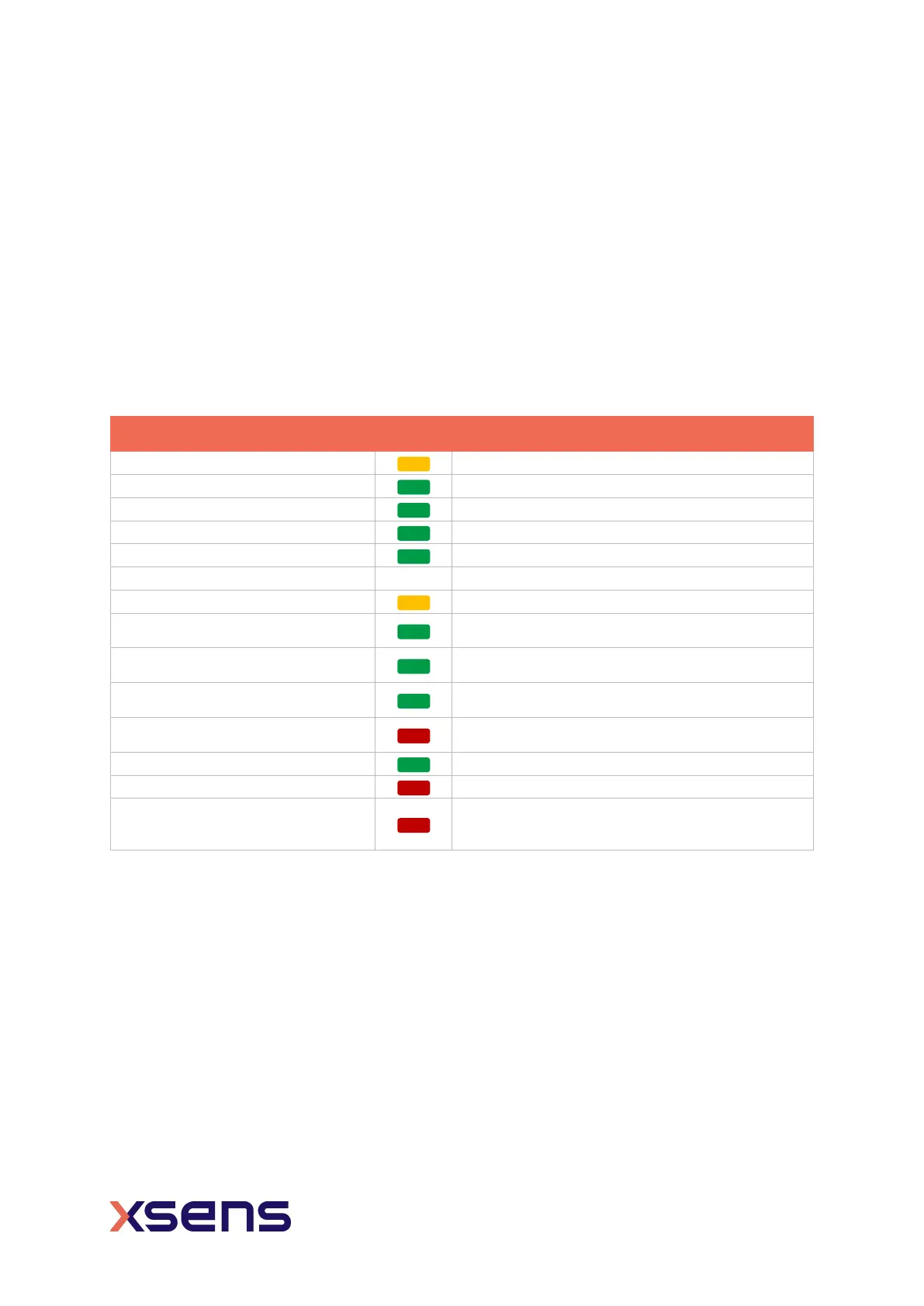
Xsens DOT v2 sensor has LED patterns to indicate different sensor states. Table 1 shows
the LED behavior and its meaning.
Table 1: LED patterns
State
LED patterns
Charging (battery ≤ 20%)
Fade in and out, 2-seconds cycle
Charging (20%< battery ≤ 90%)
Fade in and out, 2-seconds cycle
Fully charged (battery >90%)
ON
Power ON
ON for 2 seconds
Power OFF
ON for 1 second and then fade out
Power saving - OFF
Bluetooth broadcasting
Blink 1 time per second
Ready to use (Bluetooth
connected)
Blink 1 time every 10 seconds
Syncing
ON during sync period, all sensors blink
synchronously for 3 second if sync succeeds.
Measurement (both streaming and
recording)
Blink 2 times (very quick) every 2 seconds
Identify sensor
Blink 8 times (ultra-quick) and a short pause,
last for 10 seconds.
Bootloader - normal state
Blink 2 times (very quick) and a long pause
Bootloader - error state
ON
Microcontroller unit (MCU) or
battery overheated during
Blink 8 times per second
2.2.3 Reset sensor
In case of firmware failure and the sensor cannot respond to any operations defined in the
firmware, a hardware reset function is necessary. Follow the steps below to reset the v2
sensor:
1. Press and hold the power button for a minimum of 11 seconds and then release
2. Power on the sensor again by pressing the power button for 2 seconds
2.3 Charger
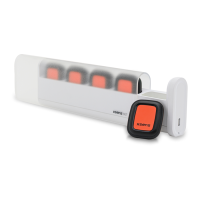
The charger is a docking station for 5 sensors and includes a plastic cover shell, along with
a USB power cable. You can open the charger by holding the cover shell and pull out the
docking from the right side.


 To Next Page