ForeSite SS Soware40
4. For security purposes, we recommend you create a password as soon as
possible.
• Select the icon in the top right hand corner, and select Sengs from
the dropdown menu.
• From the My Account tab, select the “Change Password” buon and
complete the required elds.
→ Note: you do not need to enter anything in the “old password” eld the
rst me you create a password.
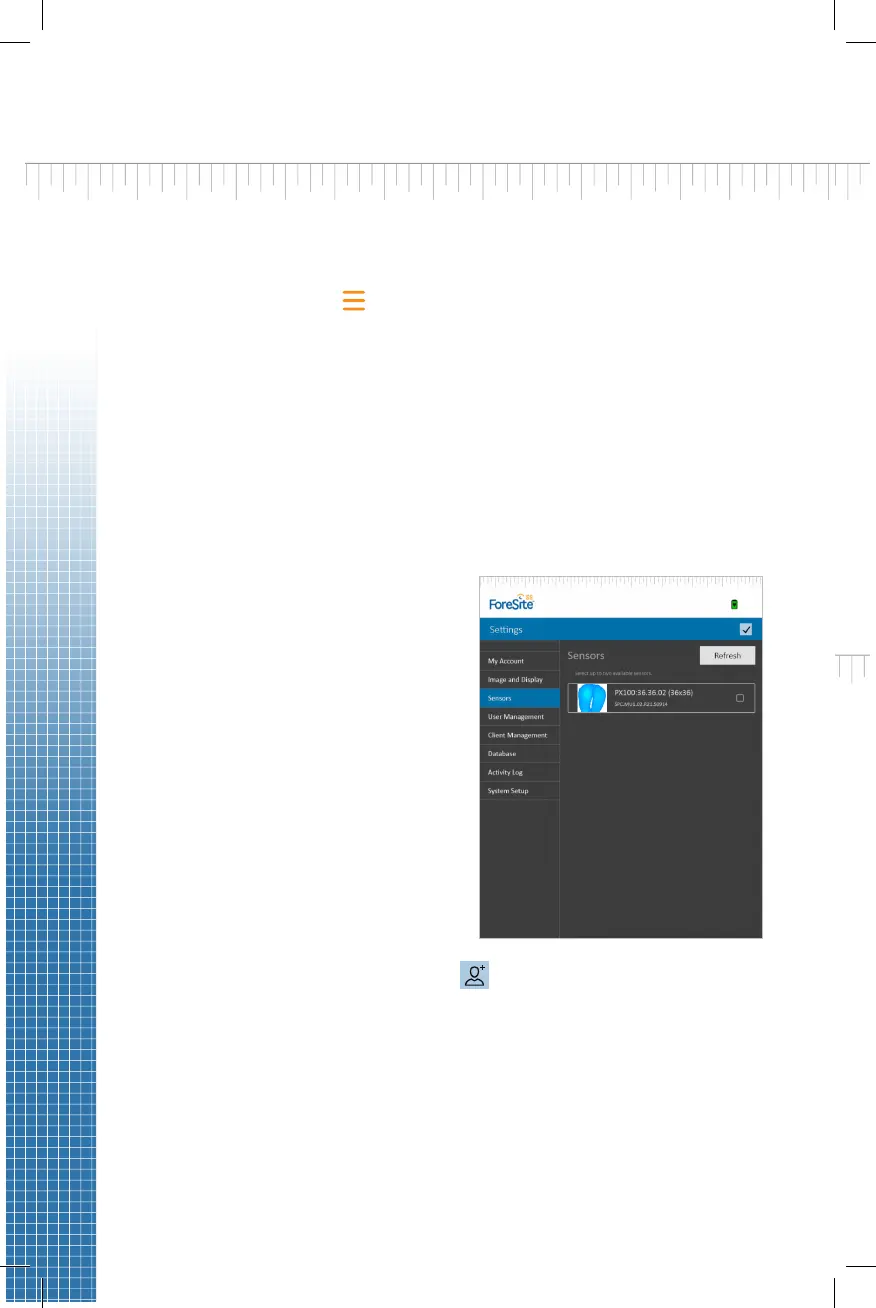
5. Before closing out of Sengs, select the Sensors tab to ensure your sensor
is connected and acve. If your hardware was properly congured, your
sensor will appear in the list and a pressure image will be live, as shown
in the image to the right. Ensure the sensor(s) you are using are selected
before you save and close out of sengs.
→ If you do not see your sensor(s)
in the sensor list, click “Refresh”
to search for an available sensor
connecon. See Appendix #1 for
further sensor connecvity trouble
shoong.
6. From the main Clients tab, select to create a new client le. Once
you have created a new client, select the Live Image tab to begin pressure
imaging.


 To Next Page