16
Deva 5.8 and Deva 16 Owner’s Manual
Chapter 2
Adjusting Individual Trim Levels Using the Analog Input Channel menu
Main Menu > Input Control > Input Channel
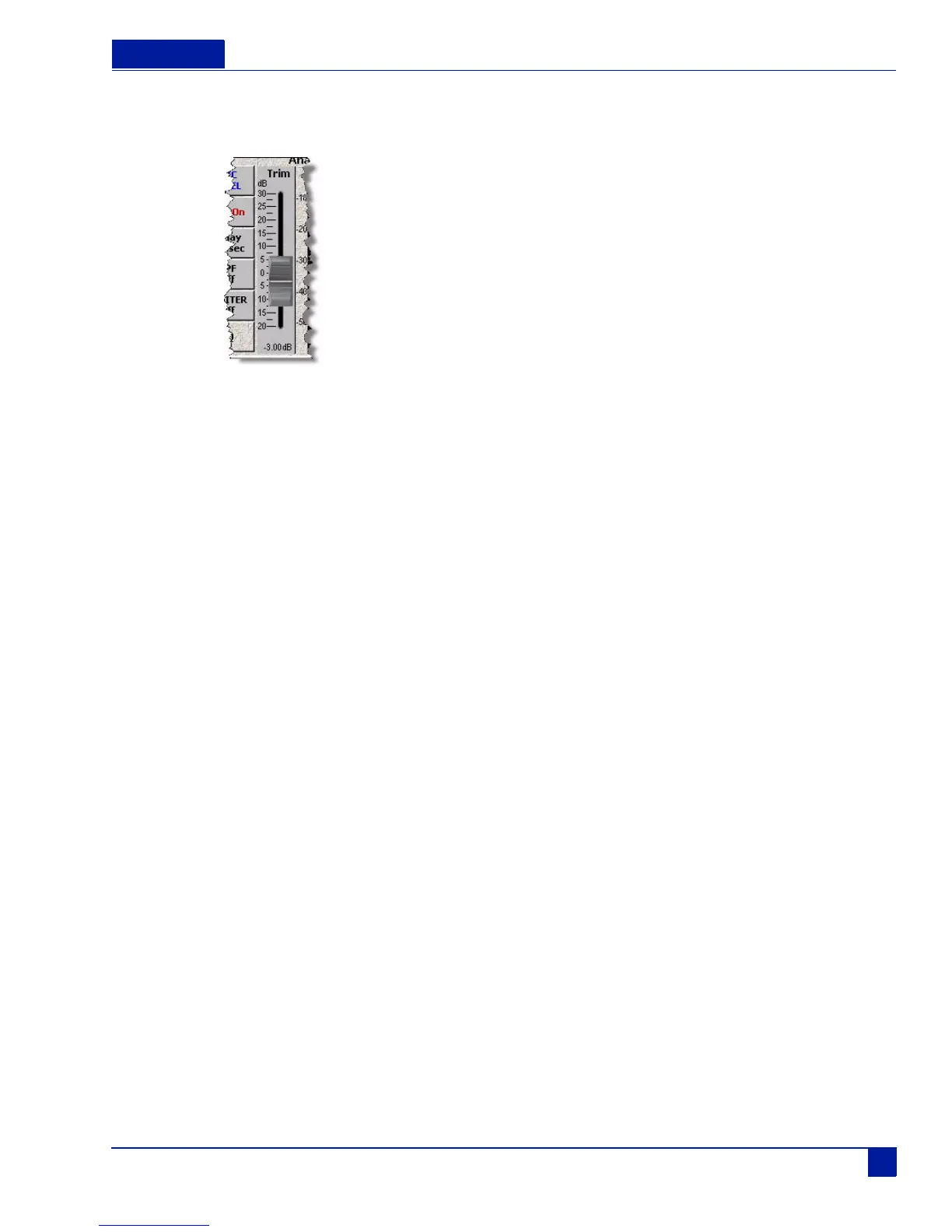
Figure 13 Individual Input Trim Fader
The input trim fader works a real fader on a mixing board. You use the Deva touch screen to move the
trim fader up and down.
Perform the following to change the trim on an individual channel:
1. Press the individual channel button on the Input Control menu.
2. Slide the fader to the desired position.
Adjusting The Delay
o Range: 0 to 40 ms
The delay in the Deva provides a way to monitor various input sources that may come into the Deva at
slightly different times. For example, most wireless microphones typically require 2 to 3 ms of delay to
avoid phasing associated with using wireless and wired microphones on a mix track. The delay does not
affect the input signals actual time code, it simply allows the signal to come into alignment with other
sources that are mixed with it. Both analog and digital inputs can have delay added to them.
There are two ways to adjust the delay on channels. If you have multiple inputs, the Analog Input Delay
menu allows you adjust all channels from a single screen. However, if you are making individual adjustments
to channels the delay can be adjusted using the delay button in the Input Channel menu (shown in Figure 7).



 To Next Page