Deva 5.8 and Deva 16 Owner’s Manual
Chapter 3
29
Setting the Tone Levels and Outputs
The Deva provides a calibrated tone level, which can be placed on any output channel or recorded track.
This tone level is used to calibrate cameras to the audio sent from the Deva, and post-production facilities
to ensure all levels are correct.
o Level Options: -20 dB, -18 dB, -16 dB, -14 dB, -16 dB
Main Menu > Deva Setup > To n e Level
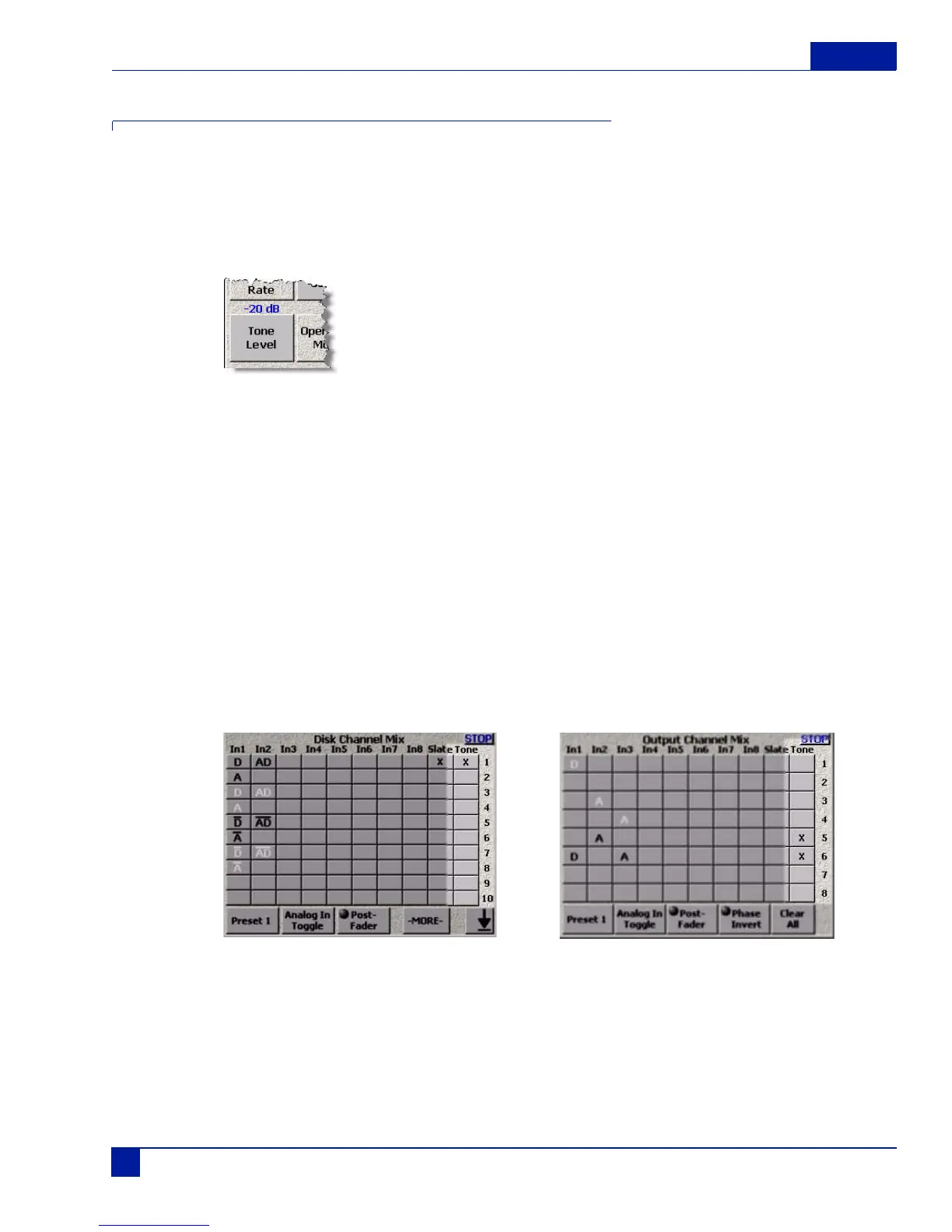
Figure 26 Tone level Button
Perform the following to set the tone level:
1. Press the Deva Setup button on the Main Menu screen.
The Deva Setup Screen appears.
2. Press the Tone Level button.
Each time you press the button, the tone is increased 2 dB, from it’s previous setting. When -16 dB is
reached, the tone level automatically cycles back to -20 dB.
The tone level is shown in blue just above the Tone Level button.
Setting Tone output
Once the tone level is selected, you have to set where the tone is placed. Unless you set a record track or
output channel, tone is being generated, but not used.
Main Menu > Disk Mix Main Menu > Output Mix
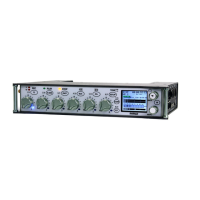
Figure 27 Tone Selection on Disk Channel Mix menu and Output Channel Mix menu
Setting the tone on the recording track and output channel are identical. Perform the following to set the
track or channel:
1. Open the Disk Channel Mix menu or Output Channel Mix
2. Press the record track or output channel you want tone placed on.
an ’x’ appears on tracks and channels selected.



 To Next Page