USB MANAGER
53
8
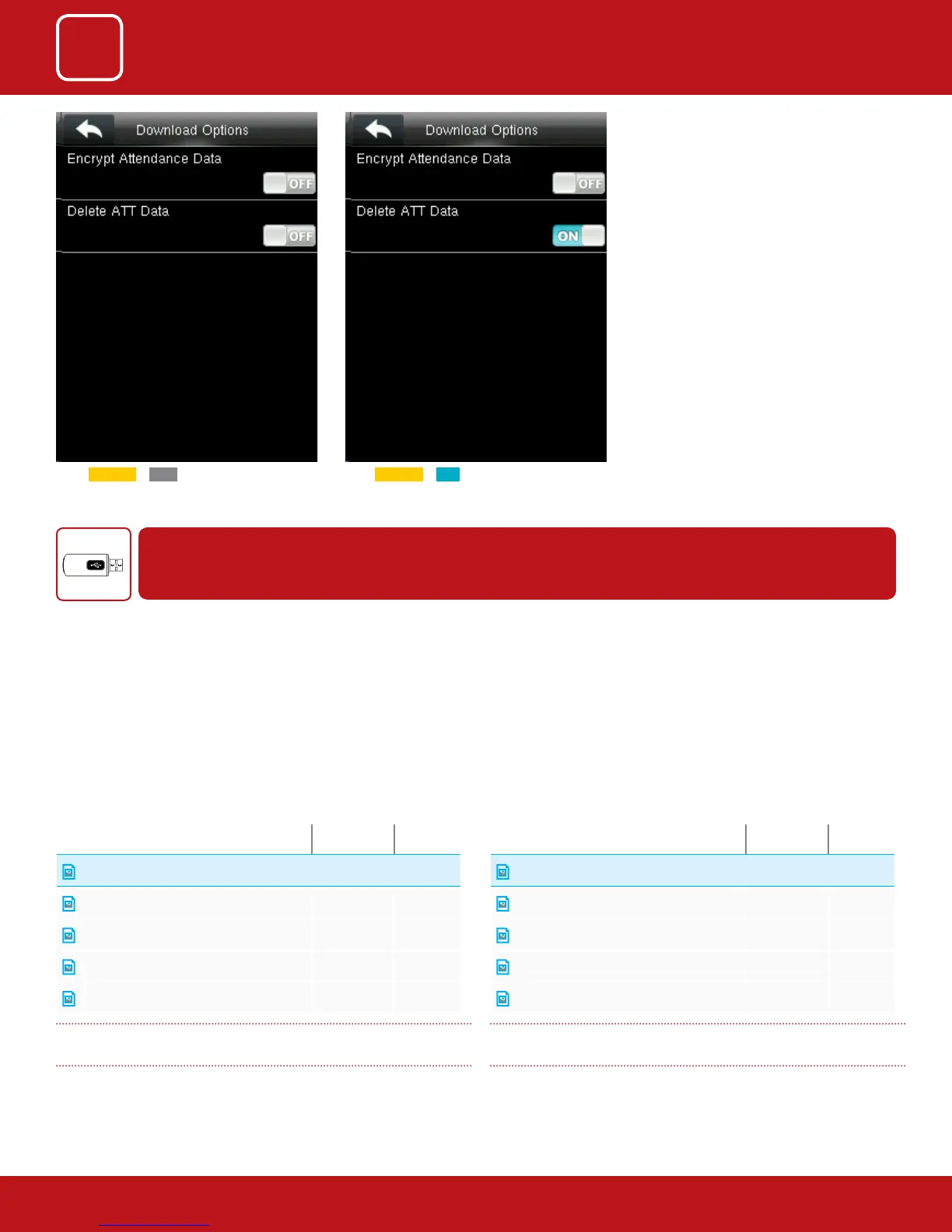
If the ATT data is ON it will download the data
as the function is enabled.
If the ATT data is OFF it wont download any
data as the function is disabled.
PREREQUISITES:
Supported File Extensions: bmp, jpg, png
|
Image File Size: No larger than 200 KB
|
Resolution Sizes: 240x295 pixel
Wallpaper:
1. Created a folder in the root of the USB drive labeled wallpaper
2. Place the desired wallpapers inside this folder. Make sure to follow the
supported le types and sizes.
3. The lename for each image should be followed as the image below:
Name Size Type
wallpaper9.jpg
38 KB JPG File
wallpaper10.jpg
43 KB JPG File
wallpaper11.jpg
12 KB JPG File
wallpaper12.jpg
80 KB JPG File
wallpaper13.jpg
43 KB JPG File
Make sure to start from wallpaper9.jpg to avoid overwriting
existing wallpaper images
4. Insert USB drive to device and navigate to USB Manager>Upload>Wall-
paper.
5. Select the images you wish to upload or upload all the pictures at once.
Screen Saver:
1. Created a folder in the root of the USB drive labeled advertise
2. Place the desired screen savers inside this folder. Make sure to follow the
supported le types and sizes.
3. The lename for each image should be followed as the image below:
Name Size Type
ad_pic9.jpg
38 KB JPG File
ad_pic10.jpg
43 KB JPG File
ad_pic11.jpg
12 KB JPG File
ad_pic12.jpg
80 KB JPG File
ad_pic13.jpg
43 KB JPG File
Make sure to start from ad_pic9.jpg to avoid overwriting
existing screensaver images
4. Insert USB drive to device and navigate to USB Manager>Up-
load>Screen Savers.
5. Select the images you wish to upload or upload all the pictures at once.
Instructions for Uploading Wallpapers and Screensavers Via USB Pen Drive


 To Next Page