JOB CODE
74
12
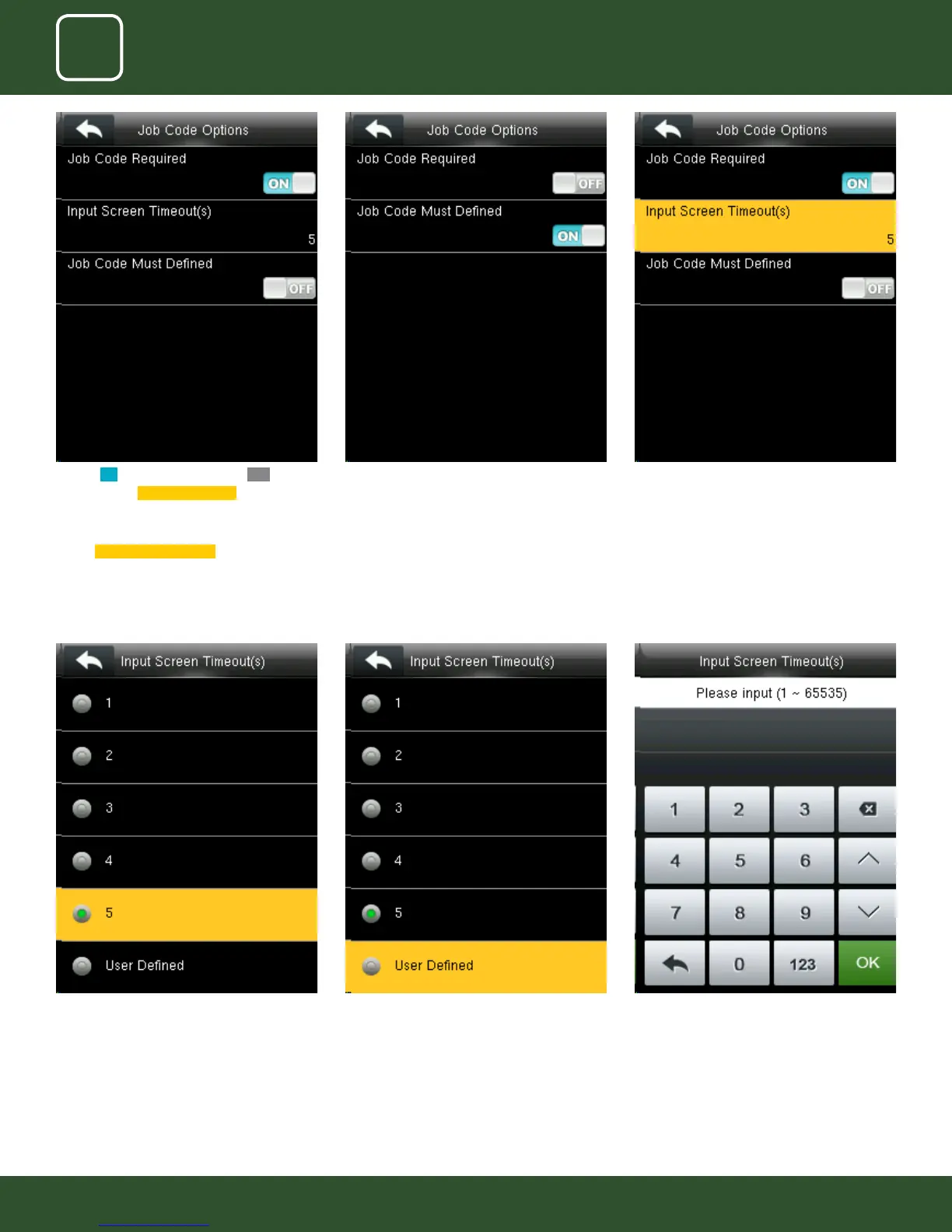
Select the time you want the screen to go idle. In
this case 5 seconds is selected. When you select
5 seconds the screen will go to idle state if no
registration or activity is performed on the clock.
Select user dened function as shown above to
set your own time for input screen timeout.
After selecting user dened function, the screen
above will allow you to input the time.
Turning ON options will enable and OFF options
will disable the
Job Code Required function “In-
put Screen Timeout(s)” to set up the time period
for displaying the job code list in seconds.
Switch
Job Code Must Dened to force a job code
to be selected before verication.
When you turn OFF the job code required func-
tion it will disable that function.
When you turned ON the job code must have
dened it will enable the function and it will
show as image above.
Select Input Screen Timeout as shown above.


 To Next Page