DHCP server to dynamically allocate and assign addresses (since you’ve already assigned IP
addresses to each computer).
The following steps use an example pre-existing network of computers with IP addresses
204.1.1.1 through 204.1.1.154 (IP addresses of Class C, without any IP sub-networks).
Please follow the steps listed below to use your existing IP addresses with the Broadband
Firewall Router.
1. From your range of available IP addresses, select a single IP address to be used as
the Broadband Firewall Router’s address (such as 204.1.1.100).
2. Select one computer (we strongly recommend Windows 95/98/Me or Windows
NT/2000/XP) to configure the Broadband Firewall Router.
Open the Network properties dialog box of the computer, and write down its current
IP settings, including IP address and DNS Server IP address (provided by your ISP).
Next, check the Specify an IP Address option in the TCP/IP properties dialog box
and enter 192.168.1.2 for the IP address and 255.255.255.0 for the subnet mask.
Finally, enter 192.168.1.1 for the gateway IP address. You must then restart your
computer to update the new TCP/IP settings.
3. On the same computer, open your web browser.
4. Type the default IP address (192.168.1.1) in the Location box and press Enter. The
device’s Home Page will then appear.
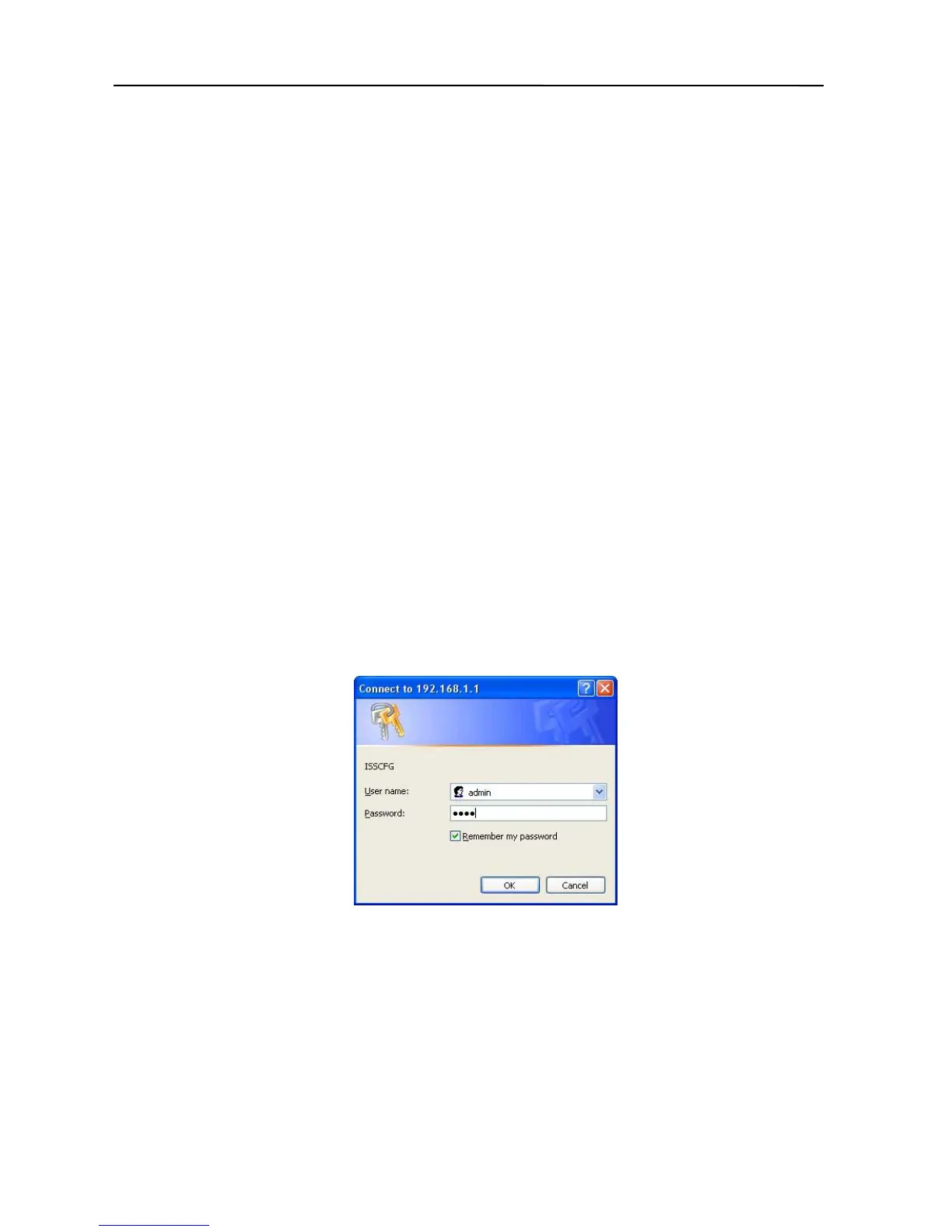
5. It then shows an authentication dialog for the Broadband Firewall Router. Type the
default administration user name, admin, and type the default configuration
password 0000. Then click OK, as shown in following figure.
6. Click “Basic Settings” in the top column. It then enters the sub-menu.
11


 To Next Page