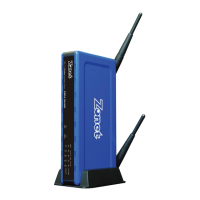
Setting up the Broadband Firewall Router using the Web browser
Overview
We’ve designed an easy-to-use web-based configuration interface in the device. Users can
set up the device by using the web browser. Furthermore, the enhanced HTTP support
available in the device includes a quick and easy management tool for performing the
configuration tasks, including all basic and advanced setup, on a TCP/IP network.
To access the device from your web browser you will need a web browser supporting frame
structure within an HTML page. Netscape or Microsoft Internet Explorer JAVA-enabled
browser is recommended.
Preparation
The Broadband Firewall Router comes with a pre-set default IP address, 192.168.1.1. It also
features a DHCP server. To configure it over your TCP/IP network, please follow the
directions listed below.
Note: If you’re installing the Broadband Firewall Router in a pre-existing IP network, please
see the Configuring Broadband Firewall Router in Pre-Existing IP Networks
section later in this chapter.
1. Please ensure your computer (Windows 95/98/Me or Windows NT/2000) has TCP/IP
protocol installed. If not, please install the protocol first and then proceed to Step 2.
2. In your Network Properties dialog box, select the Obtain IP address automatically
option. When done, restart the computer.
3. After the computer restarts, open your browser.
4. Type the default IP address (192.168.1.1) in the Location box and press Enter. The
device’s Home Page will then appear.
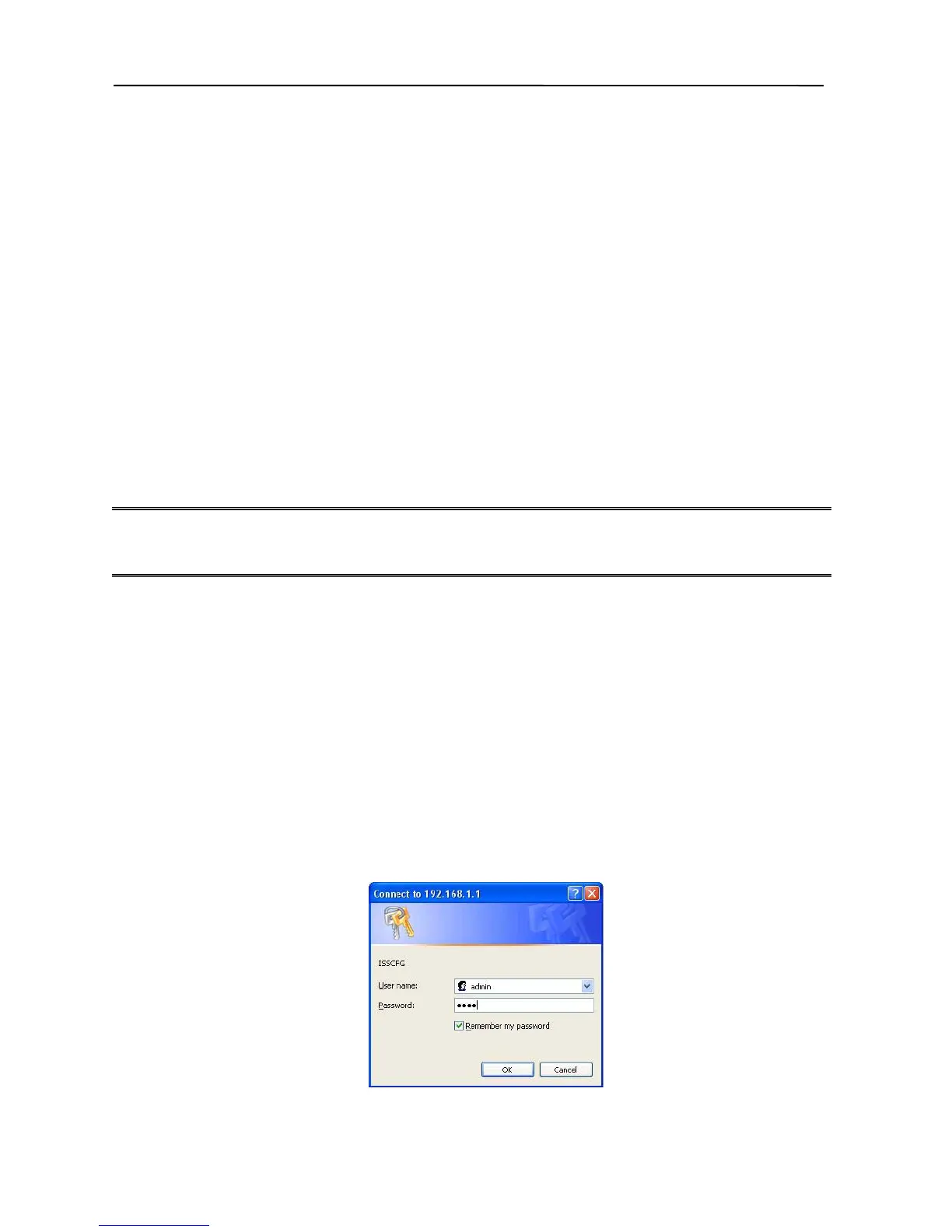
5. It then displays an authentication dialog for the Broadband Firewall Router. Type the
default administration user name, admin, and type the default configuration
password 0000 and click OK button as shown in following figure.
7


 To Next Page