Please note the following:
• Do not block the modem/router vents in any way.
• Do not use the modem where it’s very hot or very cold.
• Place the cable modem/router in a vertical orientation (using the “feet” at the bottom of the
unit to create a stable placement). The Power LED on the front panel should be at the top of
the unit.
Hardware Connection
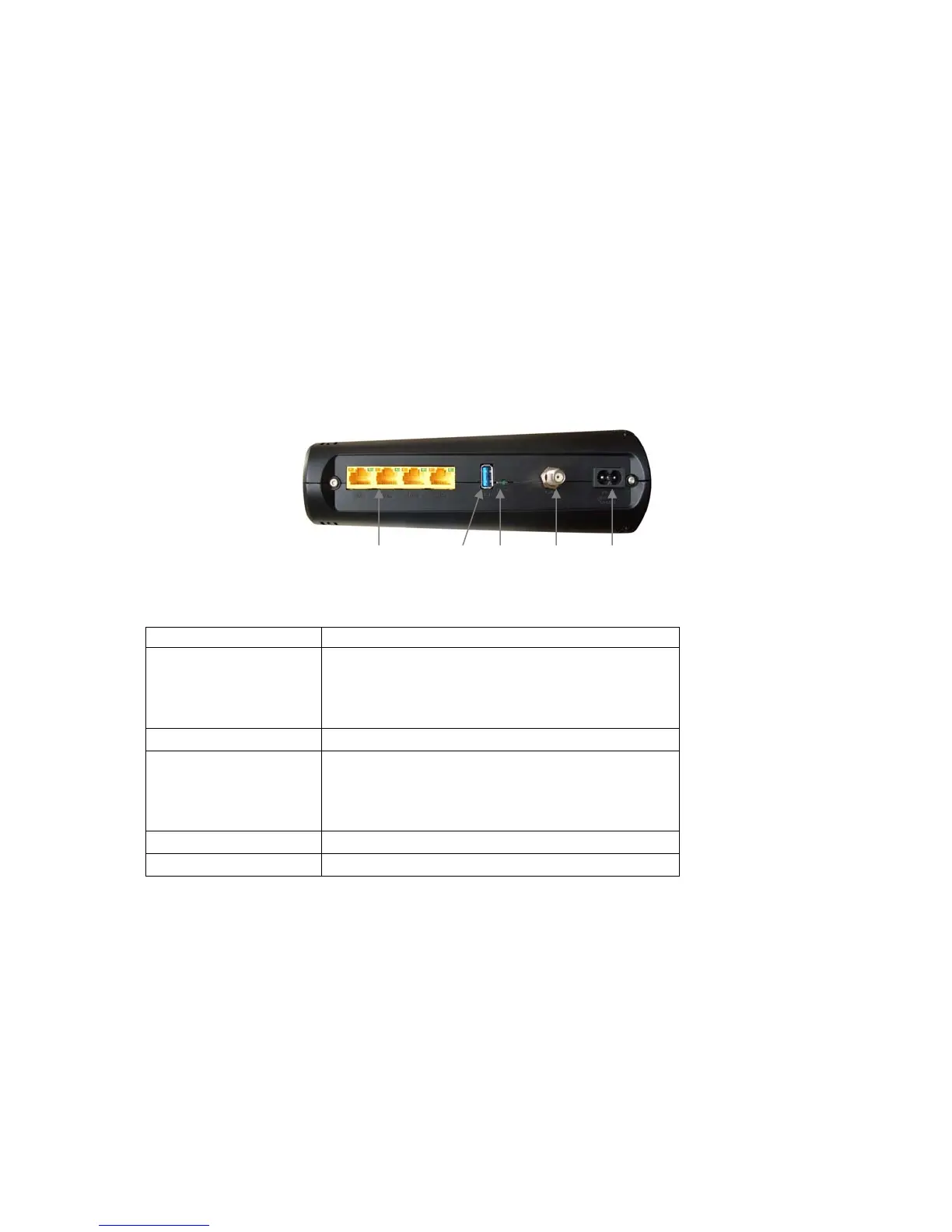
GE/ LAN 1-4 USB RESET Cable AC IN
Port Description
GE 1-4
(Gigabit Ethernet 1-4
also known as LAN
1-4)
Four 10/100/1000 auto-sensing RJ-45 ports.
Connect devices on your LAN (Local Area
Network) such as a computer, hub or switch to
these ports.
USB The USB port is for manufacturer’s use only.
RESET
Use this button in the unlikely event that you want
to restore the default factory settings. This button
is recessed to prevent accidental resets of your
cable modem/router.
Cable Connect your coaxial cable line to this port.
AC IN Connect the supplied power cord to this port.
Connecting the Cable Modem/Router Wirelessly to Some Device
Your cable modem/router has wireless-N for WiFi
®
compatible connection to your computer
and/or other devices. The cable modem/router comes set up by default with WPA/WPA2 security,
and this can be changed if you like.
10



 To Next Page