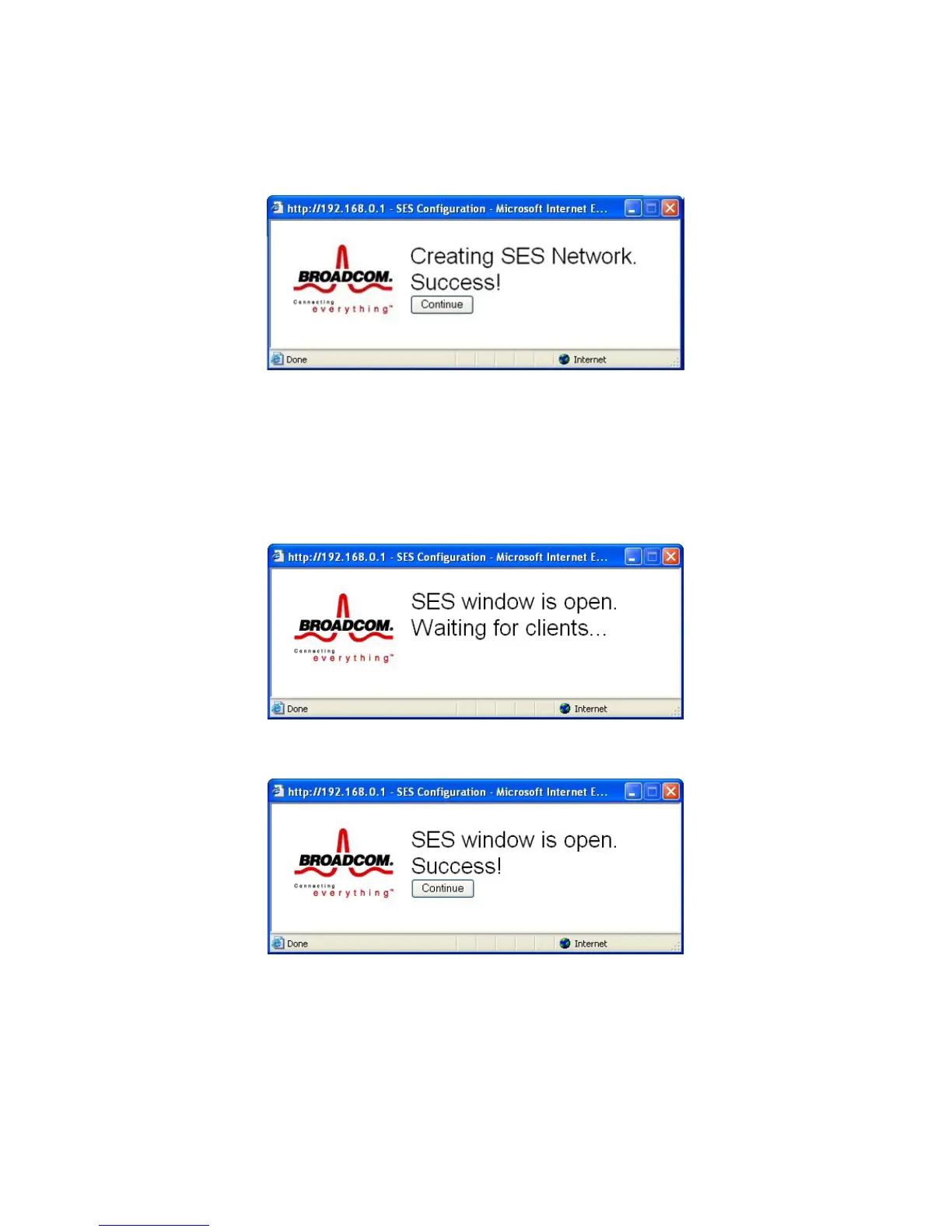
Figure 31. SES Configuration Window - Success!
Open SES Window
This button opens a window that allows a SES client to connect. The window remains open for 2
minutes. Only 1 SES client may connect during an Open Window period. If you have more than 1
client to connect to your SES, you must open the window multiple times.
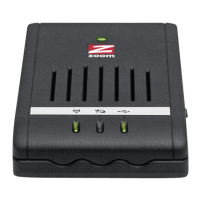
When the SES window is open, the pop-up window below indicates the cable modem/router is
waiting for a SES client.
Figure 32. SES Configuration Window - Waiting!
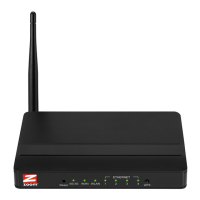
Once a SES client successfully connects, the pop-up window indicates success as shown below.
Figure 33. SES Configuration Window - Success!
If a SES client does not connect during the 2-minute open window period, the pop-up window
indicates a timeout error as shown below.
76



 To Next Page