52
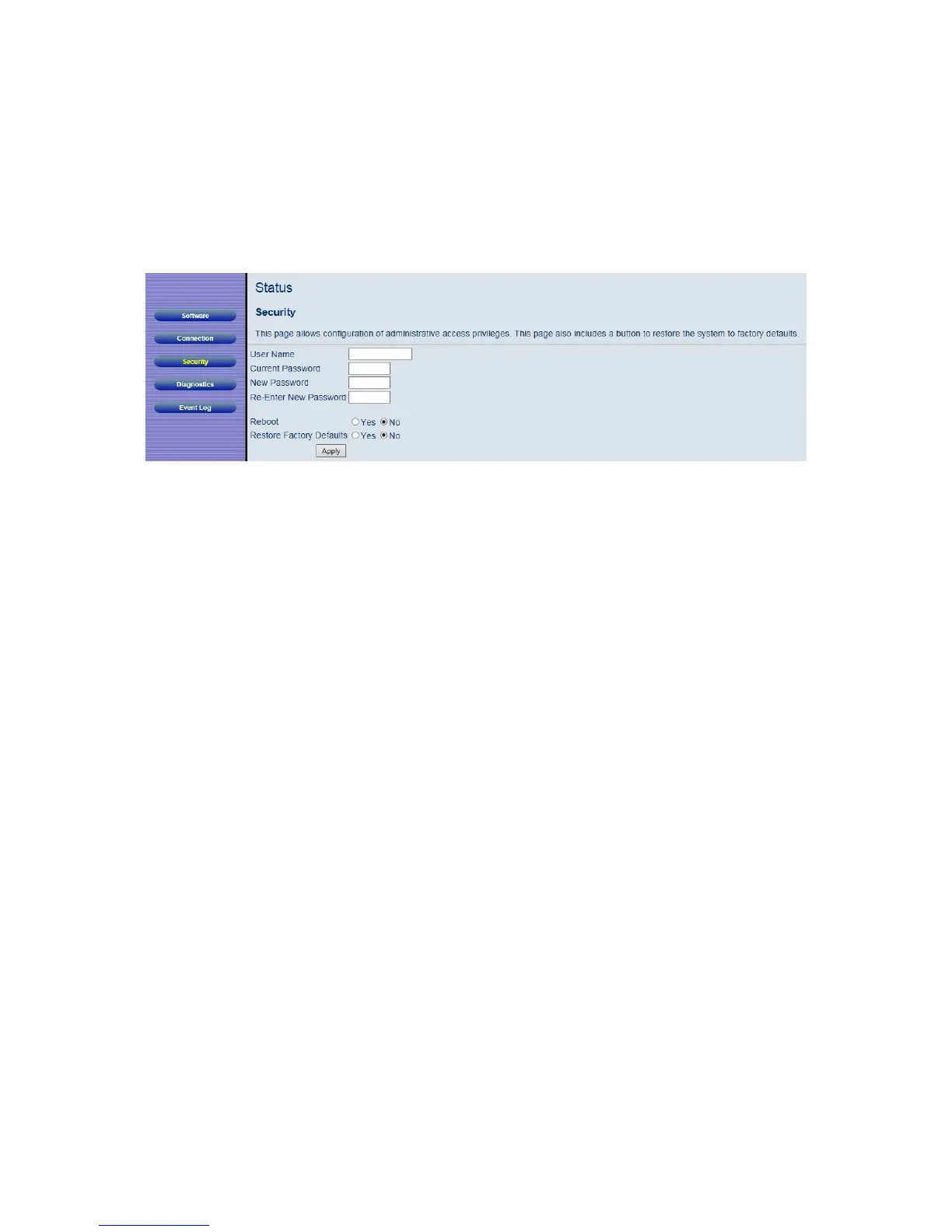
submenu. Figure 6 shows an example of the menu and Table 3 describes the items you
can sele
ct.
Figure 6. Example of Security Page
How to change the default password used to access your device:
1 Enter admin in the User Name dialog box. The default user name can not be
changed.
2 Enter the default password, admin in the Current Password dialog box.
3 Enter your new password in the New Password box. Your new password can be
from 1-8 characters long and can contain either letters or numbers.
4 Retype your new password and click Apply.
Your new password is now active. We recommend you write you new password down on
a label and attach it to your Cable Modem/Router. If you forget your new password in the
future you can reset the Cable Modem/Router to its default settings by pressing the
WPS/Reset button for 10 seconds. This will change the login back to the default User
Name admin and the default password admin.
To restore the Cable Modem/Router to factory defaults:
1 In the Security submenu, select the Yes button next to Restore Factory Defaults.
2 Click Apply.
3 The reboot is complete when the POWER LED stops blinking.
4 If the Login screen doesn’t reappear, click the Refresh link to log back in to the
Configuration Manager.


 To Next Page