64
DNS service (http://www.dyndns.com/
). You must sign up with this service if you want to
use it.
To access the DDNS page:
5 Click Basic in the menu bar.
6 Then click the DDNS submenu.
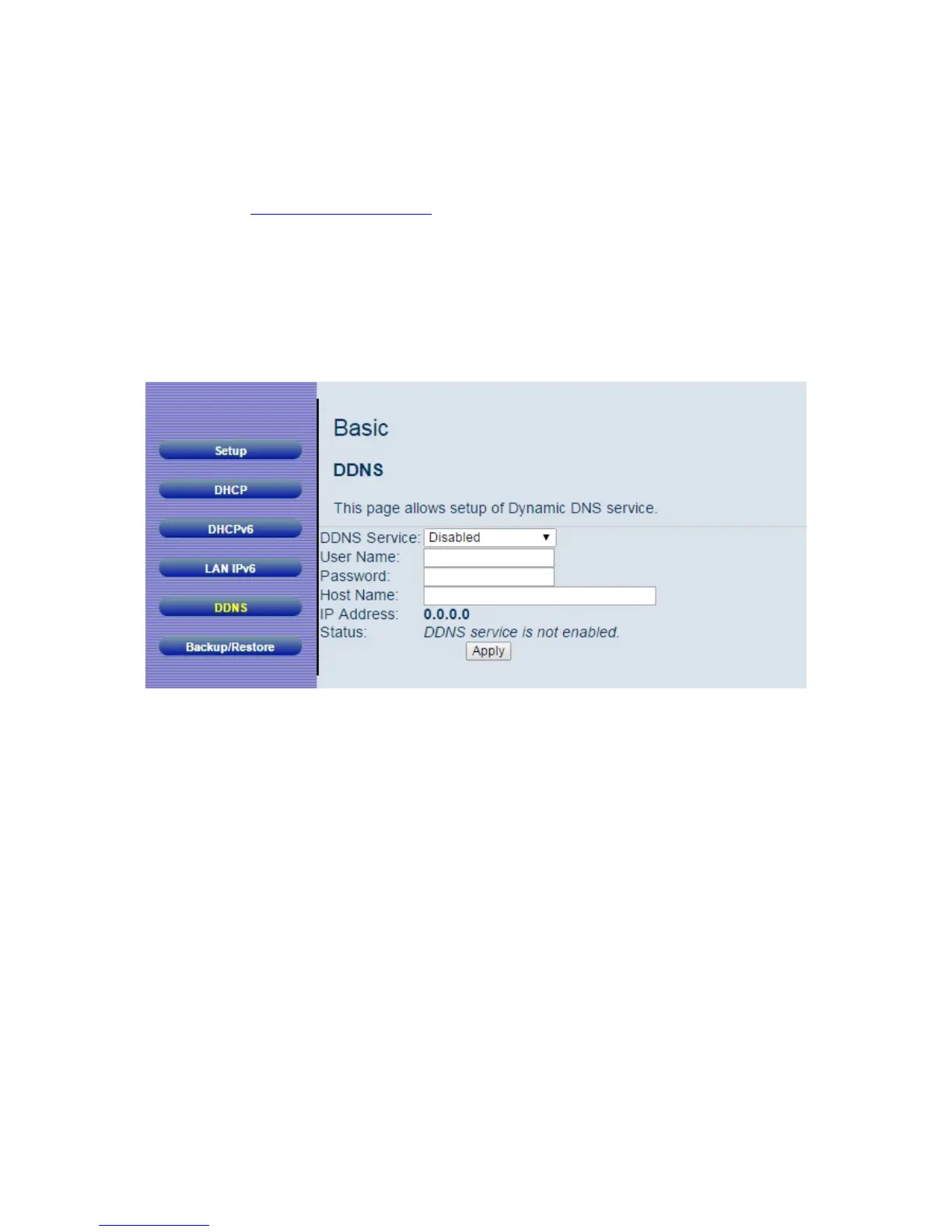
Figure 14 shows an example of the menu and Table 7 describes the items you can
select.
Figure 14. Example of DDNS Page
To activate the DDNS client:
1 Go to the DynDNS website and create an account for the Dynamic DNS service.
2 You will create a username and password, and be asked to choose a host name
for your server, and the dynamic DNS domain to which your host will be assigned.
3 You will also be asked for your host’s current IP address. This is the WAN IP
address that has been assigned to your Cable Modem/Router during provisioning.
(See WAN IP Address on the Basic / Setup web page.)
4 Enter your account information on the Basic / DDNS web page, enable the service by
selecting www.DynDNS.org from the DDNS Service drop-down list, and click Apply.
5 The DDNS client will notify the DDNS service whenever the WAN IP address
changes so that your chosen host name will be resolved properly by inquiring hosts.


 To Next Page