ABEM Terraloc Pro 2
24
• Changing settings on dialogs.
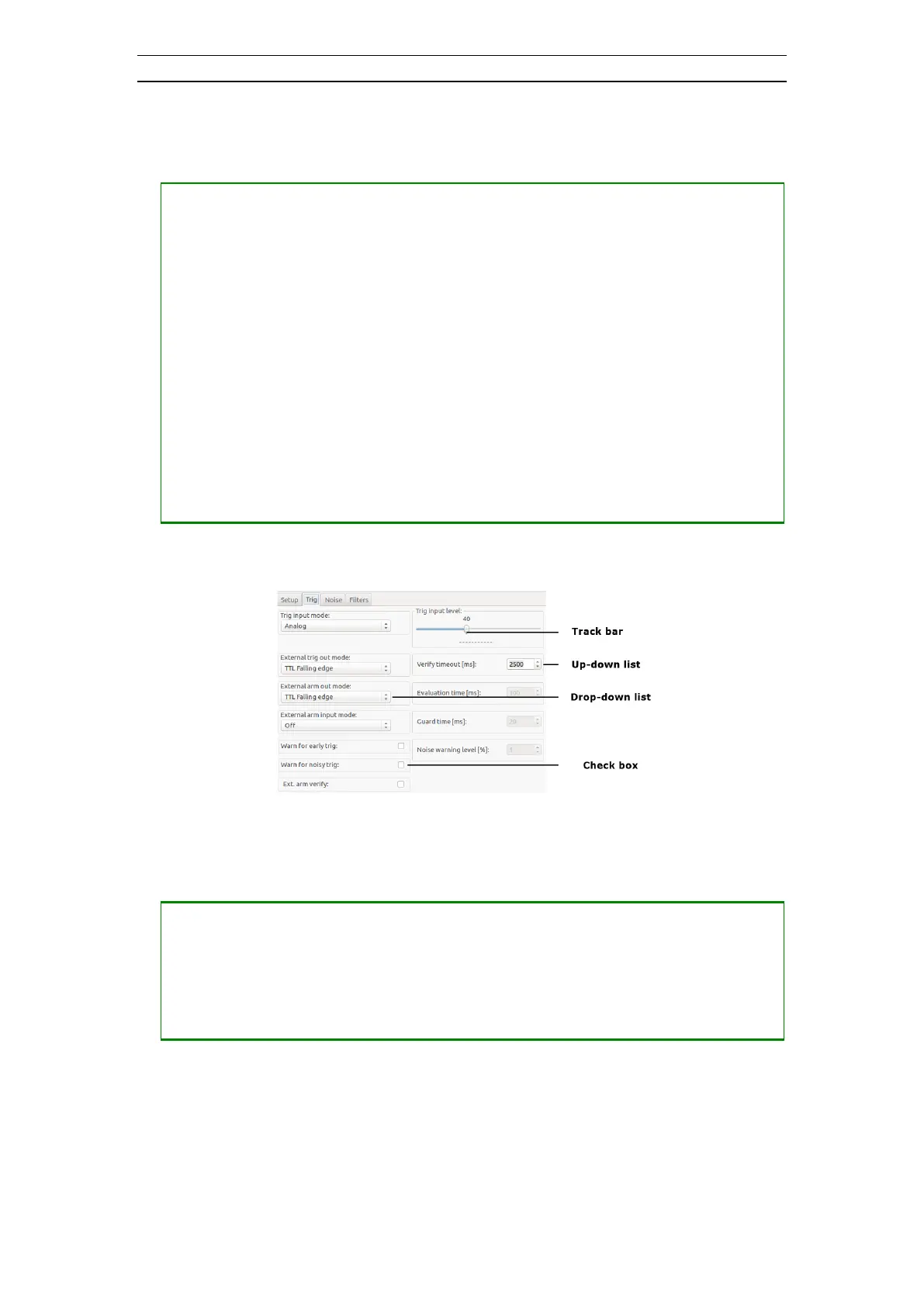
The way to change a setting depends on the type of input field. See Figure 14 for
examples of input field types
― Drop-down list (see Trig input mode):
Press <SPACE> to open the list
Press <UP> or <DOWN> to change the value
Press <SPACE> or <ENT> to select the value and close the list
― Track-bar (see Trig input level; Trig input mode must be Analog or Channel):
Press <LEFT> or <RIGHT> to change the value
― Check-box (see Ext. arm verify):
Press <SPACE> to change the value
― Up-down field (see Verify timeout [ms]):
Press <UP> to increment the value with 1
Press <DOWN> to decrement the value with 1
Press the <NUMBERS> keys to directly enter digits
Press <BACKSPACE> to delete the digit before the input marker
Figure 14 Part of Trig setup dialog as input field example
• Closing an opened dialog
― Make sure the selection is on the OK button and press <ENT> to close the
dialog and save possible changes
― Make sure the selection is on the OK button and press <ESC> to close the
dialog without saving possible changes


 To Next Page