17
SPEECH EXCEPTIONS
You may want to change the way your Lightwriter pronounces some words. To do this, you need to
create a Speech Exception:
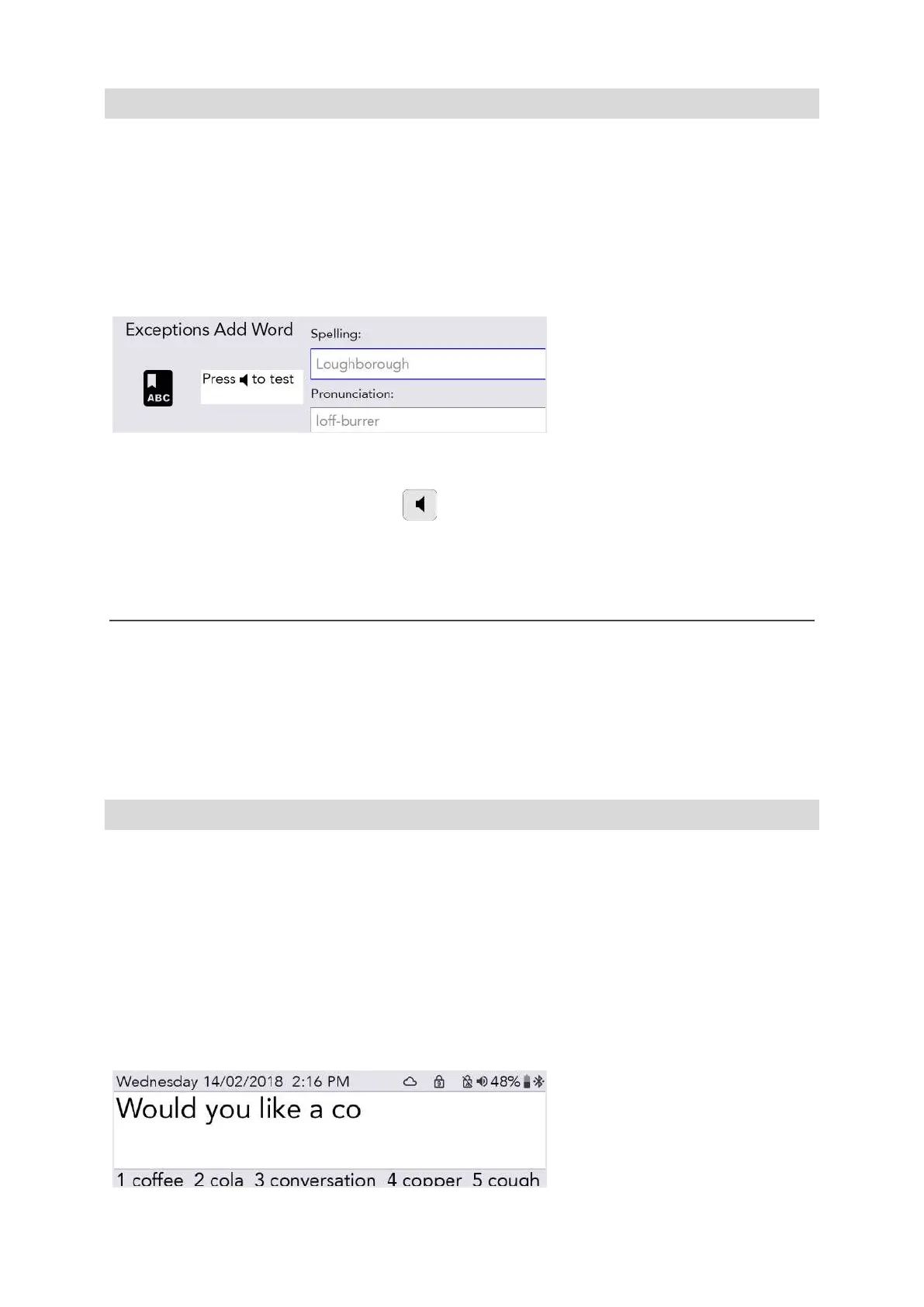
Go to Shift-Menu > Dictionary > Speech Exceptions > Add word.
In the top right box, type in the word that your Lightwriter is pronouncing incorrectly.
In the bottom right box, type in the word as you would like it to sound. Try typing it in phonetically, or
adding hyphens or spaces to break up the word into sections:
For example, Loughborough may sound better as loff-burrer.
You can test the result by pressing Sound
Once finished, press Enter to save and exit.
Then the next time you type Loughborough, it will be spoken correctly.
EDIT OR DELETE A SPEECH EXCEPTION
To edit an exception go to Shift-Menu > Dictionary > Speech Exceptions > Browse.
Highlight your chosen word and press Enter to edit the word, or Delete to delete it.
PREDICTIONS
Your Lightwriter will automatically start remembering and learning the words that you use, and
presenting them to you as Predictions.
Your Lightwriter is already loaded with a comprehensive dictionary, but the more you type and talk,
the more accurate these predictions will be, as it continues to add to your User Dictionary.
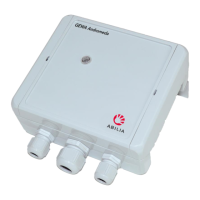
Your list of Predictions will appear in the bottom of the Talk Screen as you type. If you see the word
you want to use, press the relevant Number key to select the Prediction (make sure Number Lock is
switched off).
For example, to select ‘coffee’, press number 1.
www.sentient-healthcare.ie


 To Next Page