9
TALK
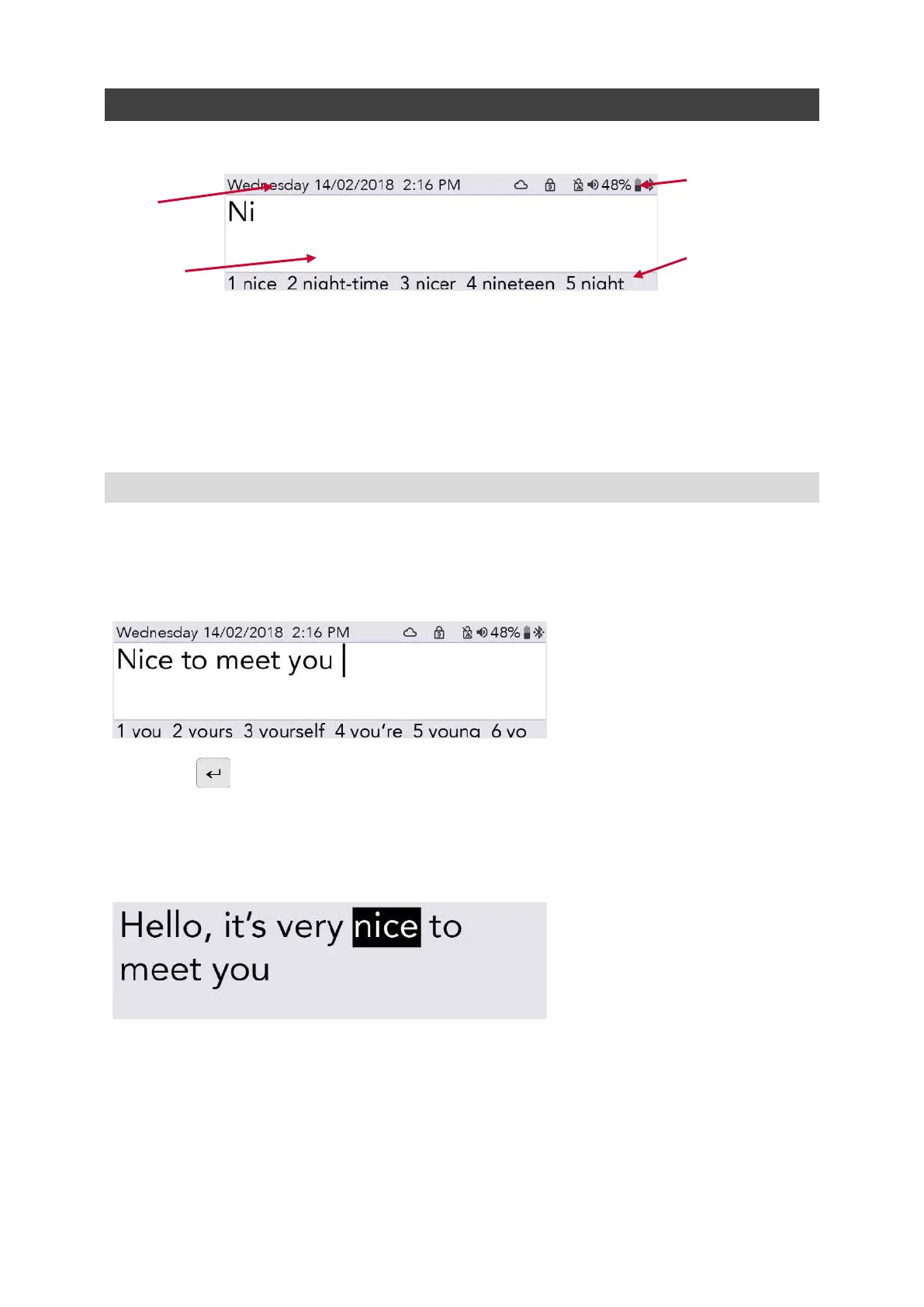
When you turn on your Lightwriter the first screen you will see will be the Talk Screen.
Date and
time
Type and
talk area
Status icons
Predictions bar
You may notice that the brightness of the displays will automatically change in different environments.
They should become brighter in a sunny outdoor setting, and duller in a dark room. This is to help
you view the screen in the most comfortable way. The keyboard keys will also be backlit in a dark
environment. You can adjust this in Settings. This also saves battery power.
INTRODUCTION TO TYPE AND TALK
The most important thing your Lightwriter does is speak the words you type.
Anything you type will appear on the screen in front of you.
Main Display Screen:
Press Enter and the Lightwriter will speak the words you have typed out loud, as well as
showing them on the Companion Display.
Each word on the Companion Display is highlighted as it is spoken:
Companion Display:
If your communication partner cannot read the words on the Companion Display, you can increase
the size of the text, see Settings.
When you press Enter to let Lightwriter speak your words, they will disappear from the Talk Screen.
This allows you to continue to write your next sentence without having to wait for the Lightwriter to
stop speaking.
www.sentient-healthcare.ie


 To Next Page