57
10. Basic Settings
Please note:
Theretrievalandentryofbasicsettingsisprincipallycarriedoutautomaticallyduring
therstinitialoperationsandshallbecarriedoutinfull(allmenuitems).
Allmenuscanbecancelledbypressingonakeyofyourchoiceforalongertime.
Afterapprox.3minuteswithoutakeystrokeallmenusareautomaticallyaborted(you
shouldthusnotallowtoomuchtimetopassbetweenmenus)
Pressthesmallround”setup”key(seechapter8b)forapprox.2secondstomanually
startretrieval/entryofthebasicsettings(i.e.ifmorethan3minuteshavepassed
sinceyouinsertedthebatteriesorifyouwouldliketoconvertthedevicetosuitanother
cylinderlock).
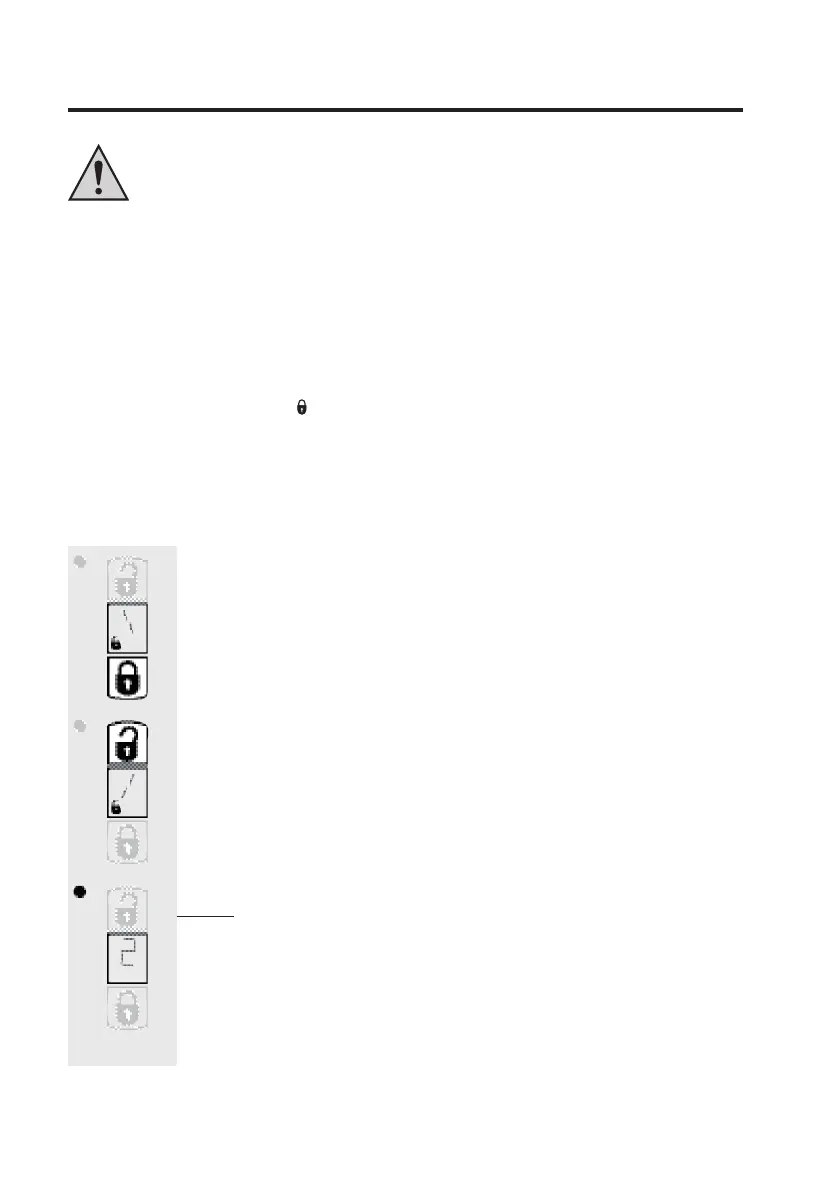
Atthebeginningofthequery/entry,thedisplay”1”willappearfortherstsetupstep(seebelow,
10.a)andthesymbol”locked”( ),thentherotatingdirectionsymbol.
+
Thisshowsinwhichdirectionthekeyisturnedtolockthelock.
a) Selection of direction of rotation
• Testthelockandthecylinderlockonyourdoortoestablishwhichdirection
ofrotationisrequiredforlocking(lockingmeansthatthelockingboltispro-
jected).
• Withthelowerkey,thedirectionofrotationisswitchedto”left”.
• ThebarsontheinsideoftheLCdisplayrotatetothelefttoshowyouthe
directionofrotation”totheleft”.
• Withtheupperkey,thedirectionofrotationisswitchedto”right”.
• ThebarsontheinsideoftheLCdisplayrotatetotherighttoshowyouthe
directionofrotation”totheright”.
Selectthedesireddirectionofrotationbybrieypressingtheappropriate
key.
Note: Please open the door now if it has not already been opened so that
the end stops can be correctly recognised at a later date.
• Quicklypressthesmallround”setup”keywithapointedobjectinorderto
reachthenextmenuitem;theinitialisationdrive(seenextpage)begins.
• ”2”isshowninthedisplaytomarkthesecondsetupstep(seeb).


 To Next Page