NVR 3.0 User’s Manual
36
How to Do Playback
On NVR screen, click into “Playback” page to enter Playback view, none of the video sources
is selected in the beginning, and you have to select your desired channels.
Add Video Source
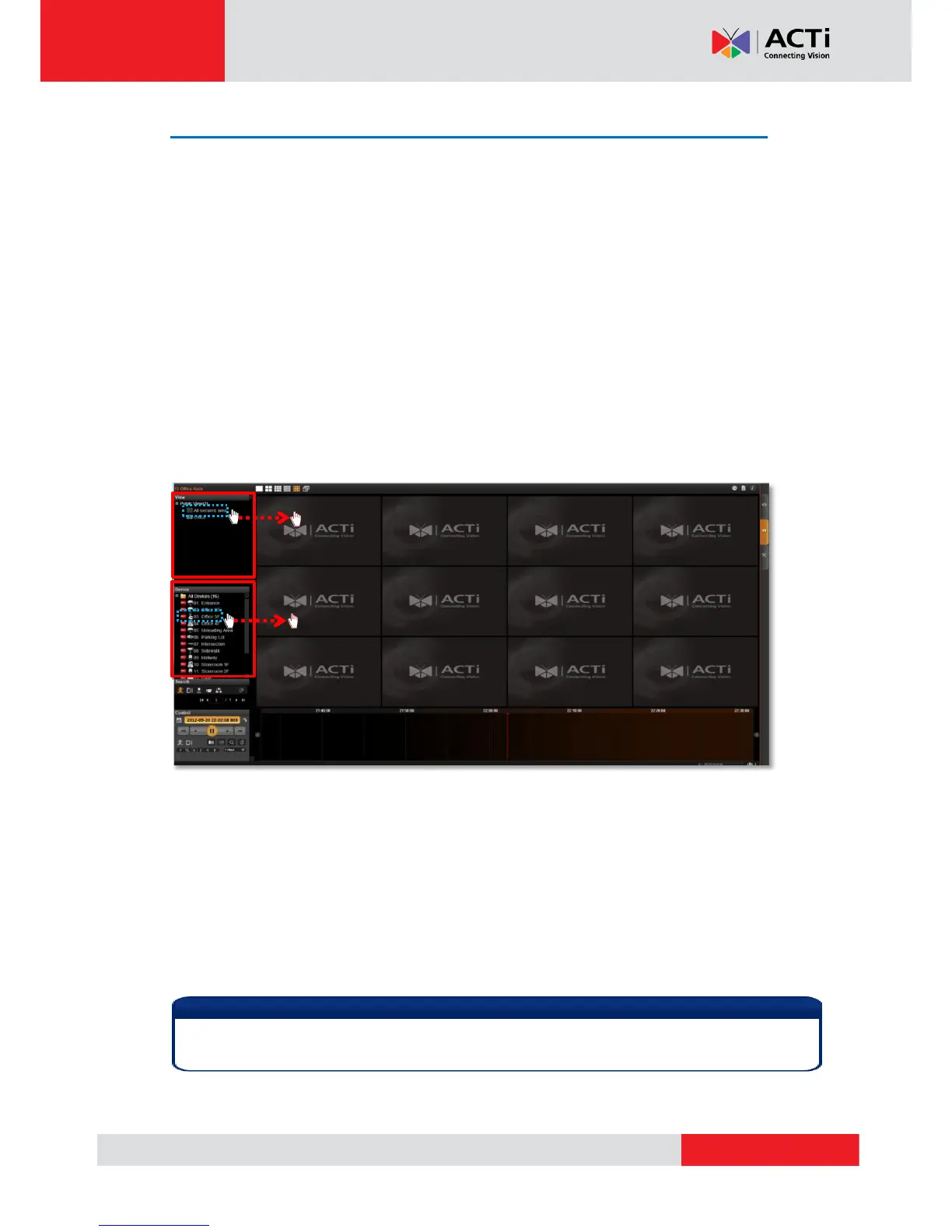
There are two ways to pull in video sources:
1. In View area, click on a saved view.
2. From Device List panel, double-click on a device or drag it to Display area.
Through either way, you may add video sources, and their time bars will display in Time Bar
area. Your playback operations and search will be based on these selected channels.
In the meanwhile, you may change the layout styles from Layout Selection Bar on title bar.
Remove Unwanted Channels
You will only need the desired channels to be kept in Display area, as you don’t want too
many unnecessary results after you perform a search.
To remove a channel from Display area, you may place your cursor over the channel, and
right click the mouse, then right-click menu provides “Remove”, “Export Video” and
“Snapshot” for a single channel.



 To Next Page