NVR 3.0 User’s Manual
45
Export the Recordings
NVR playback offers two choices of video format for the exported video. The *.raw file, as the
original video file format captured from video source, is able to be played on ACTi Archive
Player. You may download the this utility from http://www.acti.com/utility
The*.AVI file, as The most widely adopted video format on Windows system, can be instantly
transferred by NVR server and played directly in Windows Media Player.
Before starting to export the video, please make sure there is enough memory space on the
hard drive of your destination computer.
To play the exported *.AVI file in other video players, you must have FFDShow or DivX
codec installed in your computer. They can be found over the internet at the following
sites:
http://sourceforge.net/projects/ffdshow/
http://www.divx.com/en/software/divx
Define the Section of Exported Video on Time Bar
You may define the video duration on time bar during the playback. In this way, you don’t
spend extra time and effort on finding the specific date and time information.
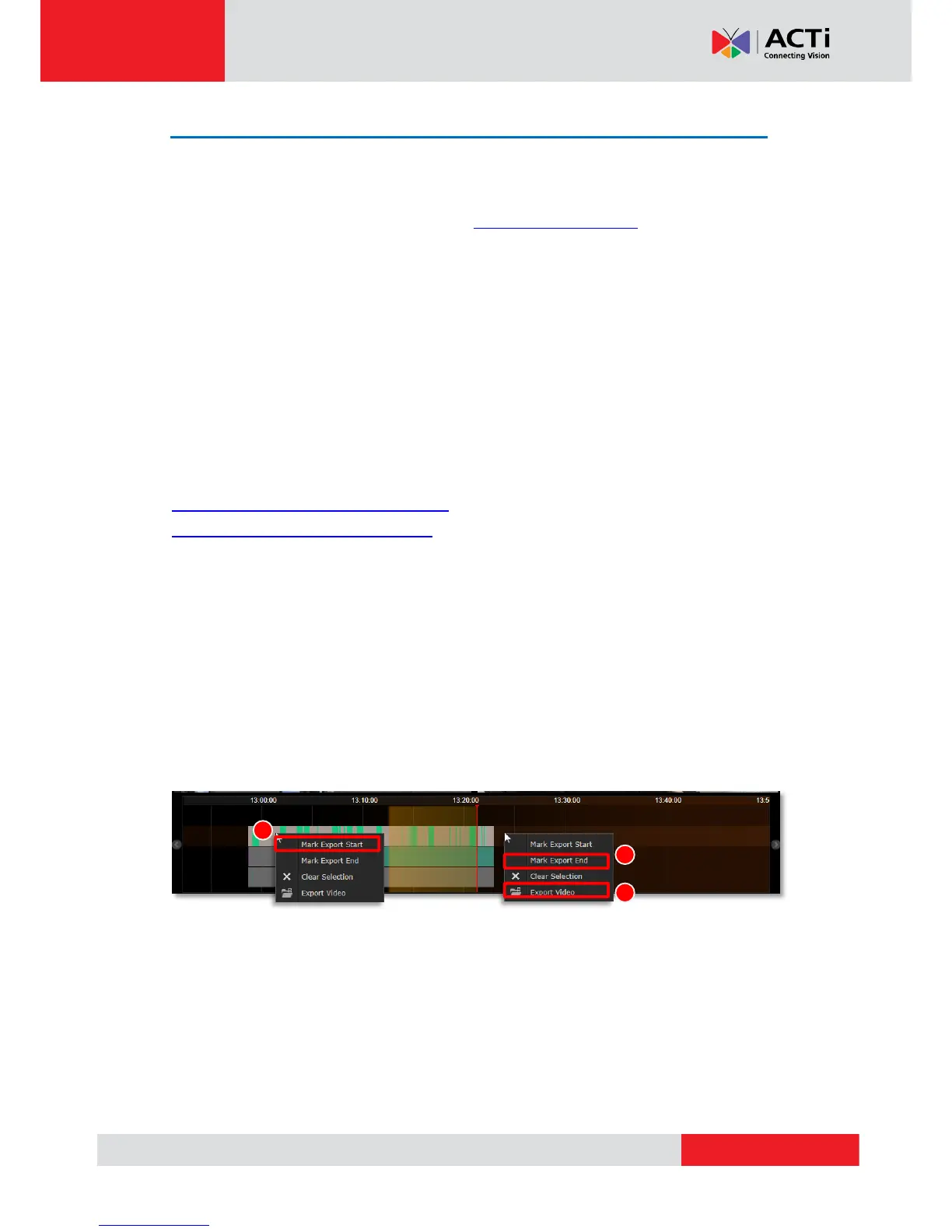
1. On time bar, drag to the start point of the video, right-click to bring up quick menu, then
select “Mark Export Start”.
2. If you have successfully set the start point, the time duration will turn yellow as you drag to
another point. Drag to the end, right-click to bring up quick menu, and then select “Mark
Export End”.
3. As both start point and end are set, you may right-click again the quick menu and find
these two options are already gray out. Select “Export Video”
Depending on your scenario, you may first set the end point, then the start point.



 To Next Page