83
e) You can also insert patient data details such as name, surname, date of birth from
an external keyboard. This can be done with an application (VNC +SSH software)
to be installed in an iOS and Android smartphone/tablet device or in a personal
computer with Windows or MAC OS.
f) It is possible to transmit some of the 2WIN results to the Adaptica VisionFit SC (you
need a VisionFit SC connected to the same WiFi network of the 2WIN)
g) It is possible to control remotely the 2WIN by means of an external 2WIN APP made
by Adaptica running on Android smartphones and tablet
h) If the 2WIN is equipped with the KALEIDOS accessory, so forming the 2WIN-S, it is
possible to control the 2WIN by means of the WiFi connectivity and a remote APP.
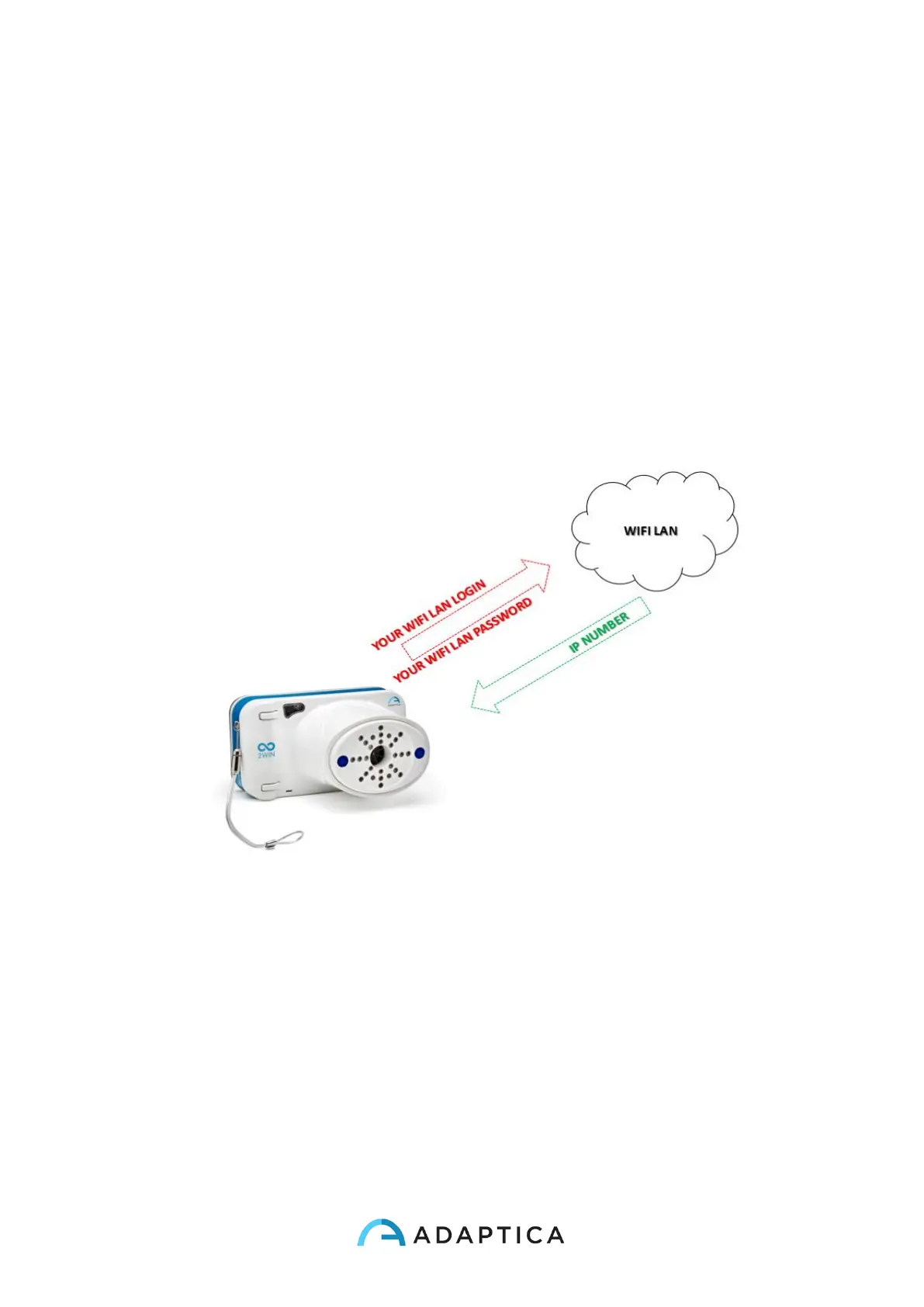
This picture shows that before starting any networking operations the 2WIN must be connected to a wifi Local Area Network. The user
must insert the appropriate credentials in order to log the 2WIn to the Wifi access point present in the office/room. The access point will
assign an IP address to the 2WIN
In order to enable the WiFi connectivity in the 2WIN it is necessary to follow the following
steps:
1. Click on “Wireless ON” from Menu > Settings > Wireless > Wireless ON
You will see the item Wifi Activation and a tick will be displayed next to the label
Wireless ON.


 To Next Page