Using Help | Contents | Index Back 354
Adobe Illustrator Help Producing Color Separations
Using Help | Contents | Index Back 354
8 Select Overprint Stroke for the top line.
Copy of stroke used for spread trap
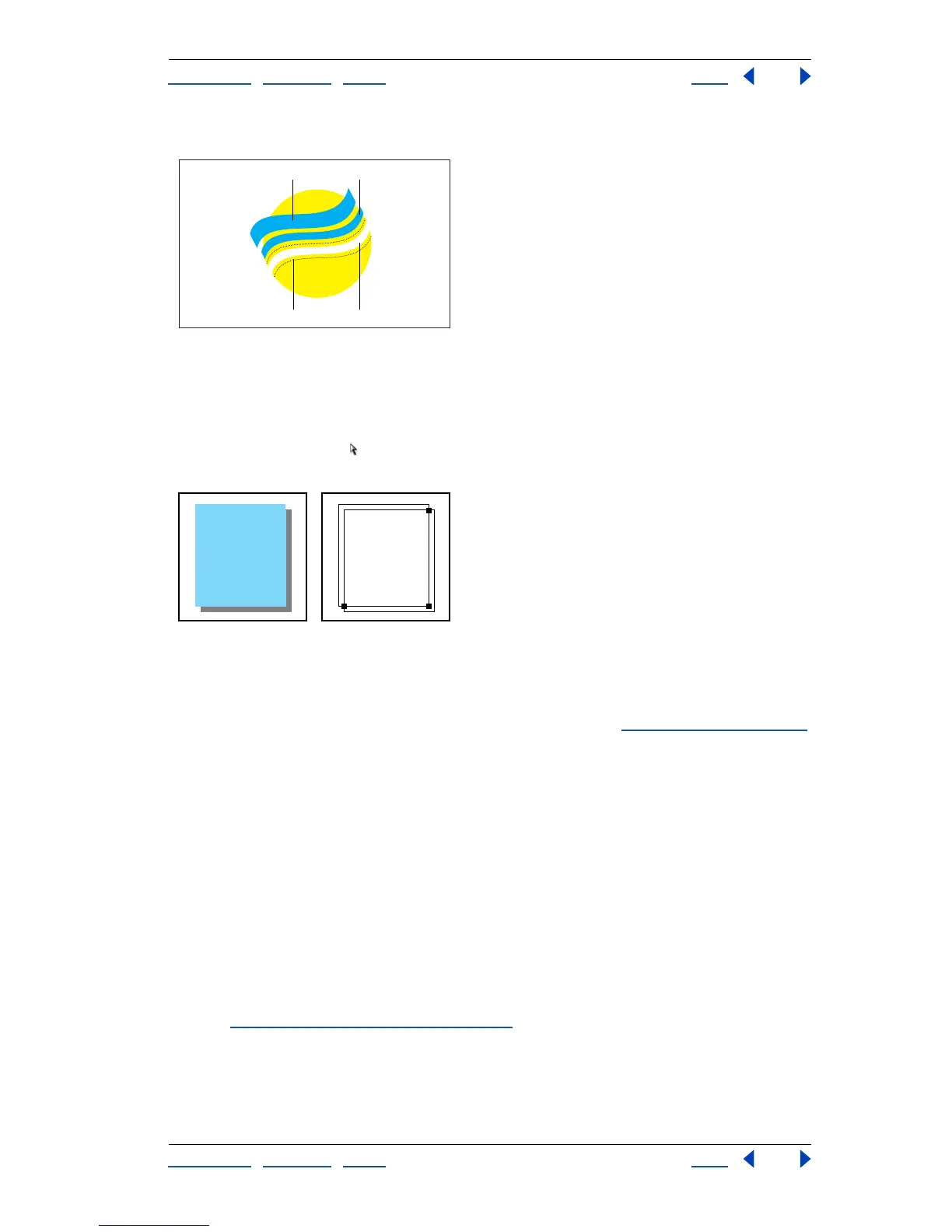
A. Top stroke creates spread trap B. Bottom stroke creates knockout C. Area of knockout
D. Area of trap
To trap a portion of an object:
1 Draw a line along the edge or edges that you want to trap. If the object is complex, use
the direct-selection tool to select the edges, copy it, and choose Edit > Paste in Front to
paste the copy directly on top of the original.
Drop shadow with a trap. The line drawn at the intersection of two shapes creates a trap.
2 In the Stroke box in the toolbox or the Color palette, select a color value for the Stroke
to create either a spread or a choke.
If you are uncertain about what type of trap is appropriate, see “
About traps” on page 349.
3 Choose Window > Show Attributes.
4 Select Overprint Stroke.
Step 4: Set the printing bounding box and place crop
marks around the image to be separated
You can place crop marks around the image to be separated, either directly on the artwork
or in the separations. Crop marks indicate the image area.
Keep these points in mind when creating crop marks for color separations:
• If you are setting crop marks in the original artwork and want the artwork to contain a
bleed (a margin added to the image so that it can be trimmed after printing), make sure
that you extend the artwork past the crop marks to accommodate the bleed.
(See “
Specifying the bleed area” on page 362.)
• If you plan to separate several small pieces of artwork in the same file, you can create a
set of trim marks for each piece of artwork. You might want more than one set, for
example, if the file contains several business cards that you plan to separate. To create
A
B
C
D



 To Next Page