Using Help | Contents | Index Back 51
Adobe Illustrator Help Drawing
Using Help | Contents | Index Back 51
Drawing straight segments with the pen tool
The simplest path you can draw with the pen tool is a straight line, made by clicking the
pen tool to create two anchor points. By continuing to click, you create a path made of
straight line segments connected by corner points. To create independent line segments,
see “
Drawing line and arc segments” on page 67.
To draw straight segments with the pen tool:
1 Select the pen tool .
2 Position the tip of the pen point where you want the straight segment to begin, and
click to define the first anchor point (do not drag). The anchor point remains selected
(solid) until you add the next point.
Note: The first segment you draw will not be visible until you click a second anchor point.
Also, if direction lines appear, you’ve accidentally dragged the pen tool; choose Edit >
Undo and click again.
3 Click again where you want the segment to end. (Shift-click to constrain the segment’s
angle to multiples of 45 degrees.) This creates another anchor point.
4 Continue clicking the pen tool to create additional straight segments.
The last anchor point you add appears as a solid square, indicating that it is selected.
Existing anchor points become deselected as you add more anchor points.
5 Complete the path by doing one of the following:
• To close a path, position the pen pointer over the first (hollow) anchor point. A small
loop appears next to the pen tool when it is positioned correctly. Click to close the
path.
• To leave the path open, Ctrl-click (Windows) or Command-click (Mac OS) anywhere
away from all objects, or choose Select > Deselect, or select a different tool in the
toolbox.
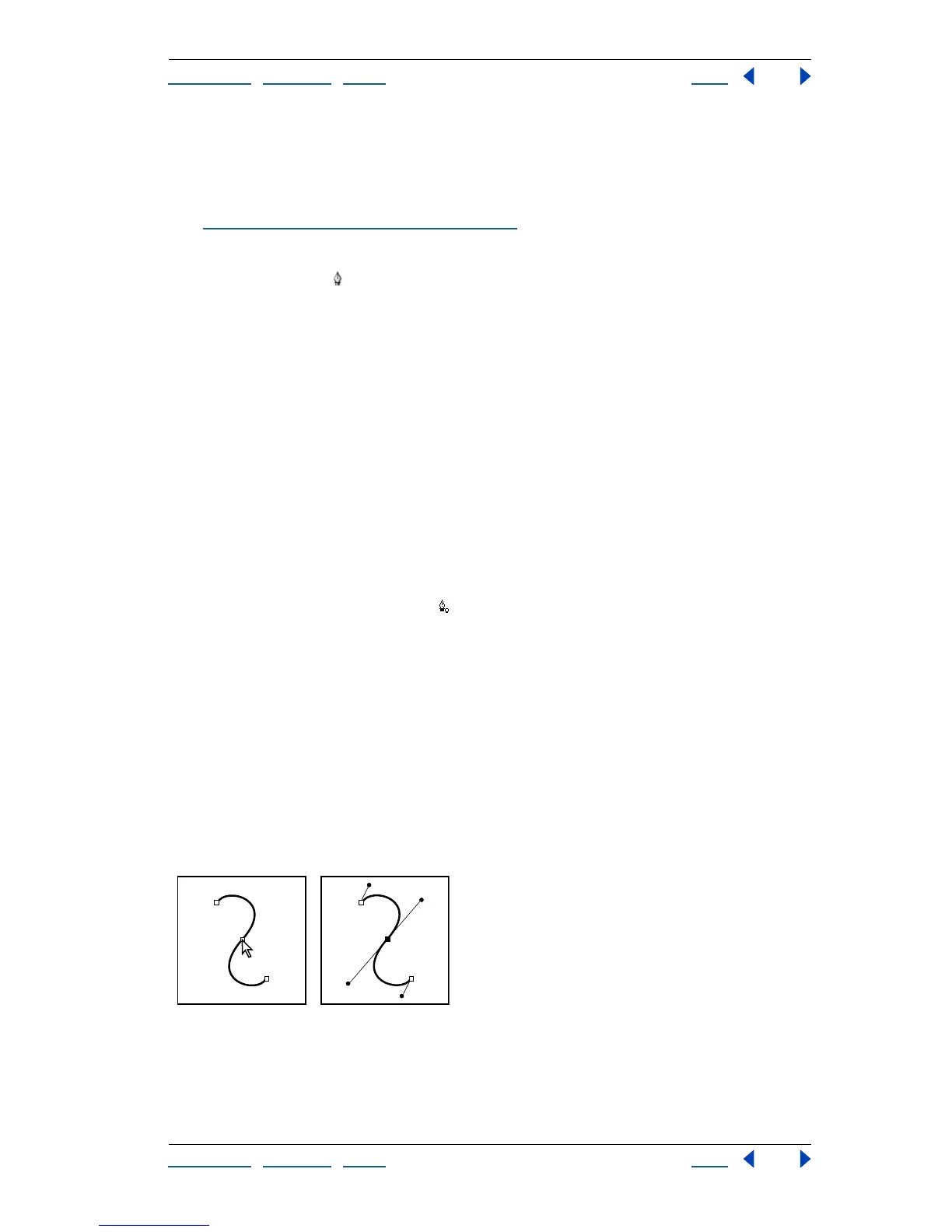
About direction lines and direction points
Before you draw and modify curved segments with the pen tool, it’s important to under-
stand two elements that are associated with anchor points on curves. When you use the
direct-selection tool to select an anchor point connecting curved segments, the segments
display direction lines which end in direction points. The angle and length of the direction
lines determine the shape and size of the curved segments. Moving the direction points
reshapes the curves. Direction lines don’t print.
After selecting an anchor point (left), direction lines appear on any curved segments connected by
the anchor point (right).



 To Next Page