Using Help | Contents | Index Back 52
Adobe Illustrator Help Drawing
Using Help | Contents | Index Back 52
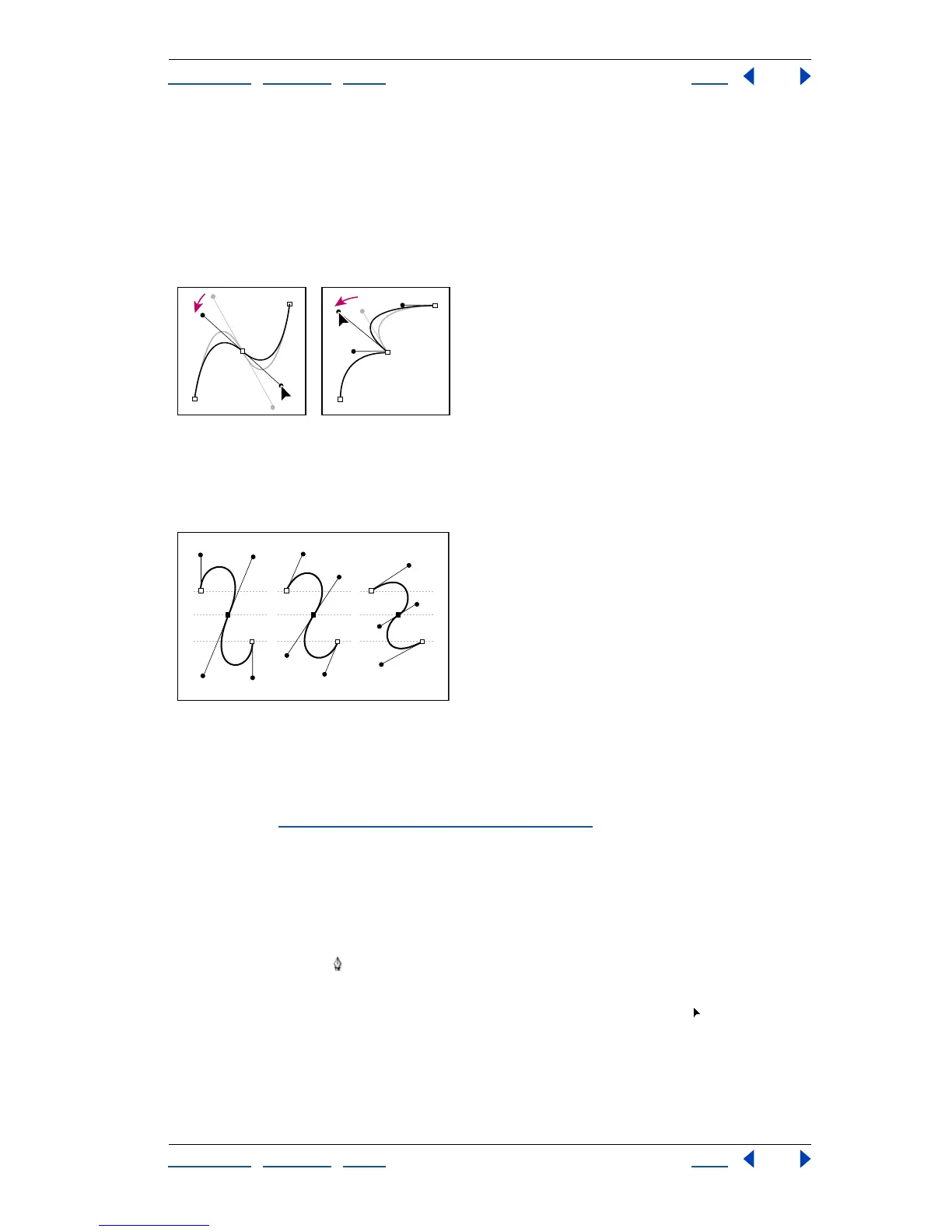
A smooth point always has two direction lines which move together as a single, straight
unit. When you drag the direction point of either direction line on a smooth point, both
direction lines move simultaneously, maintaining a continuous curve at that anchor point.
In comparison, a corner point can have two, one, or no direction lines, depending on
whether it joins two, one, or no curved segments, respectively. Corner point direction lines
maintain the corner by using different angles. When you drag a direction point on a corner
point’s direction line, the other direction line, if present, does not move.
Adjusting direction lines on a smooth point (left) and a corner point (right)
Direction lines are always tangent to (perpendicular to the radius of) the curve at the
anchor points. The angle of each direction line determines the slope of the curve, and the
length of each direction line determines the height, or depth, of the curve.
Moving and resizing direction lines changes the slopes of curves.
Drawing curved segments
You create curves by using the pen tool to add anchor points where a curve changes
direction, and to drag the direction points that shape the curves. To draw individual curve
segments, see “
Drawing line and arc segments” on page 67.
Curves are easier to edit and your system can display and print them faster if you draw
them using as few anchor points as possible. Using too many points can also introduce
unwanted bumps in a curve. Instead, draw widely spaced anchor points, and practice
shaping curves by adjusting the length and angles of the direction lines.
To draw a curved segment:
1 Select the pen tool .
2 Position the pen tip where you want the curve to begin. Hold down the mouse button.
The first anchor point appears, and the pen tip changes to an arrowhead .



 To Next Page