Using Help | Contents | Index Back 54
Adobe Illustrator Help Drawing
Using Help | Contents | Index Back 54
• To leave the path open, Ctrl-click (Windows) or Command-click (Mac OS) anywhere
away from all objects, or choose Select > Deselect, or select a different tool in the
toolbox.
Mixing curves, corners, and straight segments as you draw
You can freely alter point types and direction lines as you draw a path. This is useful for
interactively drawing straight and curved segments on a single path, or when you want to
draw two curved segments that are connected by a corner point.
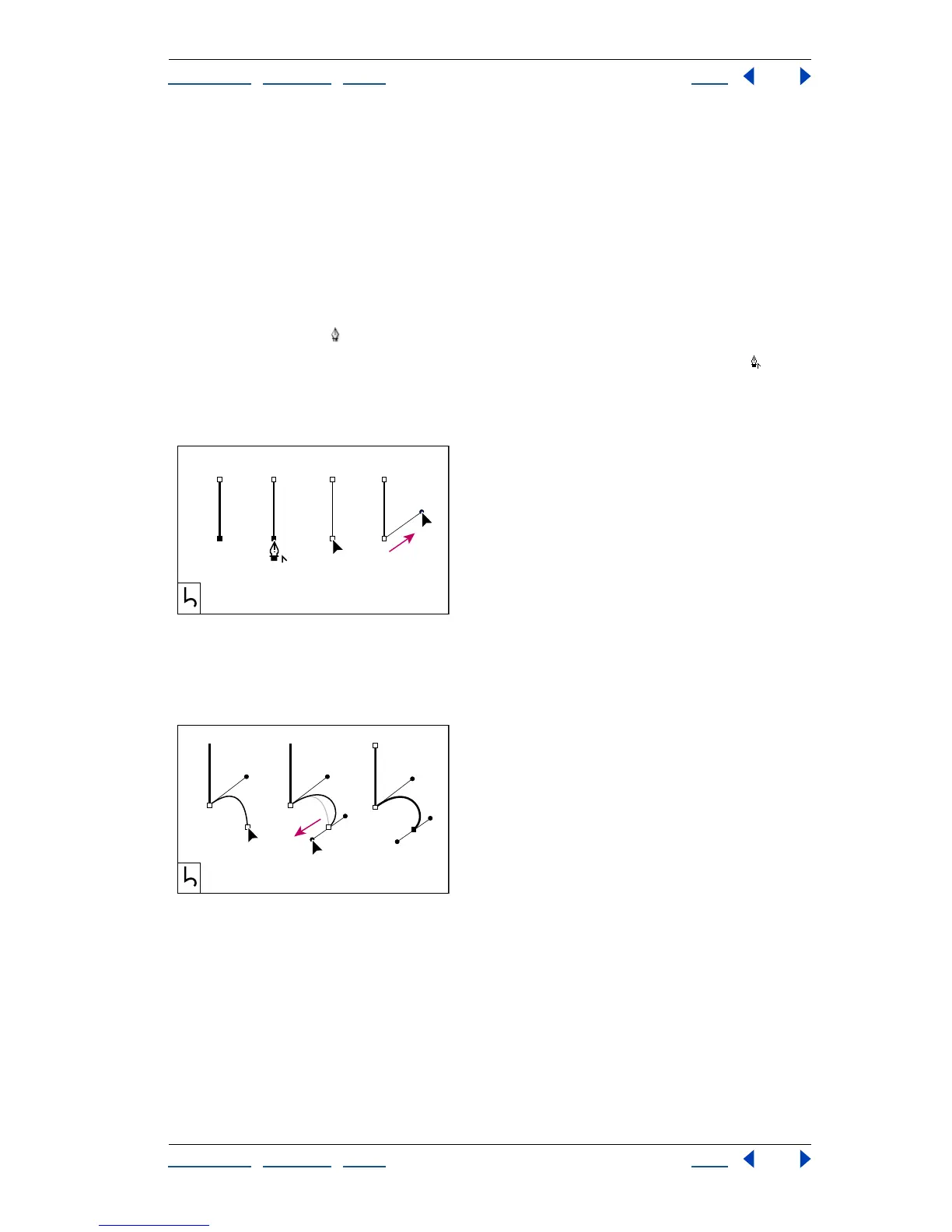
To draw a straight segment followed by a curved segment:
1 Using the pen tool , click corner points in two locations to create a straight segment.
2 Position the pen tool over the selected endpoint. A convert-anchor-point icon
appears next to the pen tool when it is positioned correctly. Drag a direction point at an
end of the direction line that appears, to set the slope of the curved segment you’ll
create next.
Drawing a mixed segment (part 1)
A. Straight segment completed B. Positioning pen tool over endpoint C. Beginning to drag
D. Dragging direction point
3 Click or drag the third anchor point to complete the curve.
Drawing a mixed segment (part 2)
A. Holding pen tool down B. Dragging direction point C. New curve segment completed
To draw a curved segment followed by a straight segment:
1 Using the pen tool, drag to create the first smooth point of the curved segment.
A CB D
A B C



 To Next Page