3.1.1 Changing from Access Level 1 to Level 2
If the panel has an access key switch fitted, use the key in preference to the menu options shown
below.
3.1.1.1 Menu Access
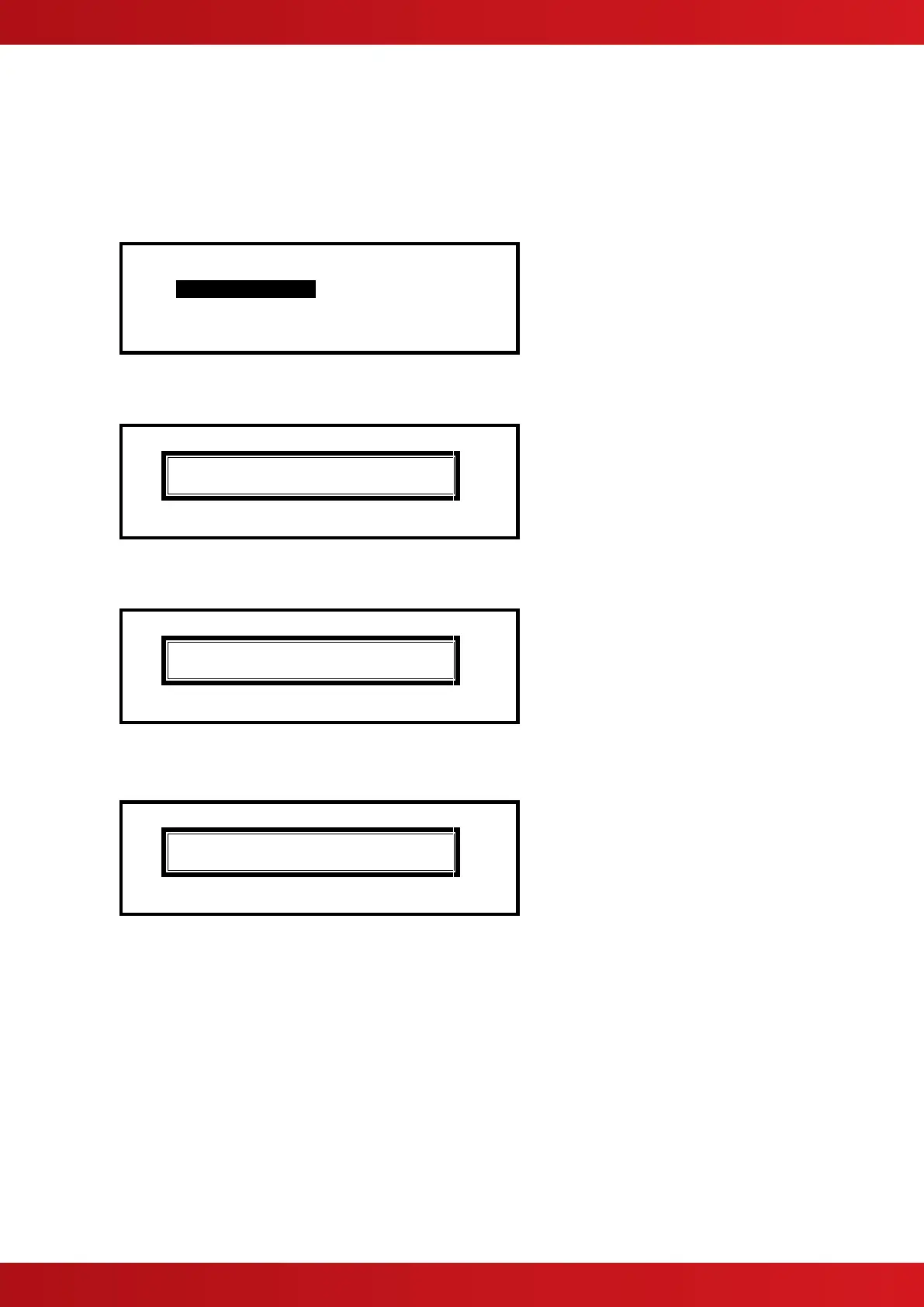
Press the ‘MENU’ button. The level 1 menu will be displayed as shown below:
[ CONTROLS DISABLED ]
ENABLE CONTROLS VIEW
LED-TEST STATUS
To enable the controls, ensure the “Enable Controls” option is highlighted and then press the ✔ button. The
display then requests entry of the Level 2 or 3 passwords as follows:
Please Enter Your Password
Enter the password using the number buttons and then press the ✔ button. As each number is entered, an
asterisk (*) is shown on the display. For example:
Please Enter Your Password
**
If the password is correct, the Level 2 Menu options will be shown.
If the password is incorrect, the display briefly shows the following message.
Please Enter Your Password
Password Not Recognised !
3.1.1.2 Control Buttons at Level 1
If any of the control buttons (Reset, Silence / Resound or Evacuate) are pressed, the display automatically
prompts for the password. Enter the password as above.
3.1.2 Changing from Access Level 2 to 1
If the panel has an access key switch fitted, use the key switch.
Alternatively, if passwords are used, select the “Disablement” menu and then select “Disable/Controls” – see
section 3.10.3 for details.
www.acornfiresecurity.com
www.acornfiresecurity.com


 To Next Page