3.10 Disabling
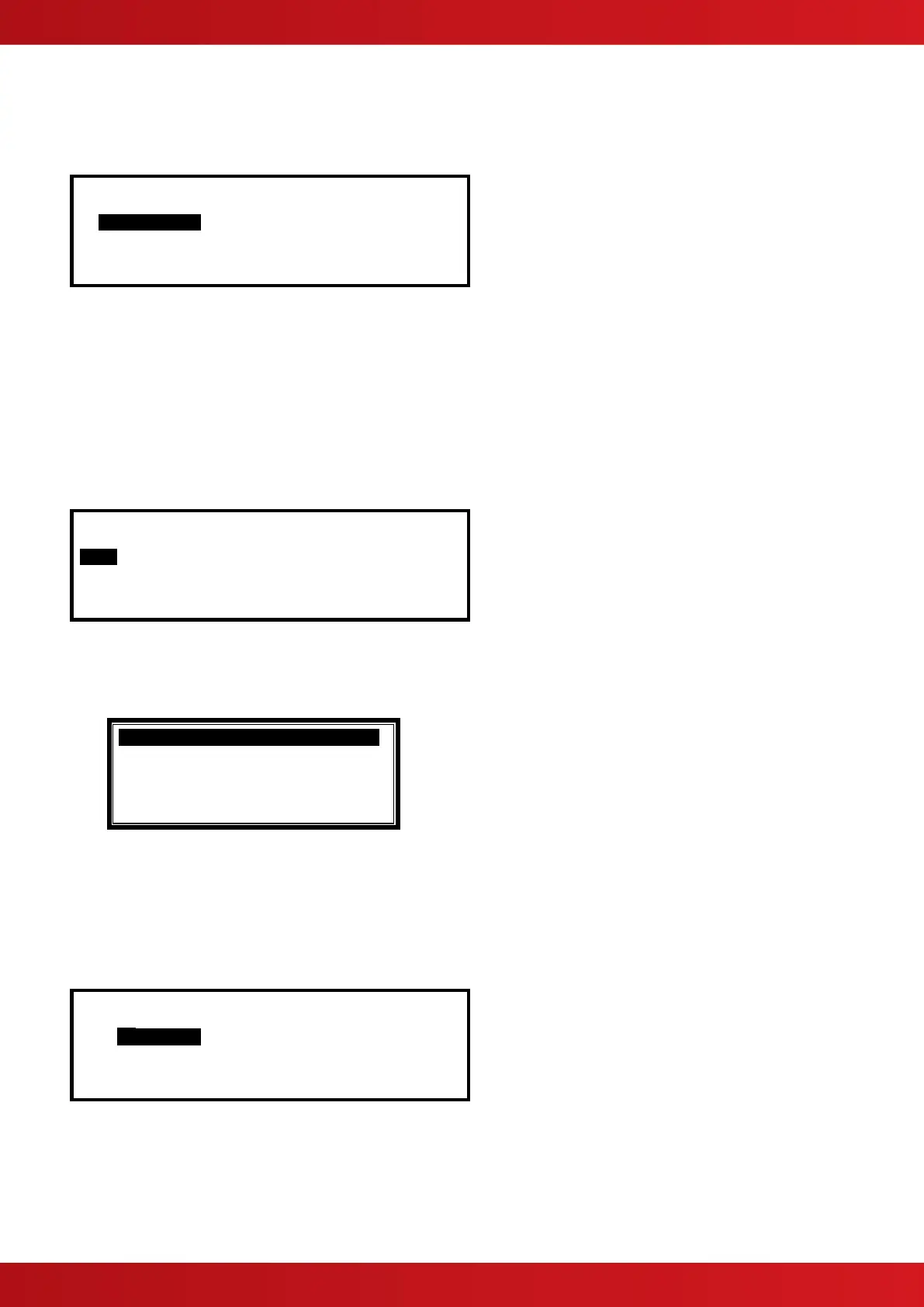
On selecting the Disable Menu, the display shows five possible options. For example:
[Disable] User 1 Node 1
ZONE/INPUTS OUTPUTS GROUPS
CONTROLS USER-ID
Press the buttons to highlight the required menu option and then press the ✔ button to select it.
3.10.1 Disable - Zones and Inputs
This option provides the means to disable a complete zone, disable all input devices except call points or
disable individual input devices.
If the current User ID does not have the necessary permission, the display prompts for entry of a password to
guard against inadvertent changes.
On selecting this option, the display shows a list of the current zones and their current disablement status. For
example:
[ 0 Zones with Inputs Disabled] More>
Zone Mode Location
0001 Enabled BASEMENT WEST
0002 Enabled BASEMENT EAST
0008 Enabled GROUND FLOOR
0009 Enabled MAIN RECEPTION AREA
Press the buttons to scroll through the available zones, or key in a specific zone number.
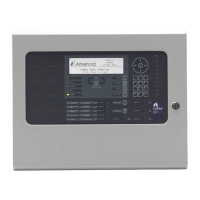
To disable the entire zone, move over to the Mode column and highlight the existing mode. Press the ✔ button
and a pop-up window appears showing the possible options: -
Press the buttons to scroll through and highlight the required option and then press the ✔ button to select
it.
If ALL INPUTS is chosen, the pop-up window disappears and the State of the Zone is changed to ALL
DISABLED.
If SELECTED INPUTS is chosen, the pop-up window disappears and a list of the input devices within the
selected zone is presented. For example:
[ Inputs in Zone 0001] More>
Mld Mode Device Text
/ 1 Enabled Room 151
/ 2 Disabled Room 152
/ 3 Enabled Kitchen
/14 Enabled Lobby
Press the button for more information on the inputs, including full state, type, analogue value etc.
Press the buttons to scroll through and highlight the required input and then press the ✔ button to disable
it.
Press the ‘Esc’ button to return.
www.acornfiresecurity.com
www.acornfiresecurity.com


 To Next Page