3.9 Viewing
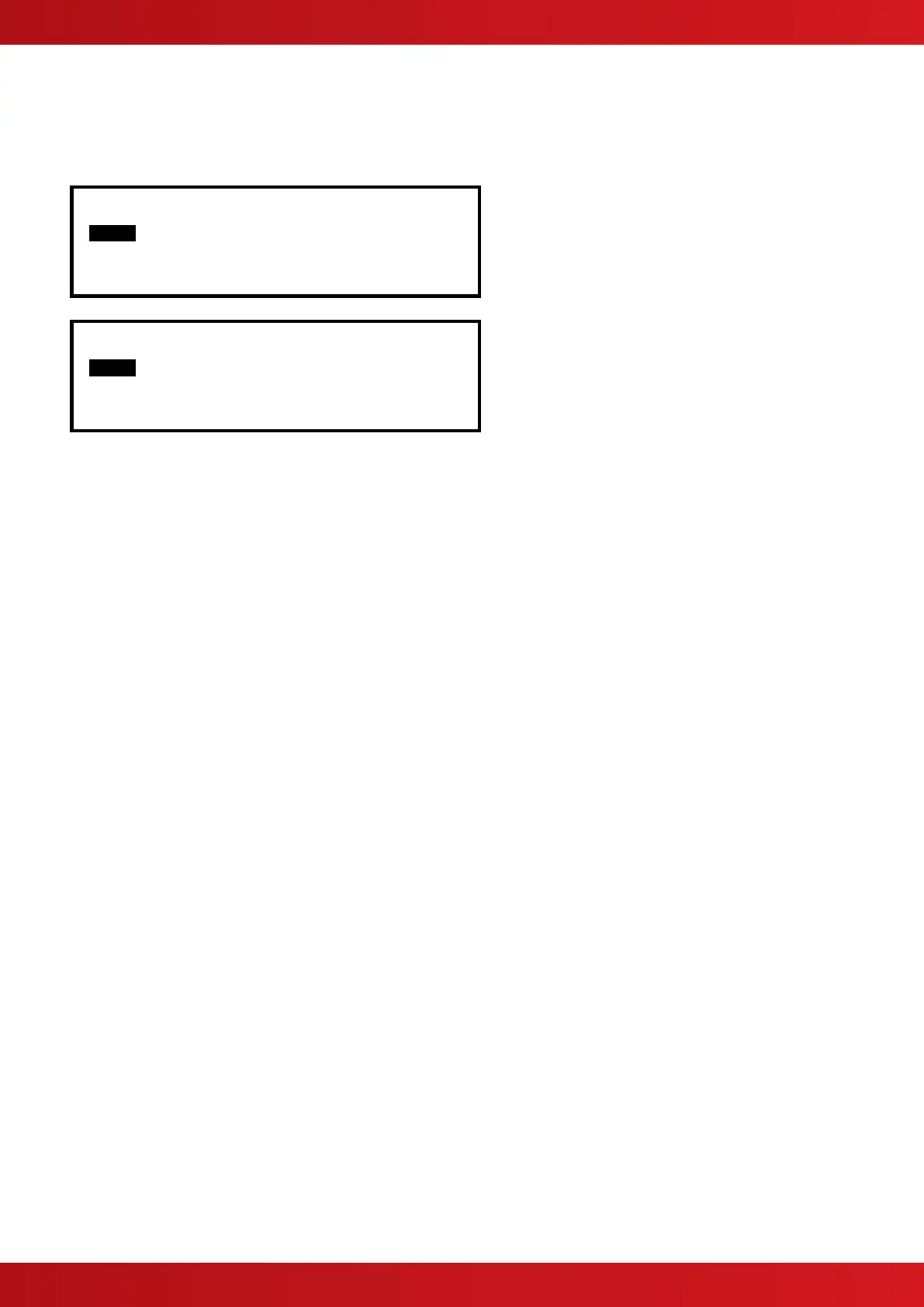
The View menu is available on two pages. Highlight the “Next Menu” option and pres the ✔ button to select the
next page.
[View Menu 1] User 1 Node 1
FIRES FAULTS ALARMS
DISABLED INPUTS OUTPUTS
Next Menu
[View Menu 2] User 1 Node 1
PANEL NETWORK WARNINGS
SUPERVISORY LOG
Next Menu
Note that Fires, Faults, Alarms, Disablements and Supervisory conditions are all normally shown without having
to select the view menu. If, however, you wish to manually View any of these, they can be selected from this
menu as required.
3.9.1 View - Fires
This function shows the Zones and Inputs that are currently in a Fire Alarm condition.
The operation of the panel and the information that can be shown is identical to the views available from the
main operating display. Refer to Section 3.2 for further information.
If there are no Zones or Inputs in a Fire Alarm condition, the display automatically reverts to the Main View
Menu.
3.9.2 View - Faults
This function shows the Zones, Inputs and Outputs that are currently in a Fault condition.
The operation of the panel and the information that can be shown is identical to the views available from the
main operating display. Refer to Section 3.3 for further information.
3.9.3 View - Alarms
This function shows the Zones and Inputs that are currently in an Alarm condition. These may occur if:
The Zone or Input is currently in a Fire Test condition and / or
Inputs that are configured to generate an alarm or pre-alarm condition when operated are active.
The operation of the panel and the information that can be shown is identical to the views available from the
main operating display.
3.9.4 View - Disabled
This function shows only Inputs and Outputs that are currently in a Disabled condition.
The operation of the panel and the information that can be shown is identical to the views available from the
main operating display. Refer to Section 0 for further information.
If there are both Inputs and Outputs in a Disabled condition, the display presents the inputs first followed by the
outputs.
If there are no Inputs or Outputs in a Disabled condition, the display does not change and continues to show the
Main View Menu.
www.acornfiresecurity.com
www.acornfiresecurity.com


 To Next Page