Note: The EVACUATION button will terminate the investigation delays and activate all programmed sounders.
3.3 Fault Condition
When the system registers a fault condition the Yellow Fault Indicator is illuminated, the internal buzzer sounds
intermittently and the display shows the cause of the fault in more detail.
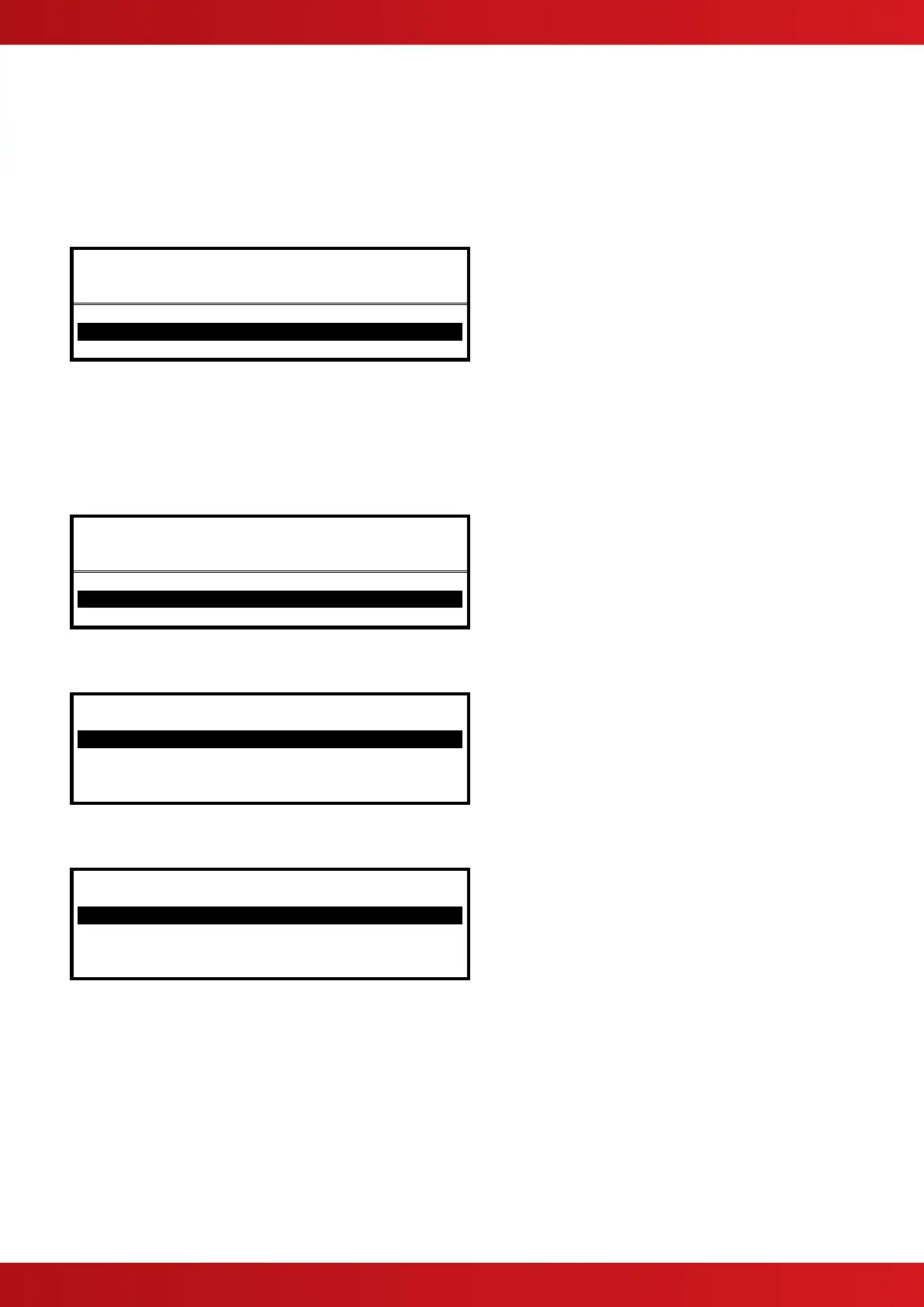
An example of the display is shown below:
ZONE 0001 DEVICE MISSING
BASEMENT WEST
RESTAURANT (MULTI.SENSOR)
< Location Text for First Zone
< Location Text and Type of Device
If more than one fault condition occurs, these will be shown on the display. If the internal buzzer was muted, it
will sound again when a new fault condition is registered.
When the fault condition is corrected, the panel automatically clears the appropriate fault Status Indicators and
Display information.
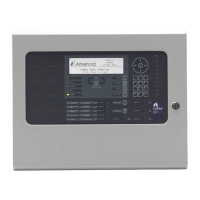
Press the ‘MUTE’ button to silence the internal buzzer The display then shows the current time and date and
service centre telephone number along with the indication of the fault.
FOR SERVICE CALL
01234 567890
LEVEL 2
16:05
04 MAR 2008
< Panel access level
< Service Call Number
< and Time / Date
To obtain more detailed information about the faults, press the button. The display then presents a list of all
of the zones in a fault condition with the first fault highlighted. For example:
[ 2 Zones in Fault] More>
ZONE LOCATION
1 BASEMENT
100 RECEPTION
< Number of zones in fault
< Zone #, Location Text for each
< zone
Press the buttons to highlight the required fault and then press the button to show further information.
For example:
[ Faults in Zone 0001 ] More>
Mld Device Text
/32 Room 112
< Device № (if applicable) &
device text description
Press the button to show further information on device state, type, analogue/digital values and loop, address,
sector and node, etc.
Press the ‘ESC’ key to return to the previous display.
If no button is pressed within a minute, the display automatically reverts to the main display.
www.acornfiresecurity.com
www.acornfiresecurity.com


 To Next Page