BRIDGE LIVE Video I/O and Streaming Appliance v1.12 87 www.aja.com
Cropping Example
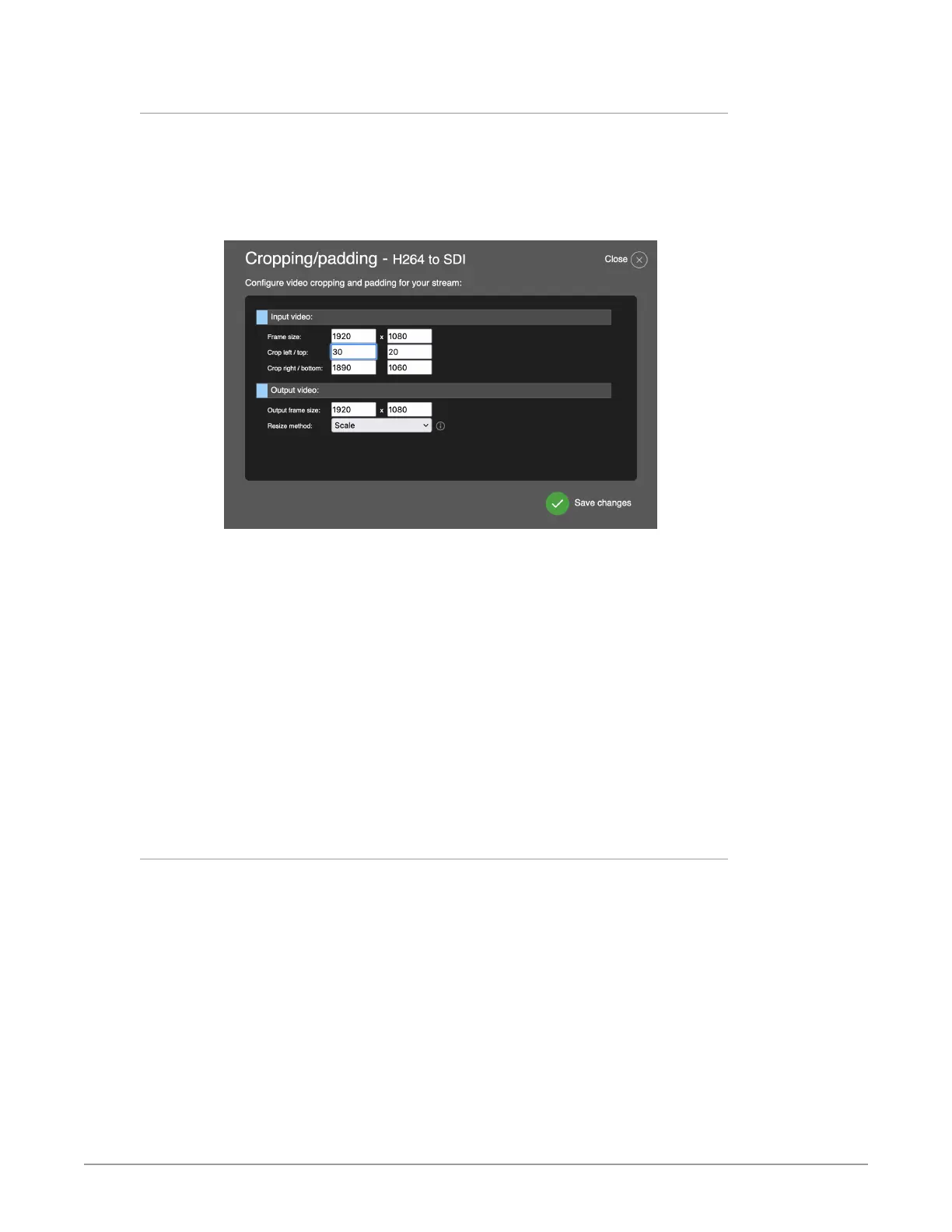
As an example, let's consider a case in which you want to crop an image with a
frame size of 1920 x 1080. You want to crop 30 pixels off of the left side, 30 pixels
off of the right side, 20 pixels off of the top, and 20 pixels off of the bottom. In
that case, you would enter the numbers as shown below. Select Scale for Resize
method.
Figure 133. Example of entering numbers into Crop number fields
• In the above example, the number "30" is being used to crop the left side. "30"
indicates the horizontal offset of the first pixel to be used from the input video
(0 by default). Use a negative value to create explicit padding.
• The number "20" is being used to crop the top. "20" indicates the vertical
offset of the first pixel to be used from the input video (0 by default). Use a
negative value to create explicit padding.
• The number "1890" is being used to crop the right side. "1890" indicates the
horizontal offset after the last pixel to be used from the input video (frame
width by default). Use a value greater than the width to create explicit
padding.
• The number "1060" is being used to crop the bottom. "1060" indicates the
vertical offset after the last pixel to be used from the input video (frame height
by default). Use a value greater than the height to create explicit padding.
For the output video, you can adjust the output frame size and resize method.
Resize Method
From the Resize method pull-down menu, available selections are:
• Scale: Resizes the configured input frame to the configured output frame and
changes the aspect ratio when it differs.
• Crop: Resizes the configured input frame to the configured output frame, but
keeps the input frame aspect ratio. The input will be automatically cropped
horizontally or vertically.
• Pad: Resizes the configured input frame to the configured output frame, but
keeps the input frame aspect ratio. The input will be automatically expanded
with horizontal or vertical black bars.


 To Next Page