BRIDGE LIVE Video I/O and Streaming Appliance v1.12 95 www.aja.com
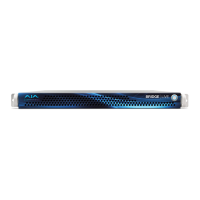
3. Install the BRIDGE LIVE chassis into a standard 19-inch wide equipment rack,
allowing space for cooling airow. The chassis occupies only one vertical
rack unit.
4. Two rack rail assemblies are included in the rack mounting kit. Each
assembly consists of two sections: an inner xed chassis rail that secures
directly to the server chassis and an outer xed rack rail that secures directly
to the rack itself.
5. The rail assemblies are shipped with rack adapters installed for use with IT
(square hole) style rack frames. For IT racks, simply slide the unit into place,
as the rails will lock automatically. For use with a standard round hole rack
frame, you will need to remove the adapters using a small Phillips head
screwdriver.
6. Connect the two BRIDGE LIVE power cords to AC mains. For redundancy,
use both power supplies and connect them to separate branch circuits so
that the BRIDGE LIVE will continue to operate even if a circuit breaker opens
on one branch.
7. Connect a computer monitor (user supplied) to one of the rear DisplayPort
ports.
8. Connect a keyboard and mouse (user supplied) to available rear USB 3.0
connectors.
9. Power up the chassis. The system will boot up to the BRIDGE LIVE
application.
Initial System Setup via Local Interface
For initial setup, BRIDGE LIVE will need to be accessed locally via customer
supplied keyboard, mouse and monitor (via Display Port).
Once BRIDGE LIVE has been unpacked and safely racked-mounted, cables and
peripherals can be added; 10GbE cables for network connectivity, SDI cables for
baseband audio/video I/O, USB keyboard, USB mouse, monitor (via Display Port),
and dual power cables for redundant power supplies.
Cabling Guide
This section covers callouts for the connections, including which port to use for
media/control.
• 10GbE Ports 01 and 02:
• Left Port from rear is #01 – use this for media connectivity
• Right Port from rear is #02 – use this port for control/monitoring


 To Next Page