BRIDGE LIVE Video I/O and Streaming Appliance v1.12 90 www.aja.com
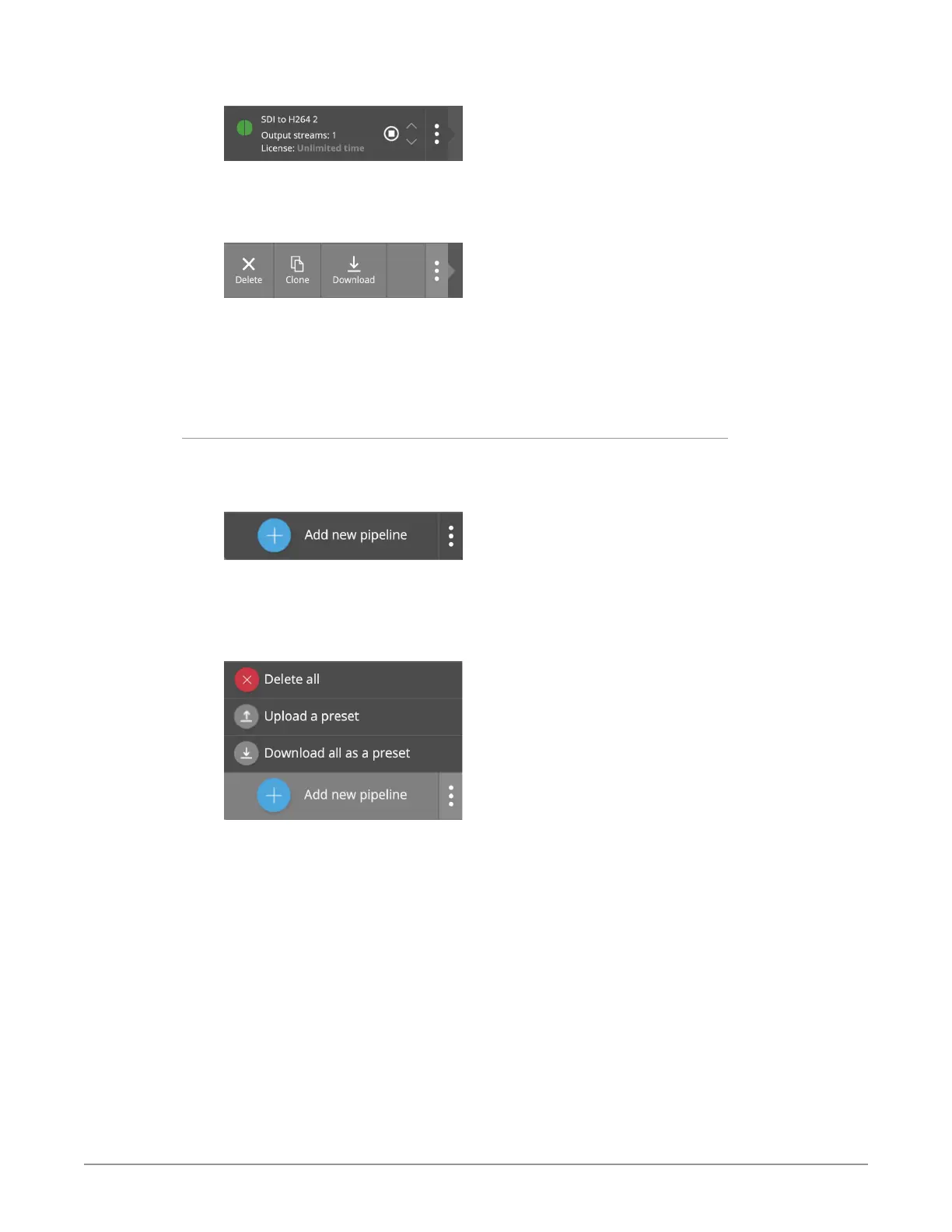
Figure 136. Initial display of vertical row of three dots
3. Click on the vertical row of three dots. Three buttons display, giving you the
choice of Deleting, Cloning, or Downloading the Pipeline.
Figure 137. Delete, Clone, and Download buttons
4. Select Download. A JSON le downloads to your computer that contains
all of the conguration settings. If your pipeline is named "SDI to H264," the
downloaded le will be named "SDI to H264.json." This is the Preset le. You
can view or edit it using a text editor.
To load a preset configuration
1. From Dashboard, hover your mouse over Add new pipeline from the lower
left area.
Figure 138. Add new pipeline
2. Click on the vertical row of three dots. Three buttons display, giving you the
choice of Delete all, Upload a preset, or Download all as a preset.
Figure 139. Three buttons displaying after clicking the vertical row of three
dots
3. Select Upload a preset. A navigation window displays.
4. Navigate to the .json le that you want to upload, select it, then click
Open. Dashboard refreshes to display the Pipeline populated with all the
conguration settings that were stored in the JSON preset conguration le.


 To Next Page