Getting to know your telephone
8AL90627ENAA ed02 13 /45
1.3 Welcome screens
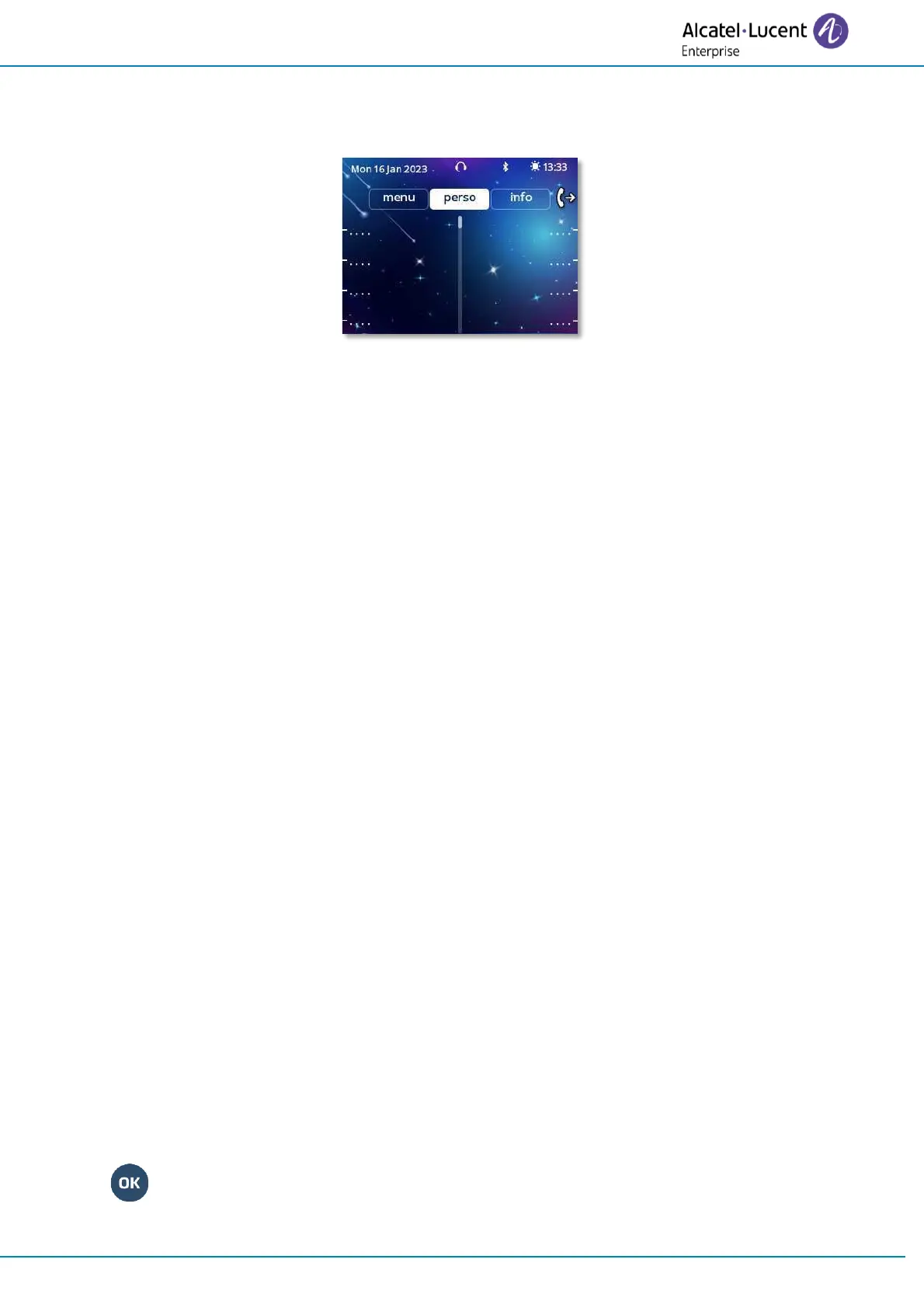
The screen of your desk phone displays different pages by selecting tabs.
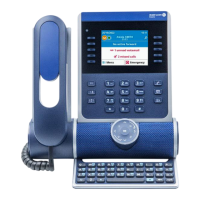
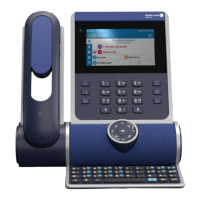
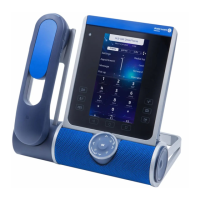
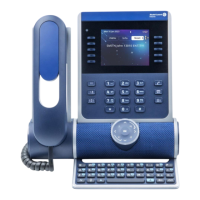
ALE-300 Enterprise DeskPhone
You can access all of your phone's features from these screens. The displayed pages depend on the
system configuration. You can open a page by selecting the tab at the top of the screen. Depending
on your phone, touch the tab at the top of the screen (touch screen) or use the left or righr
navigation keys to select it. The selected page is highlighted.
• Menu page (Menu)
• Customize the attendant set environment (language, ringing, password, optional
equipments, options).
• Program the set directory.
• Configure the programmable keys.
• Change the status of the attendant group and entity.
• Display the identity of the attendant set and the group to which the set belongs.
• Perso page (Perso)
Contains call line keys (allowing supervision of calls) and programmable keys.
• Info page (Info)
Contains information on the telephone and the status of its functions: name, telephone
number, number of messages (including text messages and voice messages), transfer
status, appointment reminder, etc.
• Next page (Next)
The next page displays the list of incoming calls (i.e. call handling page). The caller
information displayed in the next page differs according to the type of incoming call:
o For internal or network incoming calls, the caller identity and entity are displayed.
o For external incoming calls, the caller identity is displayed when the caller directory
number has been defined in the system as speed dialing number. When this is not
the case, the caller directory number is displayed as well as the name of the trunk
group Up to eight incoming calls can be displayed in the next page (four calls can be
displayed simultaneously on the screen).
1.3.1 Choose the page displayed by default on the telephone
• Settings
→
Phone
→
Homepage
• Select the default page (Menu, Perso, Info, Last page seen …).
•


 To Next Page