Getting to know your telephone
8AL90627ENAA ed02 5 /45
1 Getting to know your telephone
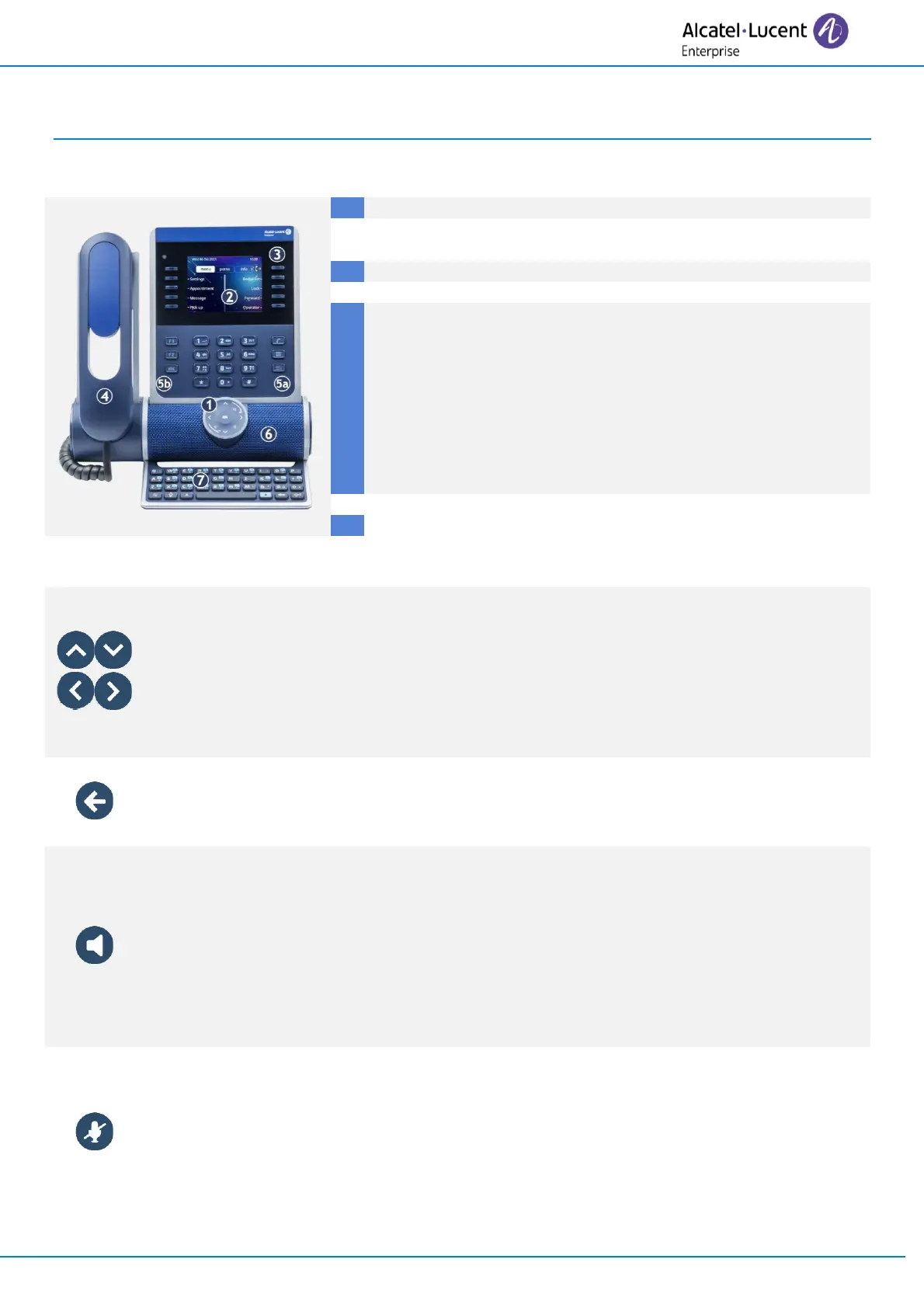
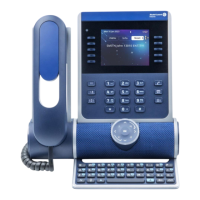
1.1 ALE-300 Enterprise DeskPhone
Color display with auto brightness adjustment which enhances
user experience and saves power (ambient light sensor).
10 dedicated functions keys.
Corded handset (ALE-150 Super WideBand Corded Handset).
Permanent feature keys: quick access to the phone's main
features.
(5a) 3 permanent keys (hang up key, messaging key, local menu
key).
(5b) 3 removable keys depending on the system configuration
(F1/F2/abc, Hold/ Transfer/Conference). In case they are not
configured as hold, transfer and conference keys, these keys are
programmable. When a magnetic keyboard is connected, 'abc'
key is programmable.
Wideband loudspeaker for optimized sound.
Magnetic alphabetic keyboard (optional - ALE-100 Keyboard).
1.1.1 Keys specific to the Enterprise DeskPhone
Up-down navigator
Used to scroll through the content of a page.
Left-right navigator
In idle state, use this key to move from one page to another. In conversation, use this
key to move between tabs of current calls (call in progress, calls on hold, incoming
call). In the text edition, use this key to navigate into the text box.
Back/Exit key
Use this key to go back to the previous step (short press). Use this key to go back to
the homepage (long press). Use this key to delete one number or character at a time.
Hands-free/Loudspeaker key
Pressing this key answers an incoming call in hands-free mode (when activated, the
key is lit blue). When a call is in progress, pressing this key switches from hands-free
mode to headset or handset mode. A long press activates the loudspeaker when a call
is in progress via the handset or headset.
A long press in idle state displays audio devices and lets you define the default audio
device if you have connected the same type of accessory onto different connectors.
Mute and interphony key
Mute key: during a call, press this key to stop your contact from hearing you. When
activated, the key is lit in blue and the Smart Pad ring in red.
Interphony key: when idle, press this key to switch the phone to interphony mode.
When you receive a call, the phone automatically answers into hands-free mode. This
key lights up blue when activated. Interphony can be disabled by the administrator.


 To Next Page