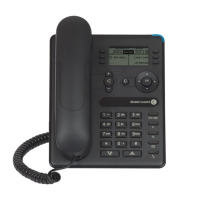
Alcatel-Lucent 8001 DeskPhone
ALE International proprietary and confidential. Copyright © 2016. All rights reserved.
Page 10 of 49
3.4 SIP Account Settings
8001 DeskPhone makes calls based on SIP accounts. It can support one account or Two-
accounts. Each account can be configured to a different SIP server.
If you want to... Then...
-- 2) Enter the password required (By default: empty) ;
-- 3) Select “SIP" > “Account sip";
-- 4) Select one of the accounts you want to set, you can configure
the following parameters
- Enable account*: Select Enable
- Number of lines: Default is 2
- Description: description of this account
- Display Name: The name displayed on the screen
- Authentication user: the Authenticated users are matched
with the SIP server.(By default with the same account)
- Account*: the account matches with the SIP server (extension
number)
- User password*: the user password matches with the SIP
server
- SIP Server*: The primary SIP server, all calls through this
server
- Out Bound Server: The outbound SIP server
- STUN Type: Enable/Disable STUN feature
- STUN: Input STUN URL
- Auto Answer: Enable/Disable this account auto answer
feature
* Note: When you finish the setting, you can press Save to
activate it, and then you can see the status icon in the LCD idle.
The parameters with the * mark here above must be
set.
-- 2) Enter the password required (By default empty) ;
-- 3) Select “SIP" > “Account sip";
-- 4) Select “Enable account" > “Disable";
-- 5) Select “Save" to save settings




 To Next Page