EasyManua.ls Logo

Alcatel GO FLIP - User Manual

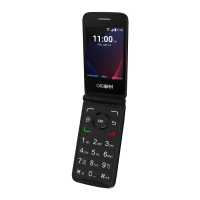
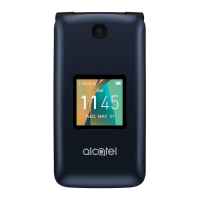
Alcatel GO FLIP
120 pages
Print Icon
To Next Page IconTo Next Page
Loading...
User Guide
[Gflip2_sprint_4044T_ug_en_20161122_d1]

Table of Contents

Other manuals for Alcatel GO FLIP

Questions and Answers

  • A
    Andrea BrockSep 1, 2025
    Why caller's name/number does not appear when a call is received on Alcatel GO FLIP Cell Phone?
    • S
      Stephanie LeachSep 1, 2025
      If the caller’s name/number does not appear when you receive a call on your Alcatel Cell Phone, check that you have subscribed to this service with your carrier.
  • J
    Jacqueline PerezSep 13, 2025
    What to do if my Alcatel Cell Phone is not responding?
    • J
      Joseph StantonSep 13, 2025
      If your Alcatel Cell Phone has not responded for several minutes, restart your phone by pressing and holding the End/Power key. If your phone has a removable battery, remove it, reinsert it, and then restart the phone.
  • L
    laurenellisAug 31, 2025
    Why Alcatel GO FLIP can't connect to the Internet?
    • V
      Veronica SmithAug 31, 2025
      If your Alcatel Cell Phone can't connect to the Internet, check that the IMEI number (press *#06#) matches the one on your warranty card or box. Ensure that your SIM card's internet access service is active, and verify your phone's internet connection settings. Make sure you are in an area with network coverage, and if issues persist, try connecting at a later time or in a different location.
  • J
    Julie HolderSep 15, 2025
    Why can't I send or receive MMS on my Alcatel GO FLIP Cell Phone?
    • J
      James HooperSep 16, 2025
      If you can't send and receive MMS on your Alcatel Cell Phone, check your phone memory as it might be full. Contact your network carrier to check service availability and MMS parameters. Verify the server center number or your MMS profile with your carrier. The server center may be busy, so try again later. Start a new Messaging string, as your current one may have reached its limit.
  • J
    Jonathan JohnsonSep 15, 2025
    Why does my Alcatel GO FLIP keep turning off?
    • A
      Angela LopezSep 15, 2025
      If your Alcatel Cell Phone turns off by itself, make sure that the End/Power key is not accidentally pressed. Also, check the battery charge level.
  • M
    Michael SimmonsSep 23, 2025
    Why is my Alcatel GO FLIP not discoverable via Bluetooth?
    • Y
      Yolanda MartinSep 23, 2025
      If your Alcatel Cell Phone can't be detected by others via Bluetooth, make sure that Bluetooth is turned on and your phone is visible to other users. Also, ensure that the two devices are within Bluetooth’s detection range.
  • A
    Andrew HallAug 27, 2025
    Why Alcatel GO FLIP Cell Phone can't connect to network or displays 'No service'?
    • C
      Cheryl BowenAug 27, 2025
      If your Alcatel Cell Phone can't connect to a network or displays "No service", try connecting in another location. Verify network coverage with your carrier and check that your SIM card is valid with them. You can also try manually selecting available networks or try connecting later if the network is overloaded.
  • J
    juliandominguezAug 27, 2025
    What to do if Alcatel GO FLIP is unable to make outgoing calls?
    • N
      Natasha HarrisonAug 27, 2025
      If your Alcatel Cell Phone is unable to make outgoing calls, ensure you've dialed a valid number and pressed the call button. For international calls, verify the country and area codes. Check that your phone is connected to a network that isn't overloaded or unavailable. Also, confirm your subscription status with your carrier regarding credit and SIM card validity. Ensure you haven't barred outgoing calls and that your phone is not in Airplane mode.
  • J
    Jill BakerAug 26, 2025
    Why Alcatel GO FLIP can't charge properly?
    • G
      Gregory GambleAug 26, 2025
      If your Alcatel Cell Phone is not charging properly, ensure you are using an Alcatel battery and the charger that came in the box. Also, make sure the battery is correctly inserted and clean the battery contacts if they are dirty, inserting the battery before plugging in the charger. Ensure that your battery is not completely discharged; if it has been empty for a long time, it may take about 20 minutes for the battery charger indicator to appear on the screen. Charging should be carried out under normal conditions (0°C to +45°C), and when abroad, verify that the voltage input is compatible.
  • Y
    Yesenia MartinezAug 25, 2025
    What to do if my Alcatel Cell Phone won't turn on?
    • R
      Randall CantuAug 26, 2025
      If your Alcatel Cell Phone can't be switched on, check the battery power level. If you cannot see the power level, charge the phone for at least 20 minutes.

Summary

Introduction to the User Guide

About the User Guide

Details on how to use the guide, descriptions, and notations for clarity and proper usage.

Setting Up Your Phone

Phone Parts, Layout, and Basic Components

Overview of phone parts, layout, and essential components for initial setup.

Battery and Storage Management

Instructions for battery installation, removal, charging, and managing SD cards for expanded storage.

SIM Card Handling

Guidelines for handling SIM cards and instructions for inserting/removing SD cards.

Powering On, Activation, and Configuration

Steps to power the phone on/off, activate service, and complete initial setup screens.

Basic Phone Operations

Home Screen and Navigation

Learn to use the home screen, app list, and phone settings menu for basic phone functions.

Capturing Screenshots and Managing Apps

How to capture screenshots and access the list of preinstalled applications on your phone.

Phone Number, Airplane Mode, and Text Entry

Displaying your phone number, enabling airplane mode, and methods for entering text.

Screen Locking and Software Updates

Securing your phone by locking the screen and instructions for updating phone software.

Phone Calls and Voicemail

Placing, Answering, and Managing Calls

Guide to placing, answering, and managing phone calls, including in-call volume and troubleshooting.

Voicemail Setup and Usage

Instructions for setting up voicemail, including creating a passcode and recording greetings.

Optional Calling Services

Details on additional voice services like call waiting, conference calling, and call forwarding.

Contacts Management

Adding and Saving Contacts

Instructions for adding, saving, and viewing contact details like name and phone numbers.

Editing, Deleting, and Sharing Contacts

How to edit, delete, and share contact information via various methods.

Importing and Backing Up Contacts

Options for importing contacts from storage and manually backing them up to an SD card.

Messaging and Email

Text and Multimedia Messaging

How to send, receive, and manage text (SMS) and multimedia (MMS) messages.

Email Setup and Operations

Steps to set up, compose, send, and manage email accounts and messages.

Connectivity Features

Internet Browsing and Wi-Fi Setup

Using the web browser and connecting to Wi-Fi networks for internet access.

Bluetooth Device Management

Enabling Bluetooth, pairing devices, and using it for data transfer and wireless connections.

Mobile Network and Data Settings

Managing mobile network settings, data connection, VoLTE/VoWiFi, and APN settings.

Apps and Entertainment

Camera and Video Operations

Instructions for using the camera, taking pictures, recording videos, and managing media.

Music Playback

Guide to using the Music app for listening to audio files on your phone.

Productivity Tools

Calendar Management

How to add, view, and sync events and calendars on your phone.

Clock Features: Alarms, Timer, Stopwatch

Using the clock app for setting alarms, using the timer, and operating the stopwatch.

Settings and Customization

Connections and Network Settings

Configuring network, Wi-Fi, Bluetooth, and mobile data connections.

General Settings Access and Overview

Accessing the main settings menu and understanding the top-level categories.

Personalization Settings

Customizing sound, display, search, notices, date/time, language, and input methods.

Privacy & Security Settings

Managing screen lock, app permissions, Do Not Track, and browsing privacy for security.

Storage & Device Information

Managing storage, device information, downloads, battery, accessibility, and system updates.

Getting Help and Regulatory Information

Troubleshooting and Support

Solutions for common phone problems and information on getting help.

Phone Specifications and Account Management

Details on phone specifications, battery, and managing your Virgin Mobile account.

Regulatory and Safety Compliance

Information on SAR, FCC emissions, hearing aid compatibility, and important warning statements.

Alcatel GO FLIP Specifications

General IconGeneral
Internal Storage4 GB
Expandable StoragemicroSD up to 32 GB
Rear Camera2 MP
Battery1350 mAh
Operating SystemKaiOS
SIMNano-SIM
ConnectivityWi-Fi, Bluetooth
Network4G LTE
Weight118g
Dimensions108.5 x 54.7 x 18.7 mm

Related product manuals