Live View
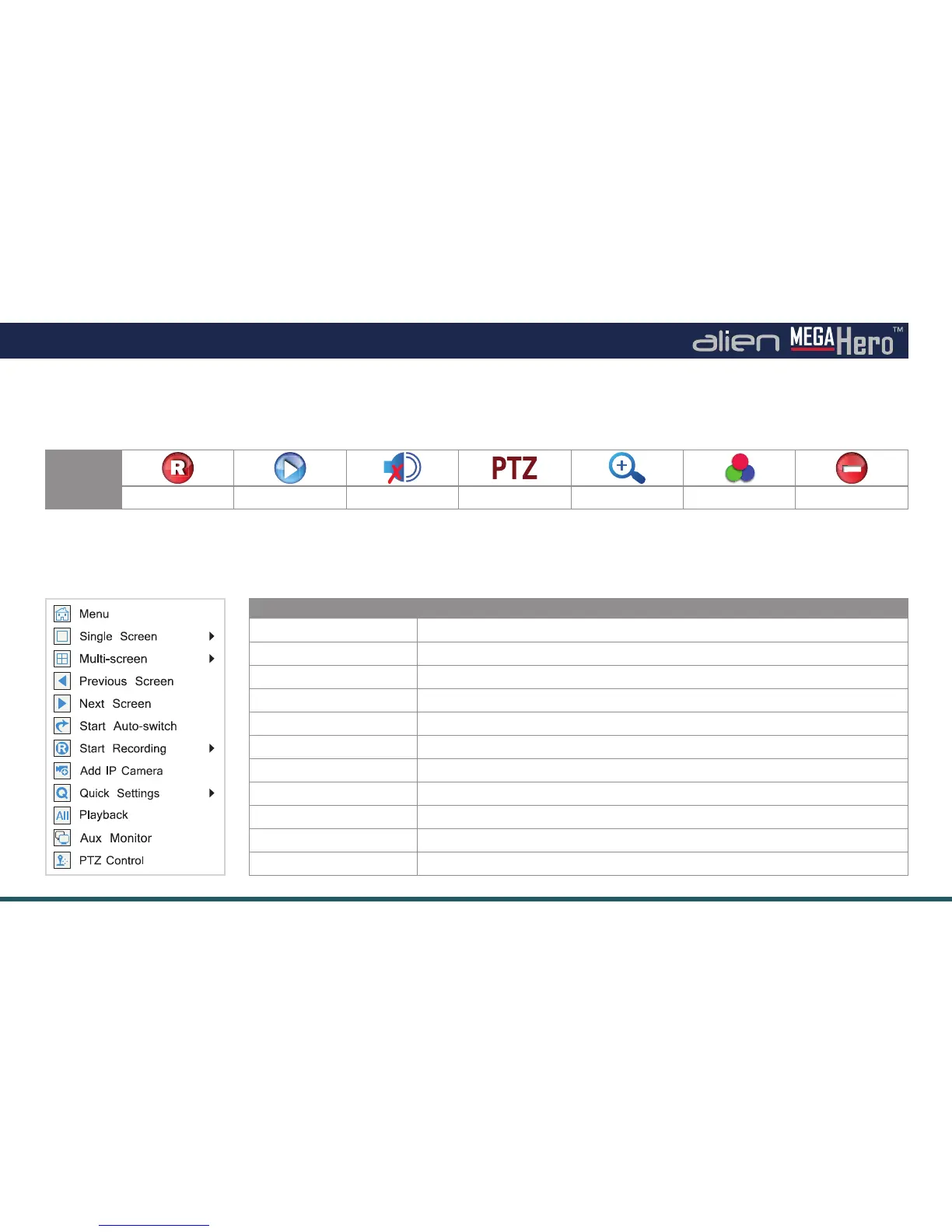
Icon
Description Manual Record Instant Playback Mute Audio PTZ Control Digital Zoom Image Settings Close
Live View Menu
In Live View mode, right click the mouse button on the window to see the Live View Menu.
Quick Setting Toolbar Explained
In Live View mode, left click the mouse button on any channel to see the Quick Setting Toolbar.
Name Function / Description
Menu Goes back to the main menu.
Single Screen
Switch to the single full screen by choosing a channel number from the dropdown list.
Multi-screen
Adjust the screen layout by choosing from the dropdown list.
Previous Screen Switch to the previous screen.
Next Screen Switch to the next screen.
Start/Stop Autoswitch Enable/disable the auto sequencing of the screens.
Start Recording
Start all-day normal recording or motion detection recording for all channels.
Add IP Camera Enter dialogue box to add/ delete IP cameras to/from DVR.
Quick Settings
Set the video output mode to Standard, Bright, Gentle or Vivid.
Playback Enter playback interface. See page 23 for more information.
PTZ Control Displays on-screen PTZ controls.


 To Next Page