27
In the WiFi networks listed by the Sentinare App, select the desired WiFi network and enter its
password, the LED on the sensor will first turn to red, then change to yellow and blue, and eventually
shows a steady green light. After that, this sensor will be successfully added to the account, and will
appear in the list of sensors in the selected room.
If your desired WiFi network is not shown in the list, you can rescan the networks for a few times,
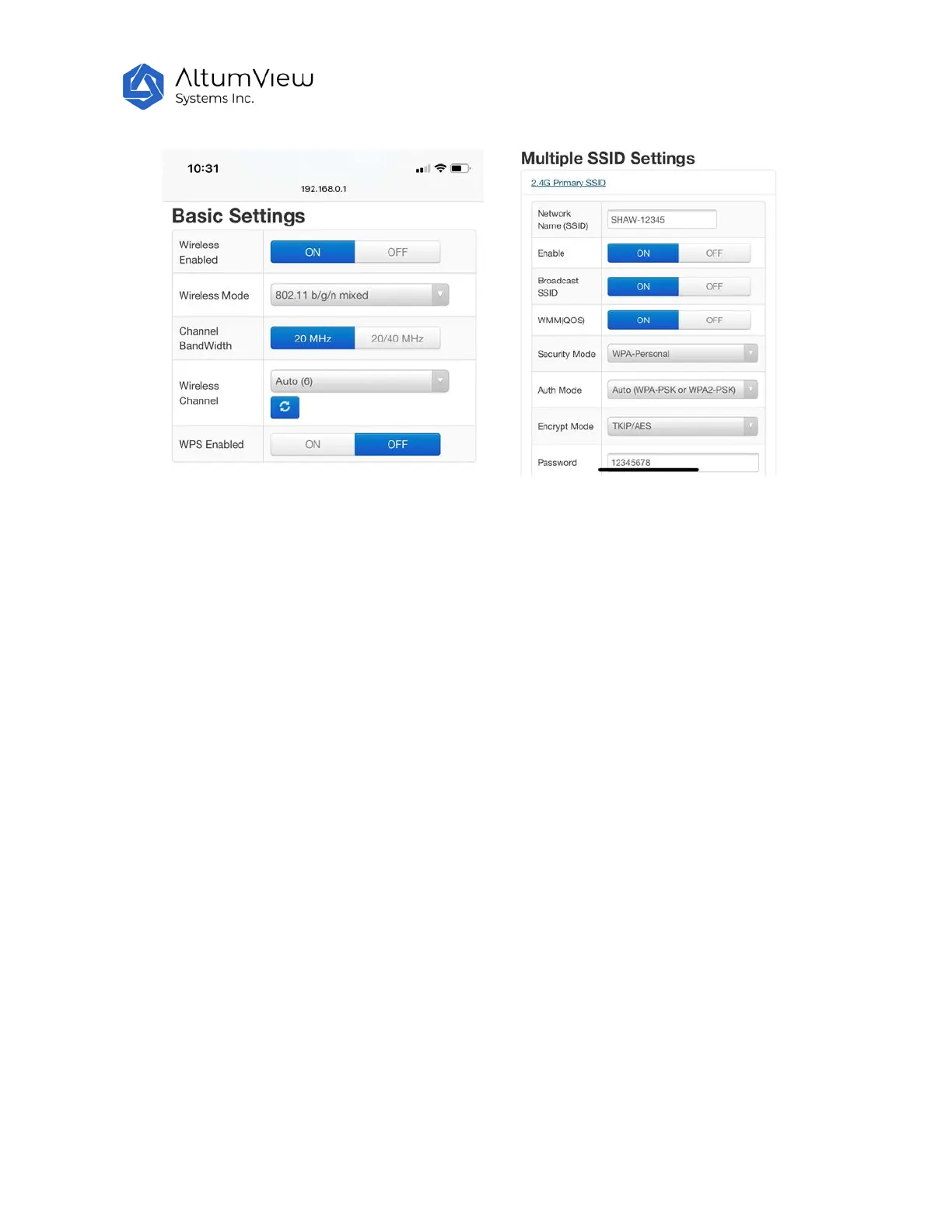
especially when the WiFi signal is not strong. Please also make sure your WiFi network meets the
requirements above.
After a sensor is added into an account, the WiFi can be re-configured, as shown in Section 4.2.3.



 To Next Page